R and Apteco
Apteco's R integration allows you to run and score R models against FastStats data directly within FastStats, making it ideal for model evaluation and scoring.
Key features:
- Scoring models—run R models against FastStats data and score FastStats records using the resulting model coefficients.
- Model evaluation—evaluate R models alongside others in the FastStats Modelling Environment, including those created with built-in tools.
- R code integration—execute R code that incorporates FastStats data for enhanced analytical capabilities.
Note
- You can only use models supporting the
PMMLformat. - Once a model is run, its coefficients are fixed. Updating the model with new data requires re-running it, though new records can still be scored with the existing model.
- The performance of running R code that incorporates FastStats data may vary when using
RCallandRScriptexpressions. - Models can be evaluated through pre-defined R Markdown reports, but interactive model exploration in an R console is not possible.
For further R documentation in the FastStats user help:
Install R for Windows
- Go to https://cran.r-project.org/bin/windows/base/.
-
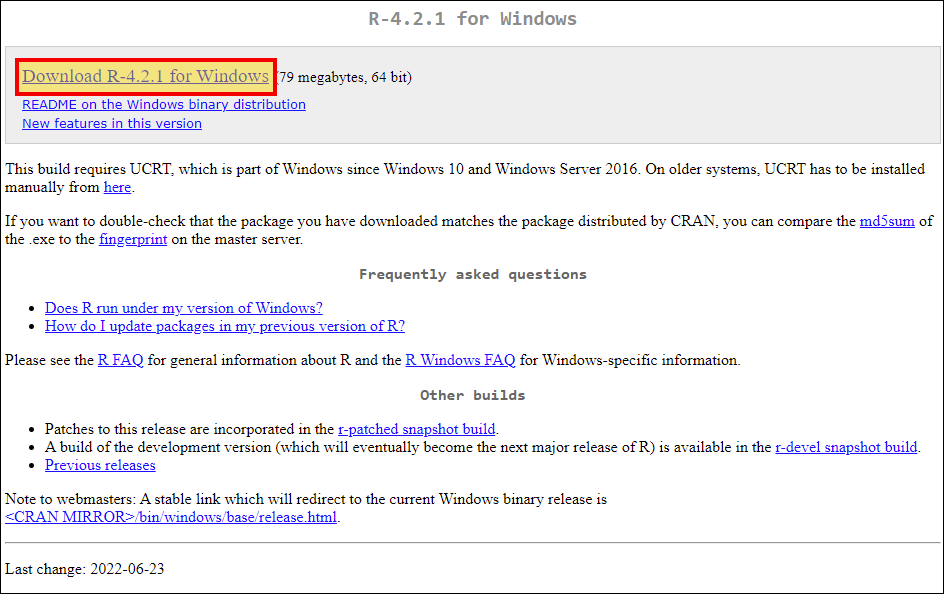
Click Download R-x.y.z for Windows.
-
Run the installer using default options.
Install Rserve
-
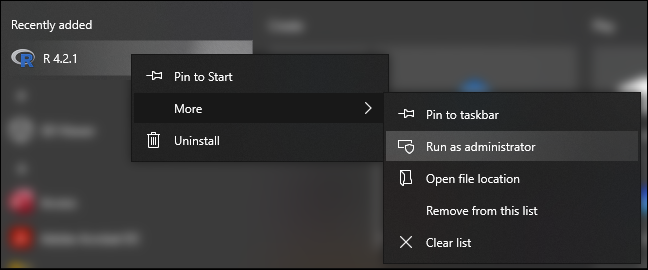
Run R for Windows as Administrator.
Note
To run R for Windows as an Administrator, you need Administrator privileges. This is necessary to write to the default installation location for R packages. If you encounter any issues, see here for troubleshooting.
-
Run
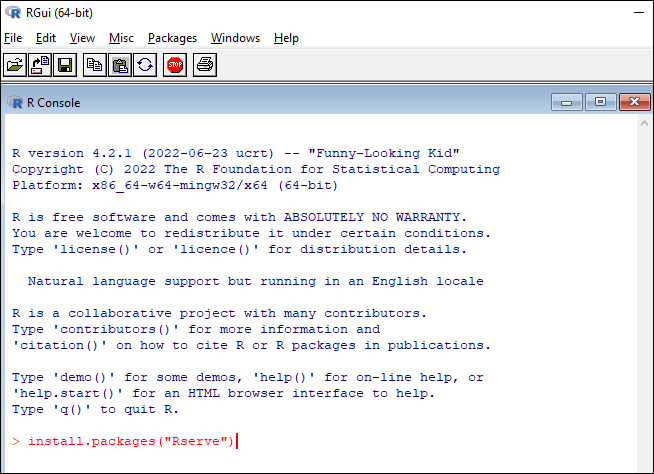
install.packages("Rserve").Note
'Rserve' is case-sensitive.
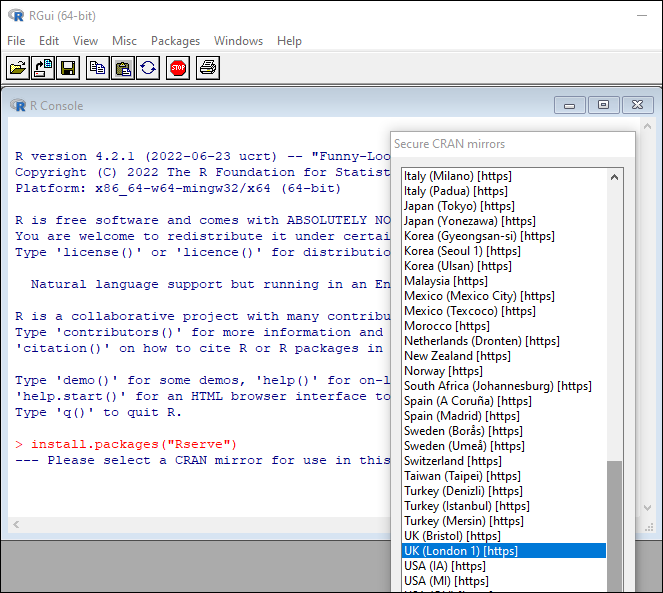
Next, select a CRAN mirror. Choose a mirror in your country or one that is close to your location.
-
This installs Rserve as a package. A few additional steps are required to finish the installation:
-
The R console displays the saved location of the binary zip file, e.g.
C:\Users\AppData\Local\Temp\Rtmp06VqMr\downloaded_packages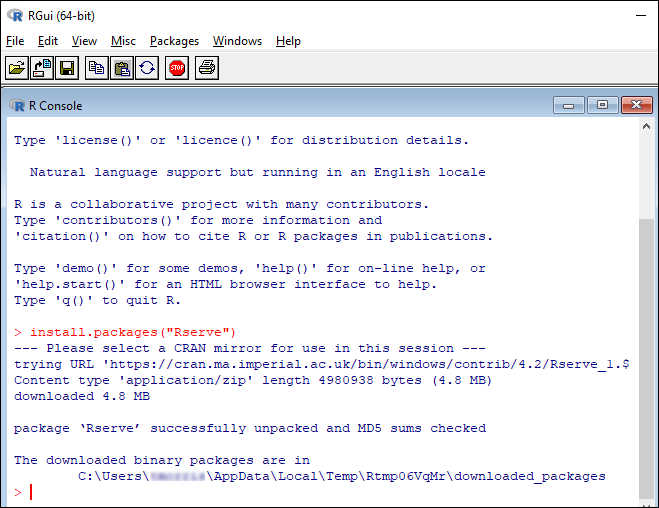
-
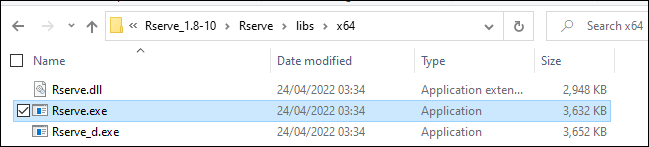
Locate
rserve.exein the zip file, e.g.Rserve_1.8-10\Rserve\libs\x64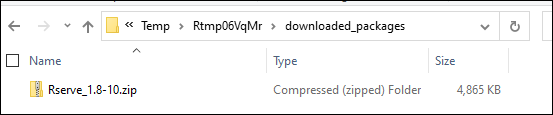
-
Copy this to the same directory that
r.dllis located, e.g.C:\Program Files\R\R-4.2.1\bin\x64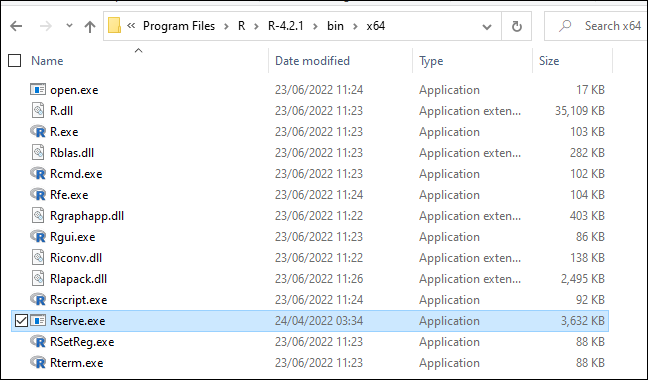
-
Configure the FastStats service
-
In the FastStats Configurator, go to the R Integration section (under Integrations). Set the R Serve Program Files Directory to the same location as the previous step, for example:
C:\Program Files\R\R-4.2.1\bin\x64.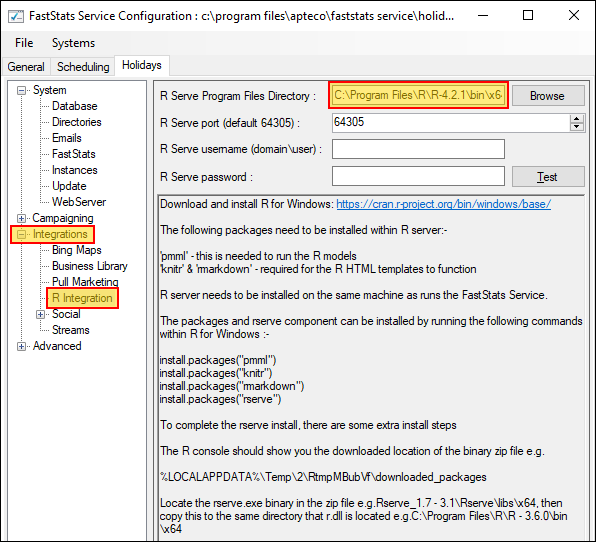
-
Click Test to check if the integration is correctly set up.
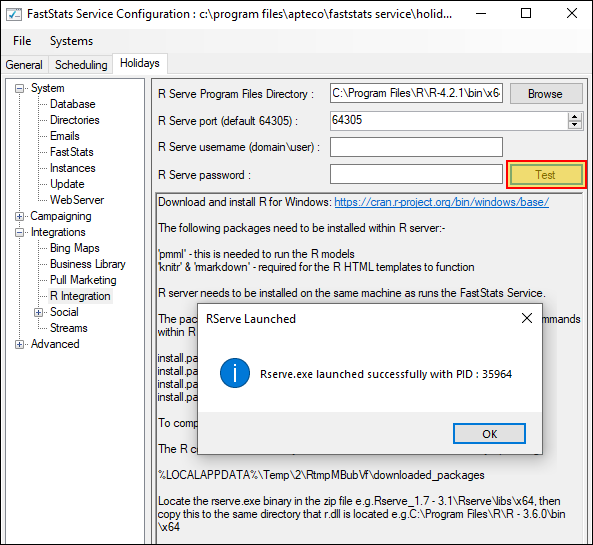
-
Restart the FastStats service before using the functionality in FastStats.
Troubleshooting
If testing the RServe setup in the FastStats Configurator fails:
When RServe runs it attempts to use the R_HOME environment variable to automatically detect the latest installed version of R. If that environment variable is not set, it will fall back to using registry keys created when R is installed. However, these registry keys are removed when any version of R is uninstalled, even if other versions remain on the system.
If testing the RServe setup fails, check whether these keys exist as expected—especially if you have previously removed other versions of R from your system. Alternatively, set the R_HOME environment variable to the directory where the latest version of R is installed, e.g. C:\Program Files\R\R-4.2.1.
Further details:
- Rserve release notes
- R for Windows FAQ—Does R use the registry?
- StackOverflow—What are R for Windows registry entries used for?
Optional steps
Additional package for creating R models in the FastStats Modelling Environment
Note
Before you begin, make sure you have set up the R integration for FastStats as explained above.
- Run R for Windows as an Administrator.
-
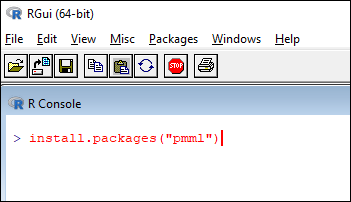
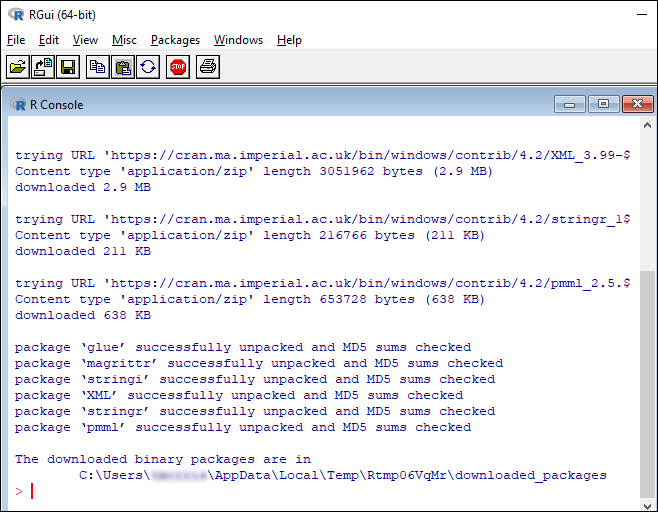
Run
install.packages("pmml").Note
'pmml' is case-sensitive.
Additional packages for creating HTML reports with embedded R code
Note
Before you start, make sure you have set up the R integration for FastStats as explained above. Since the HTML reports work by creating R models in the Modelling Environment, you will need to install the 'pmml' package first.
- Run R for Windows as an Administrator.
-
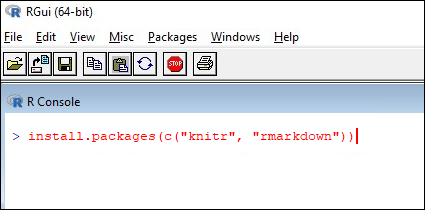
Run
install.packages(c("knitr", "rmarkdown")).Note
The package names are case-sensitive.
R default packages
If you want to call a function from a package that isn't available by default in R on start-up, you would normally need a library() or require() call at the start of your script. While this is possible when using the RScript expression, it isn't possible for other aspects of the R integration (for example, when using the RCall expression, or when running an R model from the Modelling Environment).
To resolve this, you can change the default packages by editing the startup profile file.
- Find the profile file, either at the
R_PROFILEenvironment variable, or atR_HOME/etc/Rprofile.site. -
Add the following command:
where
myPackage1,myPackage2, etc. are the names of the additional packages to load on start-up (this appends to the list of default packages rather than replacing them).
Further details: