Microsoft Dynamics 365
The Apteco Microsoft Dynamics 365 integration connects your Dynamics 365 data with Orbit. You can pull data from Dynamics 365 into your marketing campaigns and send audience data back to your CRM.
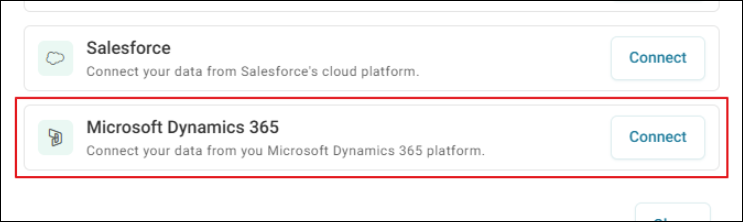
This integration eliminates manual data transfer between your systems. Your CRM data stays current with marketing campaign results, creating a unified view of customer interactions across your sales and marketing teams.
Integration options
Microsoft Dynamics 365 has the following integration options:
- FastStats: Run the Microsoft Dynamics wizard in FastStats to upload data to Microsoft Dynamics 365
- Designer: Download the data of any table in Dynamics 365 for analysis in FastStats
- PeopleStage: Define and implement marketing process flow diagrams that react to responses received from Dynamics 365
Note
Apteco approves this integration with Dynamics 365. Use of Apteco software in combination with Dynamics 365 through this integration does not affect the intellectual property rights indemnity provided in the Apteco software End User Licence Agreement.
Before you begin
Useful to have before you start:
- Dynamics 365 entity name: Entities model and manage business data in Dynamics 365"”decide on a table name, for example: FastStats Prospects
- Understanding your data model: Plan what data you need to upload and note the data types and field lengths
- The Designer.zip available from apteco.com/portal/software-releases
- The CRM instance URL, username, and password for your Dynamics 365 control panel
Note
This guide is not intended as a full manual on setting up your Dynamics 365 requirements"”refer to the Dynamics 365 help or contact Microsoft for more information.
Architecture
The following diagram describes a typical process to upload data from FastStats to Dynamics 365 and extract data back to Designer.
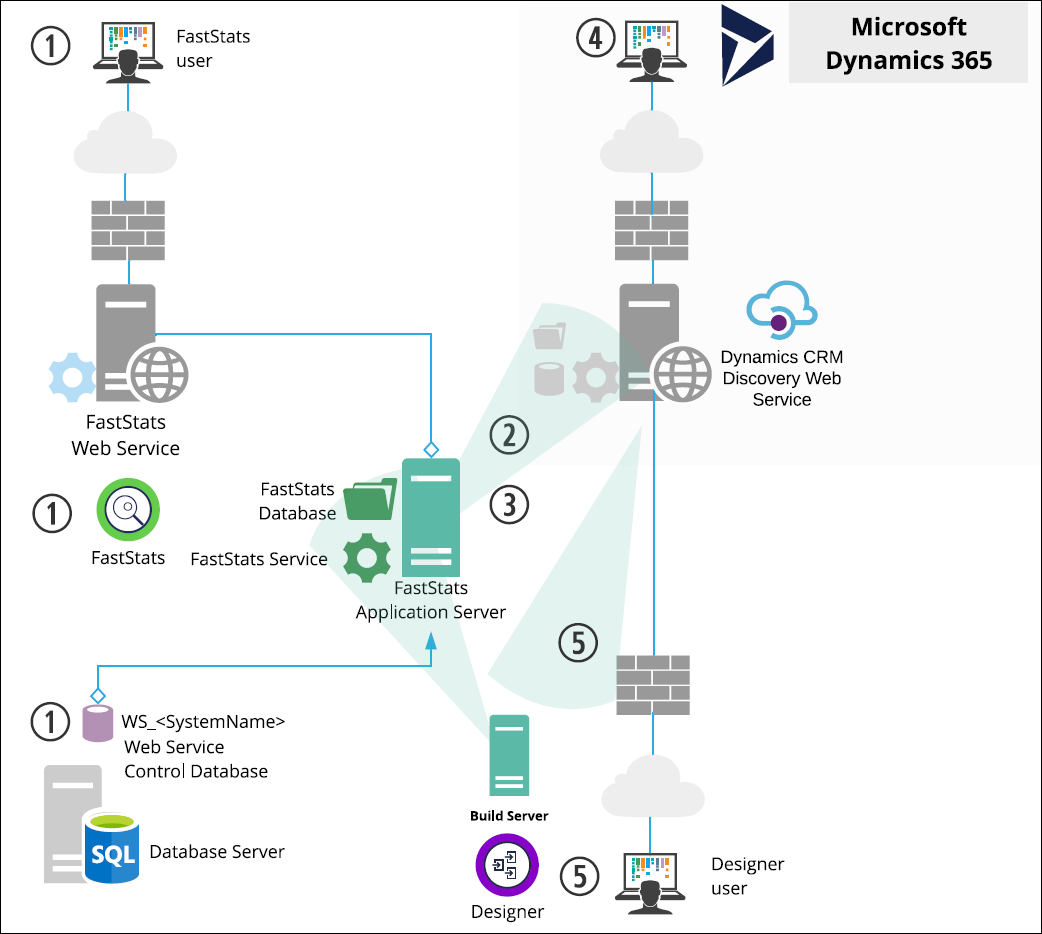
- An upsert (insert/update) is initialised through the FastStats Web Service using FastStats, which inserts a job into the Web Service Control database (WS_DB).
- The FastStats Service picks this job up and uploads the list of data to Dynamics 365 via SOAP communication using the Dynamics 365 Discovery web service.
- The FastStats Service continues to poll the Discovery Web Service to confirm the data has been uploaded successfully.
- Data can be manipulated further using the Dynamics 365 web interface.
- Changes to Dynamics 365 data can be downloaded by FastStats Designer by pulling back the appropriate tables list.
Discovery web service
A single Dynamics 365 server can host multiple business organisations. By using the Discovery web service, your application can determine the endpoint address URL to access the target organisation's business data. The Discovery service is accessed via the SOAP Organisation service.
Data source
Connect Dynamics 365 as a data source in Orbit to pull customer information into your marketing campaigns and analytics.
Example use case: After running a product announcement campaign, automatically create new marketing lists in Dynamics 365 with engagement scores and update contact records with campaign response data to help sales teams identify prospects.
To use Dynamics as a data source:
- Configure authentication and API access between Orbit Connect and Dynamics 365.
- Map the Dynamics 365 table fields you want to import into Orbit.
- Set up regular data synchronisation schedules.
See Microsoft Dynamics 365 data source configuration for detailed setup instructions.
See Microsoft Dynamics 365 user documentation in Orbit Connect for end-user guidance.
Campaigning
Automatically upload and update audience data from Orbit campaigns to your Microsoft Dynamics 365 system.
To use Dynamics as a campaign destination:
- Create custom objects in Dynamics"”see Setting up your Microsoft Dynamics 365 custom object and table.
- Create and configure the channel in Orbit"”see Set up your Dynamics channel.
- Add Dynamics steps to your Orbit journeys"”see Using Dynamics in a campaign.
FastStats integration
The following guides detail the processes required to integrate Microsoft Dynamics 365 with Apteco FastStats: