Dynamics 365 channel in PeopleStage
You can create Microsoft Dynamics 365 channels directly in PeopleStage to upload campaign data to your Dynamics tables.
Note
Before using your Microsoft Dynamics 365 channel in campaigns, complete the configuration steps in Setting up your Microsoft Dynamics 365 custom object and table.
Creating your channel
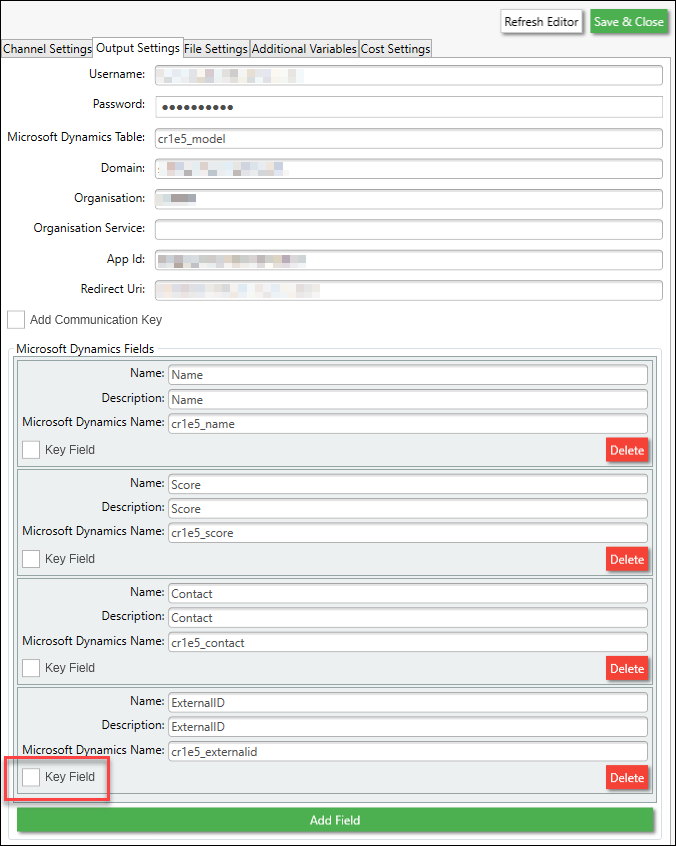
Create a channel in PeopleStage that maps to the cr1e5_model table.
Note
Mark ExternalID as the Key field.
You can also add additional variables if needed.
Warning
Ensure variable names match correctly for automatic mapping.
For example, a variable called Contact Id holds the Microsoft Dynamics contact ID and maps to the Contact field, which links to cr1e5_contact.
Authentication details
In the channel configuration, provide:
| Field | Value |
|---|---|
| Username | Your Microsoft Dynamics login email |
| Password | Your Microsoft Dynamics password |
| Domain | Found in your Microsoft Dynamics environment details |
| Organisation | Found in your Microsoft Dynamics environment details |
| App Id | 51f81489-12ee-4a9e-aaae-a2591f45987d |
| Redirect Uri | app://58145B91-0C36-4500-8554-080854F2AC97 |
Note
The App Id and Redirect Uri are generic and must be included unless you create your own authenticator app.
Upsert your data
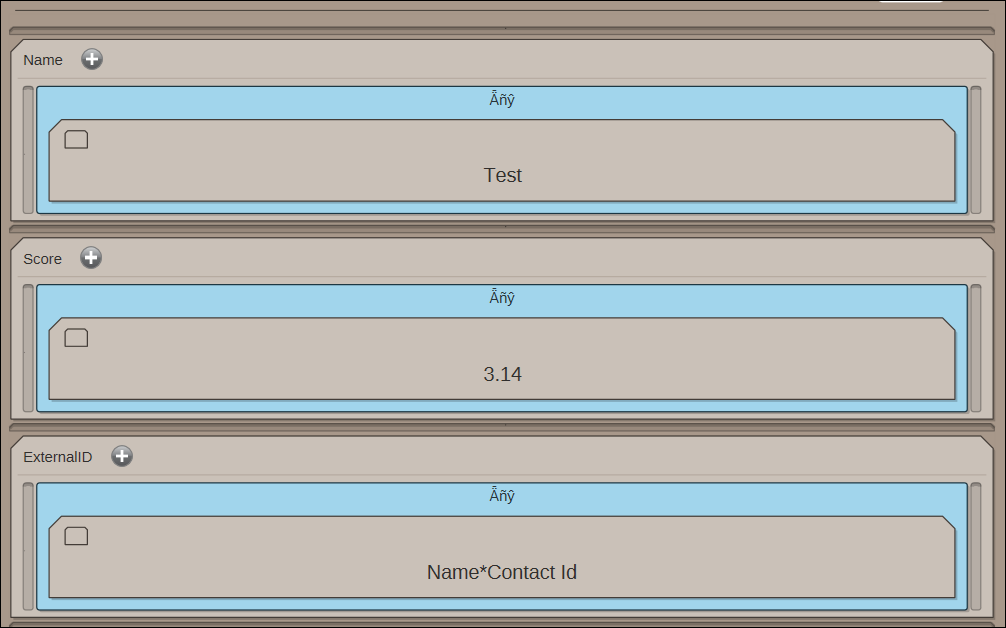
To test this, create content in PeopleStage with the following fields:
| Field | Description |
|---|---|
| Name | The name of the model (text field) |
| Score | The model score (fixed value of 3.14 for testing; use a variable in production) |
| ExternalID | Concatenation of Name and Contact Id, separated by a delimiter |
| Contact | The Contact Id variable (already added in the channel mapping) |
View data in Microsoft Dynamics 365
After running your campaign, the records appear in Microsoft Dynamics 365.

You can keep model scores up to date through upserts based on ExternalID.
For detail on using Microsoft Dynamics 365 in Orbit campaigns, see Microsoft Dynamics 365 in Orbit.