Selector decodes
Decodes are used for Selector variables to decode the codes into more meaningful descriptions. Without decodes the codes that are found in the data source will be presented to the end user in pick lists etc.
Often coding schemas will be available in the source database or as text files. FastStats Designer allows decodes to be imported and / or configured manually.
To define the decodes used by a particular selector variable, press the Decodes button on the expanded view.
There are 2 ways of defining decodes:
- Manually editing the codes and descriptions
- Automatically
- Using FastStats to find the codes from the data available. In this case the descriptions will be the same as the code values.
- From a file of codes and descriptions
- From a database query that retrieves codes and descriptions using SQL
For each method other than Manually, the Decode properties setting determines how any amendment to the data presented will be handled.
Tip
For codes with a number format example it is a good idea to keep the codes consistent and alpha sorted by using a Right Justify Blank Pad mapping. Any mapping will be applied as the codes are read from file or database query and also applied to the codes read from the data source.
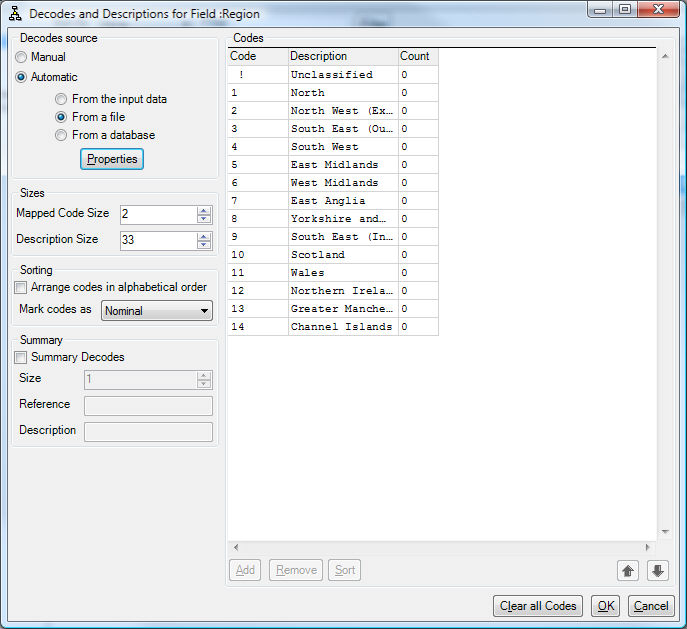
Manually editing decodes
Creating a decode list manually has several advantages – the decoding information can be prepared specifically to suit FastStats, you can re-order the values easily, the special value for unclassified can be included directly, etc.
However when a variable decode is controlled manually, you are responsible for defining the entire decoding scheme which may be laborious and subject to changes.
Large coding schemas are better handled by using database queries – especially if they are shared with other database systems.
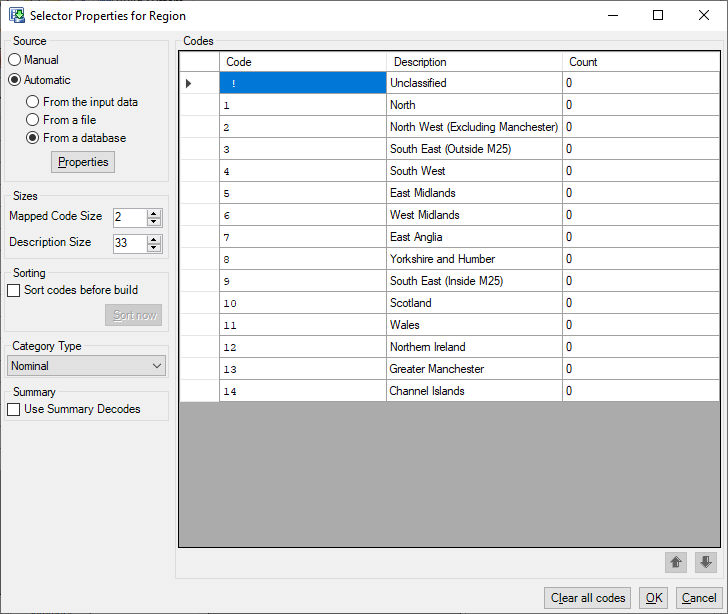
Using FastStats to create decodes
Choose Using FastStats to use FastStats to scan the data presented to build the decode list.
Note
The scan is not performed immediately; the variable is marked for processing when Auto Discovery runs.
Using FastStats to identify the distinct code values has the benefit of generating an exact match to the data and requires no effort from the user. However FastStats is unable to magically invent descriptions and will simply repeat the code value. Also FastStats cannot differentiate between valid and potentially invalid codes when creating pick lists, there is a danger of confusing the decode information with invalid values e.g. adding XXXX to a list of postal districts just because it appears in the data.
The Threshold setting determines the number of occurrences of a value that are required before a code is created. For example if the threshold is 10 and XXXX was found only 9 times in the data then it would not be inserted as a code; in this case the XXXX would be mapped to "Unclassified".
Arrange codes in alphabetical order indicates that the codes should be sorted by FastStats Designer in alphabetical order. This usually makes it easier for users to locate categories in pick lists and leads to a slightly more efficient representation in FastStats. Switch off if the order of the codes is important and should be maintained in the user view of the categories. If you are retrieving codes from a database then the order of the codes can be changed by modifying the ORDER BY clause of the SQL code retrieval query.
Nominal / Ascending / Descending specifies whether the codes have a defined sequence. This attribute will be used to determine whether a selector variable can be used in analysis that requires a sequence e.g. sorting or recency selection.
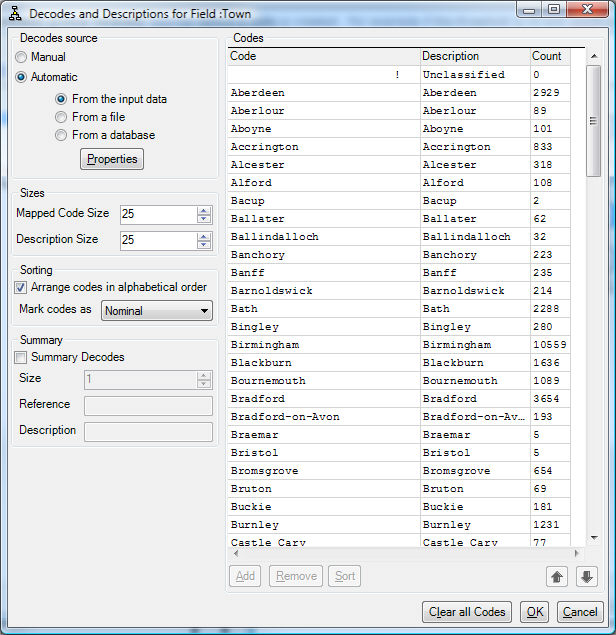
Decodes from a file
Choose From a File to import from a text file.
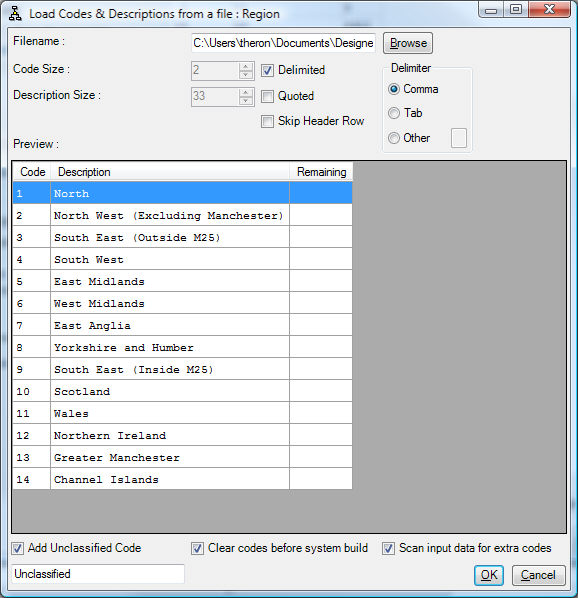
Once a file has been imported, it may be maintained manually within FastStats Designer by changing the Extract Codes setting to Manually.
Decodes from a database query
Choose From a Database Query to import/link decodes information from a database.
Refer to Data Source for details of connecting to database sources.
Note
This database does not have to be the same database as used earlier for the data extracts.
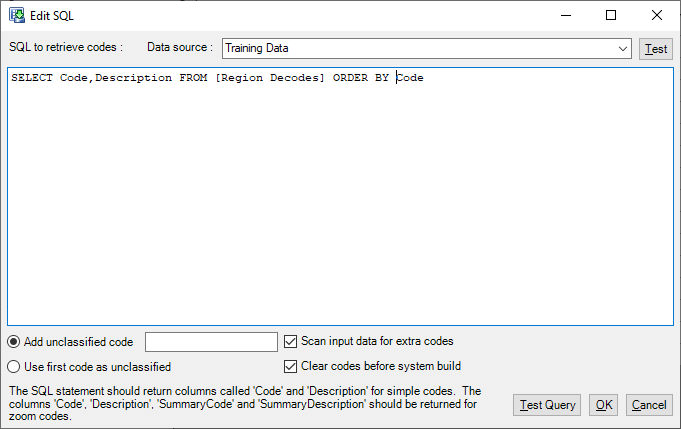
Note
The SQL statement must identify columns called Code and Description. This can be achieved by using the SQL AS keyword to specify the column names.
Tip
Use SELECT DISTINCT to retrieve the unique codes.
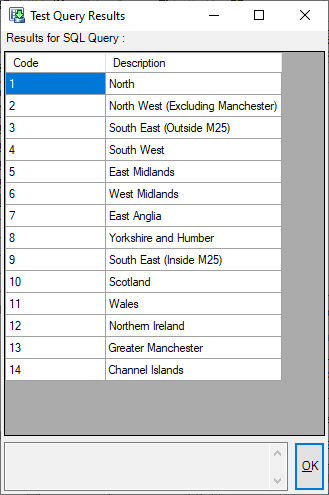
You can use built-in environment variables in your queries as parameters.
Once a file has been imported, it may be maintained manually within FastStats Designer by changing the Extract Codes setting to Manually.
Alternatively it may be automatically using the link that has been defined to the database according to Decode properties.
Decode properties
Add Unclassified inserts a special code at the first position. This is used as the category for all records that do not match any of the other codes.
Use first code as Unclassified uses the first code in the list as the unclassified code.
Clear codes before system build
If this is checked then the codes list is cleared and re-populated from the code source. This ensures that the codes list is always the same as the code source.
If this is unchecked then any old codes that are removed from the code source will stay in the codes list. This means that any user's selections that refer to these old codes will still run.
Scan input data for extra codes
If this is checked then if there are any codes in the data that do not match any code in the codes list then they will be added to the codes list; any added codes will have a description the same as the code.
If this is unchecked then any codes not found in the codes list will be marked as unclassified.