A/B testing
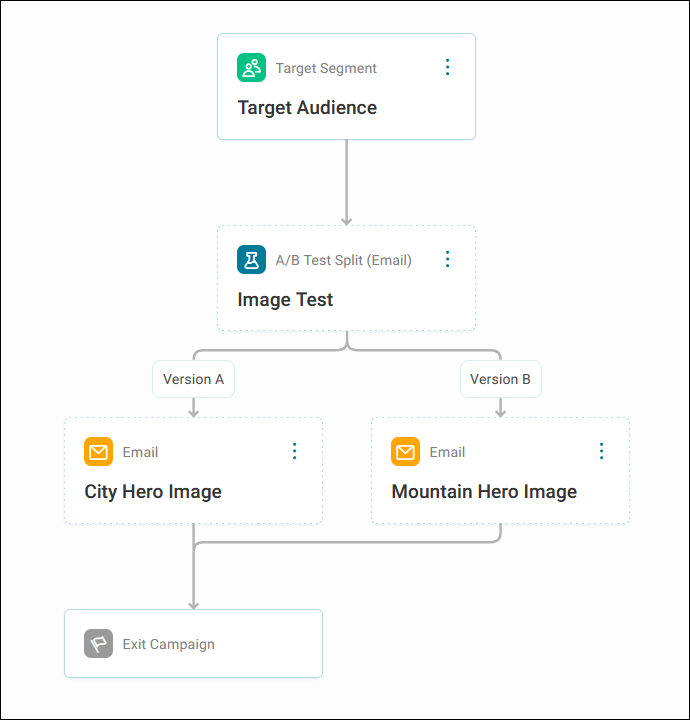
A/B testing in Orbit campaigns allows you to compare different versions of your email communications to determine which performs best with your audience. Orbit sends each version to a test segment, collects engagement data, and then you choose the winning version to send to your remaining audience.
Note
This feature is available with the Q1 2026 Apteco software release or later.
How A/B testing works
The A/B testing control splits your campaign audience into two groups:
- Test segments: Percentages of your total audience receive different versions of your email
- Remaining audience: The rest of your audience waits while the test runs, then receives the winning version
Example use cases
Monthly donor appeal
A wildlife charity wants to determine whether emotional storytelling or data-driven impact reporting generates more donations.
Campaign setup:
- Target segment: Active monthly donors
- Test audience: 15%
- Test duration: 10 days
- Success criteria: Clicks (to donation page)
Version A: Features an individual animal rescue story with photographs and a personal narrative from the rescue team
Version B: Presents statistical impact data showing how donations fund specific conservation outcomes, with infographics and achievement metrics
Result: Version A achieves 23% more clicks. The charity sends Version A to the remaining 85% of donors and applies this insight to future donor communications, using emotional storytelling as their primary approach whilst including impact data in secondary sections.
Volunteer recruitment campaign
A community food bank needs to recruit volunteers for their expanded weekend service. They want to test different value propositions.
Campaign setup:
- Target segment: Previous one-time volunteers and event attendees
- Test audience: 20%
- Test duration: 1 week
- Success criteria: Opens and clicks
Version A: "Make a difference in your community" – Emphasises local impact and helping neighbours
Version B: "Join our community" – Focuses on social connections, meeting like-minded people, and being part of a team
Version C: "Gain valuable experience" – Highlights skills development and CV enhancement
Result: Version B generates the highest open rate (31%) and click-through rate (8.2%). The food bank sends Version B to the remaining 80% and learns that social connection motivates their volunteer base more than altruism or personal development alone.
Creating an A/B test
Before you begin
Create separate email templates for each version you want to test. Each version should be a distinct template with the specific content variation you're testing.
Tip
Test one variable at a time. If you change the subject line, email content, and call-to-action simultaneously, you won't know which change drove the improvement.
Adding an A/B split
To add an A/B test split step to your journey:
- Create or open your campaign in the journey builder.
- Add your target segment.
- Click the + on the path where you want to place your test.
- Select A/B Test Split under Controls.
- Click the A/B test step and enter a name.
-
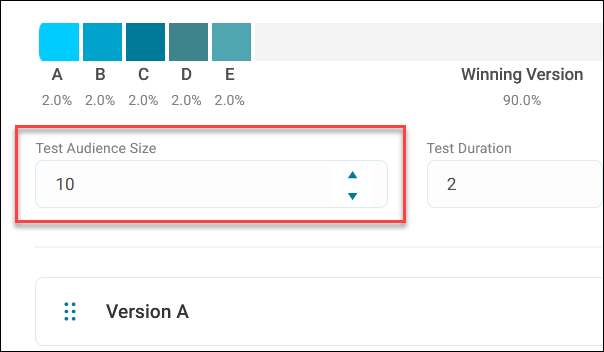
Set your Test Audience Size as a percentage of your total audience.
Note
The test audience percentage is divided equally among your versions.
-
Select your Test Duration.
- Click + Add Version to add more versions (up to five maximum) and the bin icon to remove any no longer needed.
- Click Apply.
Note
The A/B test split is a standard journey builder control. Like other controls, you can add it to Redirect sections or copy it to reuse its configuration elsewhere in your journey.
Configuring email versions
To configure email versions:
- Click the + icon on the Version A path.
- Add an email step.
- Name the email step.
- Select your email channel.
- Choose the email template for Version A.
- Repeat steps 1-5 for each additional version (Version B, C, etc.).
- Save and publish your campaign.
The campaign sends your test versions to the specified percentage of your audience. The remaining audience members appear above the A/B test split step and wait for you to choose the winning version.
When you view your campaign summary, A/B test split details display the test configuration and email steps nested under within.
Monitoring your A/B test
Whilst your test is running, the A/B test split step displays a blue In Progress tag.
To view test statistics:
- Click the A/B test split step.
-
Review the summary screen showing:
- Test audience percentage
- Time remaining
- Response statistics for each version (clicks, opens, unsubscribes)
Selecting a winner
When your test duration completes:
- Click the A/B test split step.
- Review the statistics for each version.
- Click Select on your chosen winning version.
- Click Confirm.
Orbit sends the winning version to your remaining audience (the percentage not included in the test).
Tip
You can cancel a running test if results are inconclusive or you need to change something, without affecting the rest of the journey
Note
You can include A/B test controls at any point in a multi-stage campaign. After the winning version is sent, recipients gather at the end of the A/B test step and continue to subsequent campaign stages.