Live mode, draft mode, and pausing
Working with live and draft modes
Starting a campaign from scratch
When you create a campaign, it automatically starts in draft mode, displaying a Draft tag beneath the campaign name. The right side of the screen shows an Edit Mode label, indicating that you can make changes.
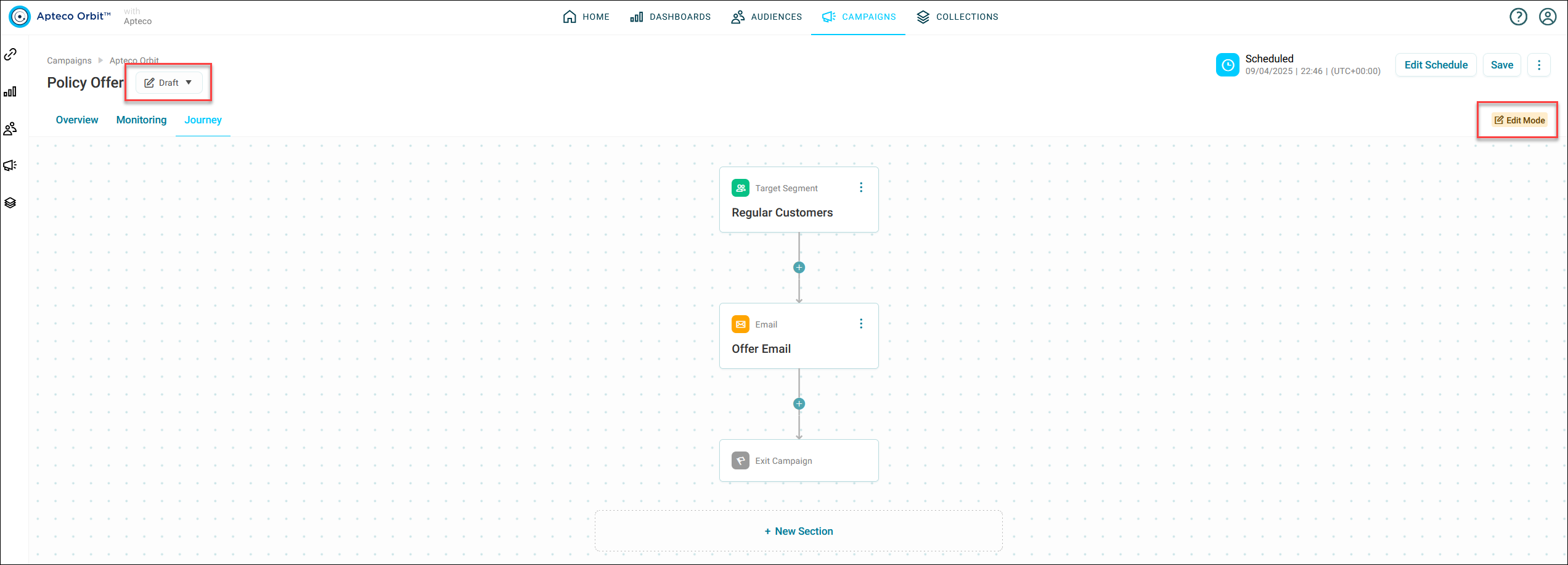
Once you publish the campaign:
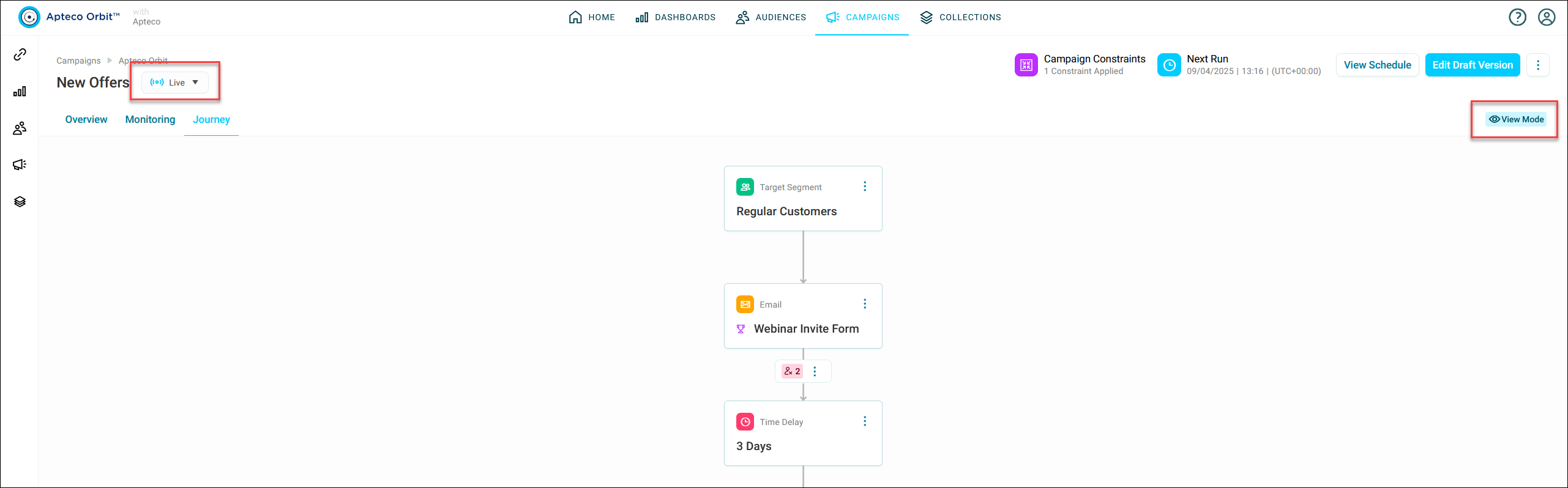
- The Draft tag changes to Live
- The Edit Mode label changes to View Mode
- The campaign starts running, and you can no longer make edits
Editing a live campaign
To make changes to a live campaign:
-
Click Edit Draft Version.
The campaign switches from View Mode to Edit Mode.
-
Make your changes and save them.
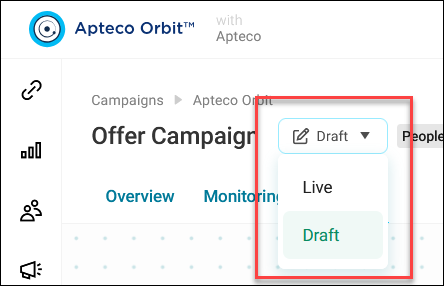
Switch between live and draft modes
Once a campaign is published, both live and draft versions are available. To switch between views, use the drop-down menu beneath the campaign name.
Creating a draft of a live campaign
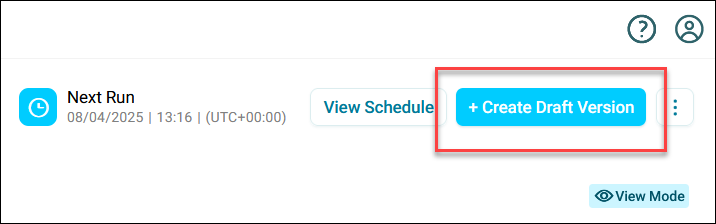
Once you've published a campaign, a draft version is not automatically available.
To revise a live campaign and replace the current version:
-
Click Create Draft Version. A draft version is created and opens in Edit Mode.
Note
While you work on the new draft, the live version of the campaign will continue running on the set schedule without any interruptions.
Managing a draft campaign
While in Edit Mode for the draft campaign, you can:
- Edit and save changes: Modify the campaign and click Save. This option is ideal when you want to update the campaign with new content or adjustments.
- Discard changes: Click Discard Changes to revert to the last saved state.
- Delete draft version: Click Delete Draft Version to remove the draft and keep only the live version
Note
The option to delete a saved draft using the Delete Draft Version function will only be available when using software version Q3 2023 and above.
Pausing a campaign
Once published, a campaign follows the schedule set during creation.
In this example, the campaign is published on a weekly schedule and is due to run.
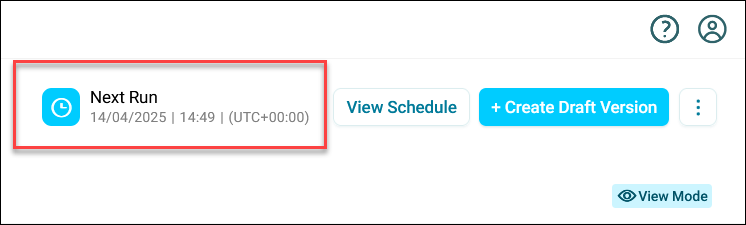
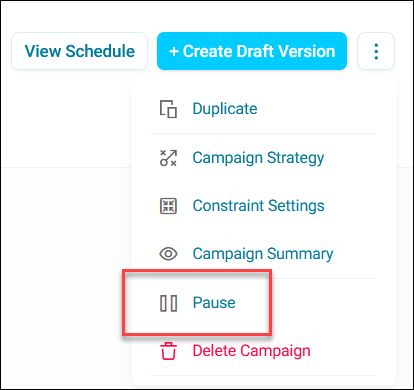
To pause the campaign:
- Click the option button in the top-right corner of the screen.
-
Click Pause.
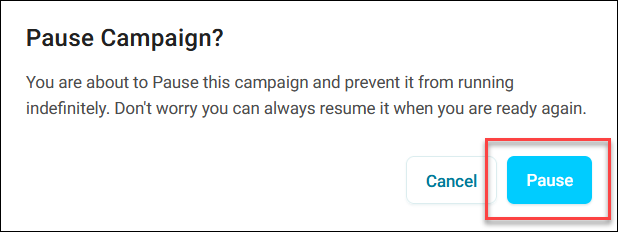
-
When prompted, click Pause to confirm.
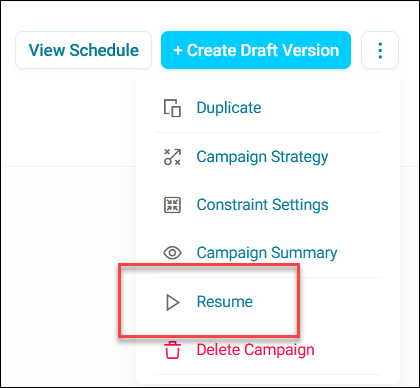
The campaign is now tagged as paused. The Resume button replaces the Pause button for when you need to restart it.
Resuming a campaign
If no updates to the campaign journey or schedule are needed, you can resume it as required.
To resume a campaign:
- Click the option button in the top-right corner of the screen.
-
When prompted, click Resume to confirm.
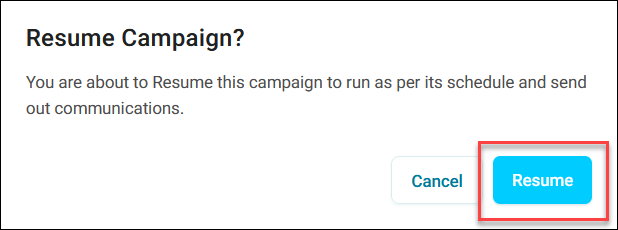
The campaign is now live and tagged as successful.
Note
If your campaign was moved to edit mode but no changes are needed, exit edit mode using the option button in the top-right corner. This returns you to the draft view. Use the draft/live dropdown to switch to the paused version.