Preview and test email
The journey builder can preview your message and send a test email to a recipient for checking or approval.
To preview and send a test email:
-
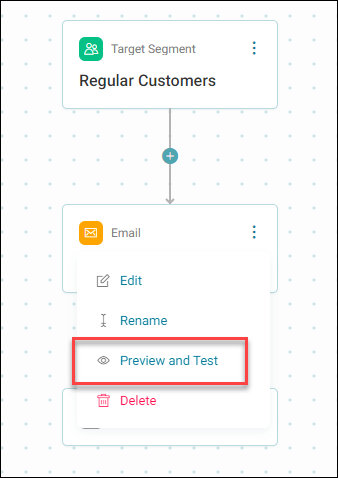
Click the ellipses on the channel stage and select Preview and Test Email.
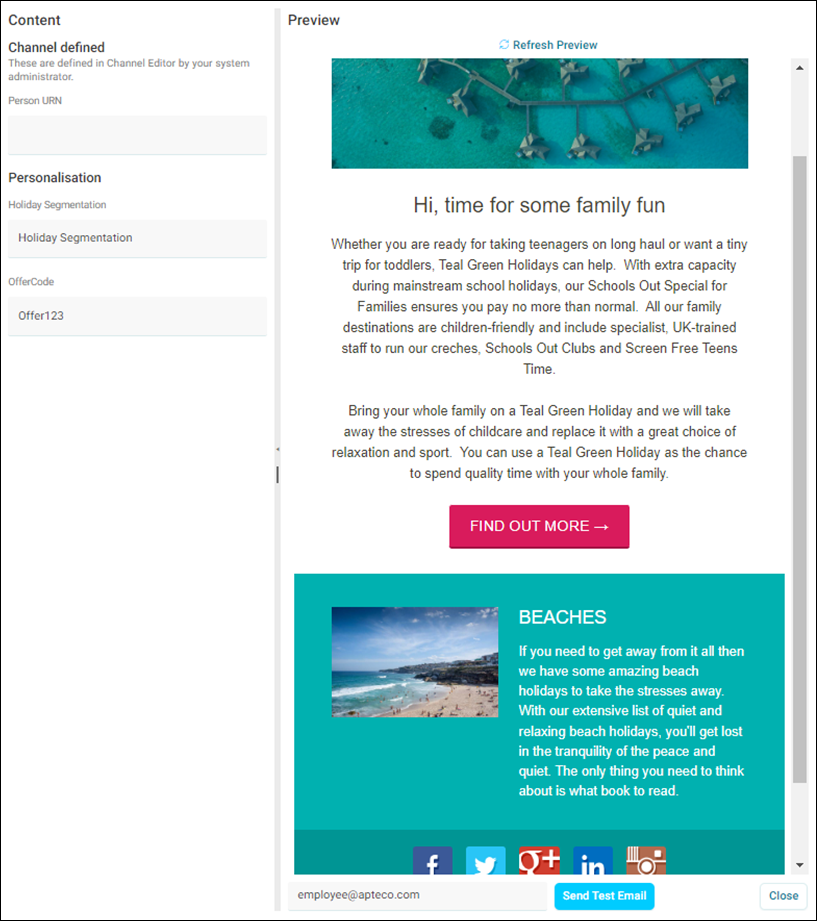
This action loads a preview email screen, where if the email service provider has allowed it, Orbit can display a preview of the email due to be sent.
-
To send a test email, ensure that the correct email address has been entered, and press Send Test Email. This automatically sends the email to the chosen recipient, ensuring that the correct message name has been chosen and all personalised fields have been applied.

-
Content can also be tested by typing attributes into the content menu on the left side of the preview screen. The content is split into:
- Channel Content: Output fields added to the channel when set up by an administrator. These are typically fields which are always required for the email such as email address, or forename.
- Personalisation: Content fields defined within the journey builder. These are typically fields required to satisfy the dynamic content for this specific email message such as segment or campaign code.
-
Overtype the populated default values with values which would aid the testing of dynamic copy in the email message.
- Refresh the preview to see the changes reflected in the email preview.
- A test email can be resent to see how the attributes appear in the email copy.
-
Close the preview to return back to the journey builder.
Note
Personalisation applied to the recipient in Test and Preview content is sent to all recipients in the test email.
Note
Your email preview is dependent on the Email Service Provider (ESP) being used. If an ESP is unsupported, a message is displayed stating that we may not be able to gather and display a preview.