Advanced customisation options
Global style settings
You can format the text styles of all your paragraphs, headers and hyperlinks within your form.
To access and apply global text styles:
- Click on the Settings button on the left-hand side.
- The Global style option will set the font family and colour for all the elements listed (Headers, Paragraphs, Links).
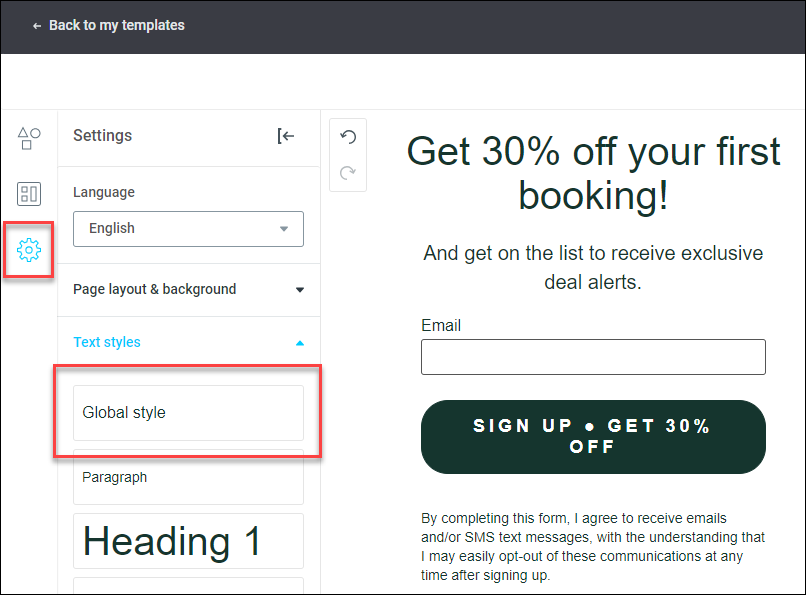
You can then further customise the styling for each of the Headers, Paragraph and Link elements.
If you want to have a different text style for a certain header or paragraph in your form, style the text as usual with the section toolbar.
Success and error messages
These messages appear when users successfully submit the form or encounter an error. However, to complete the sign-up, they need to click on the double opt-in email.
While these messages are generated automatically, you can also opt to display custom success and error messages if you prefer.
To customise the messages:
- Click inside the form frame to reveal the toolbar
- Click the slider buttons icon.
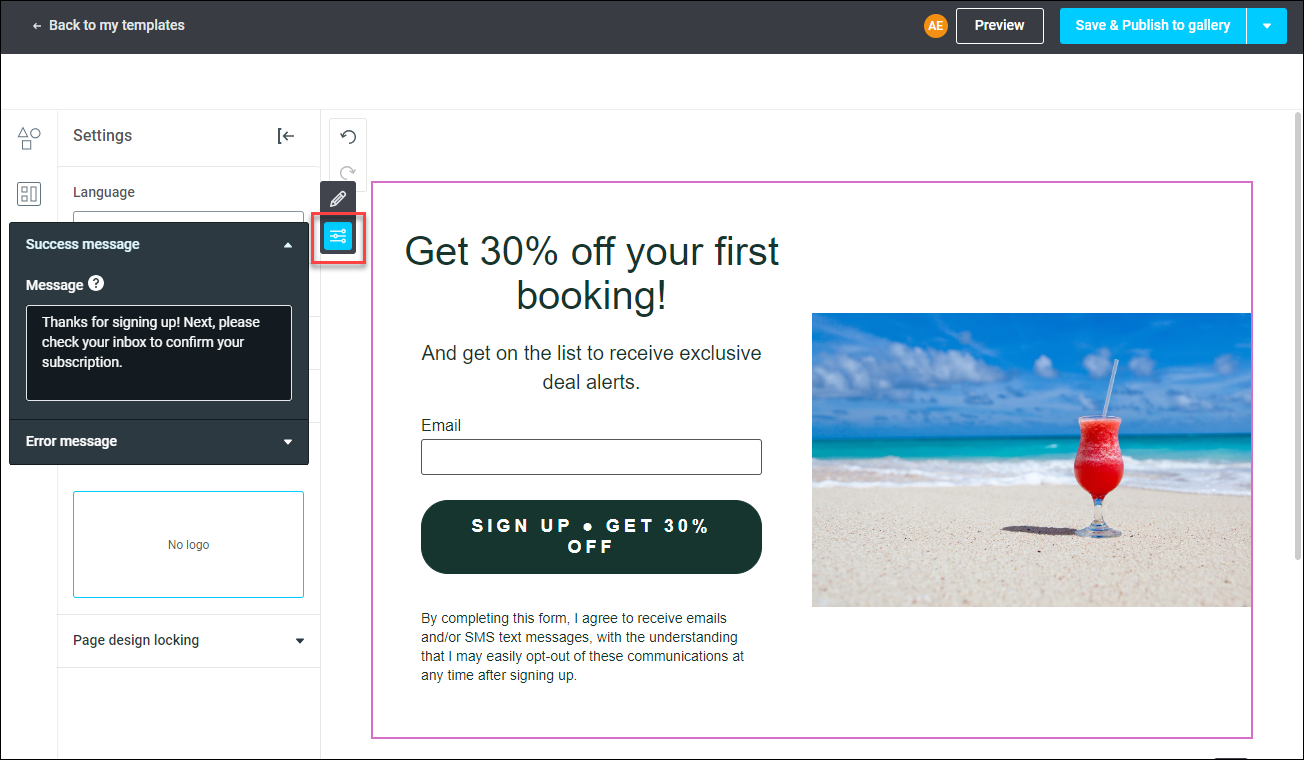
This allows you to modify both messages as desired.
Types of consent
There are two types of consent you can choose from: explicit and implicit.
Explicit consent
Explicit consent involves asking individuals for permission to collect their personal data before any collection occurs. This is the most effective way to ensure subscribers agree to receive your communications.
Implicit consent
Implicit consent does not require subscribers to ‘check the box’. Instead, it implies that by submitting the form, subscribers agree to receive the communications you plan to send.
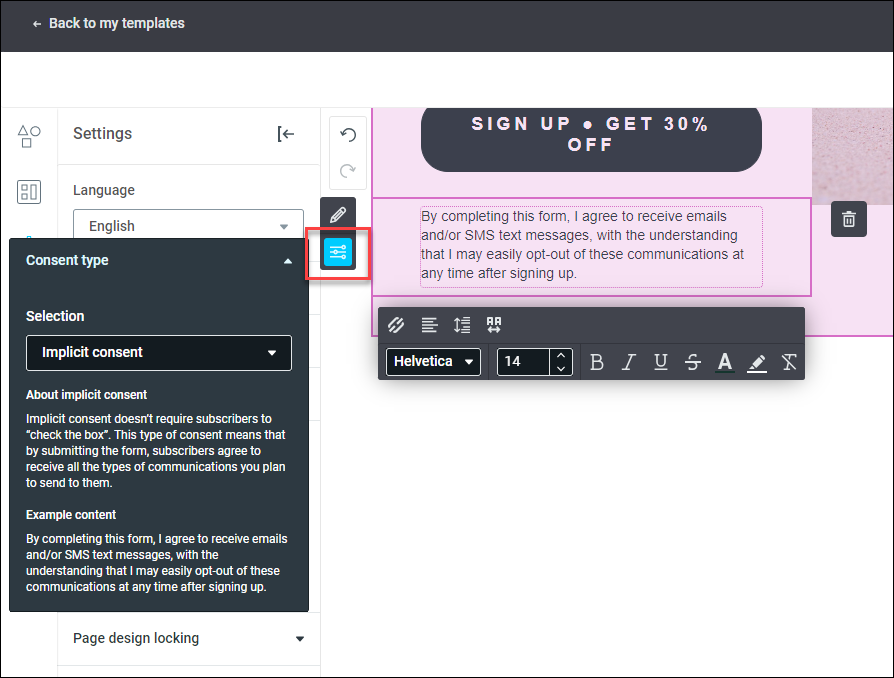
To select and edit the consent text:
- Click inside the text frame to display the toolbar.
- Click the slider buttons icon.
You can then choose the type of consent and modify the text as needed.