Form management
You can manage your various forms from the Forms management page.
Viewing form code
To view your form code again:
- From the Forms management page, click on the gear icon of the form whose code you want to view.
-
Click View code.
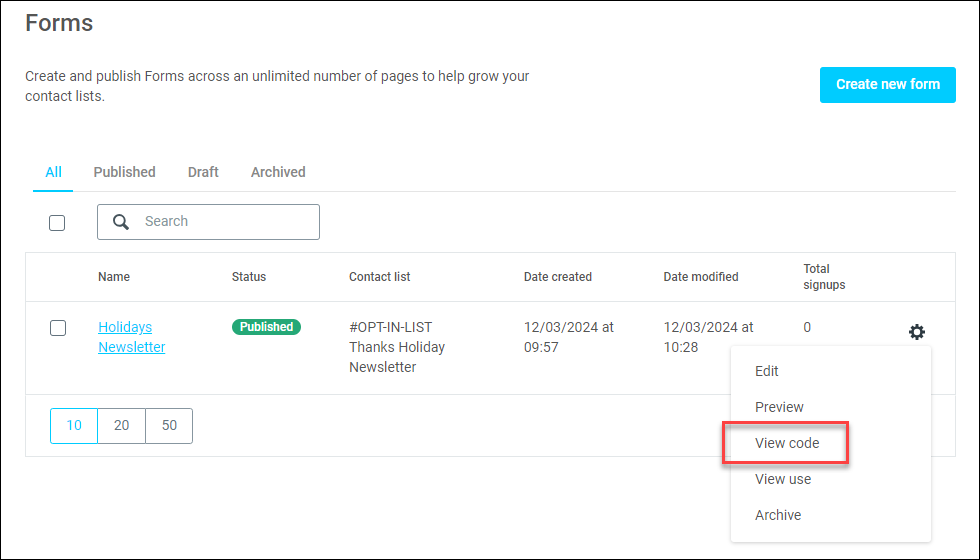
You can now copy this code again to embed your form in another website.
Editing a form
To edit a form:
- From the Forms management page, click the gear icon of the form whose code you want to edit.
-
Click Edit.
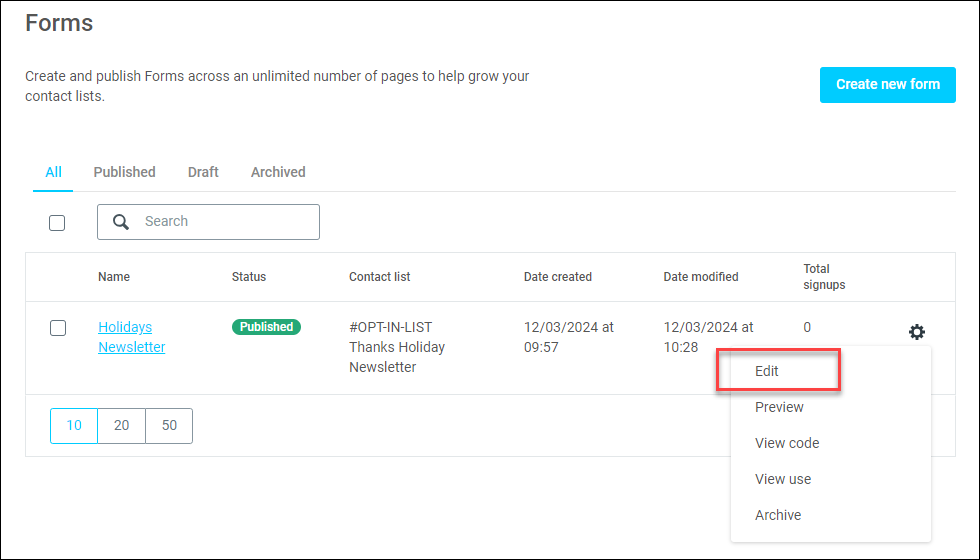
You can begin editing your form.
Note
After each edit made to the form, you must reload the HTML code on your website so that the edits can take effect.
Archiving, deleting, or restoring a form
To archive a single form:
- From the Forms management page, click the gear icon of the form whose code you want to archive.
-
Click Archive.
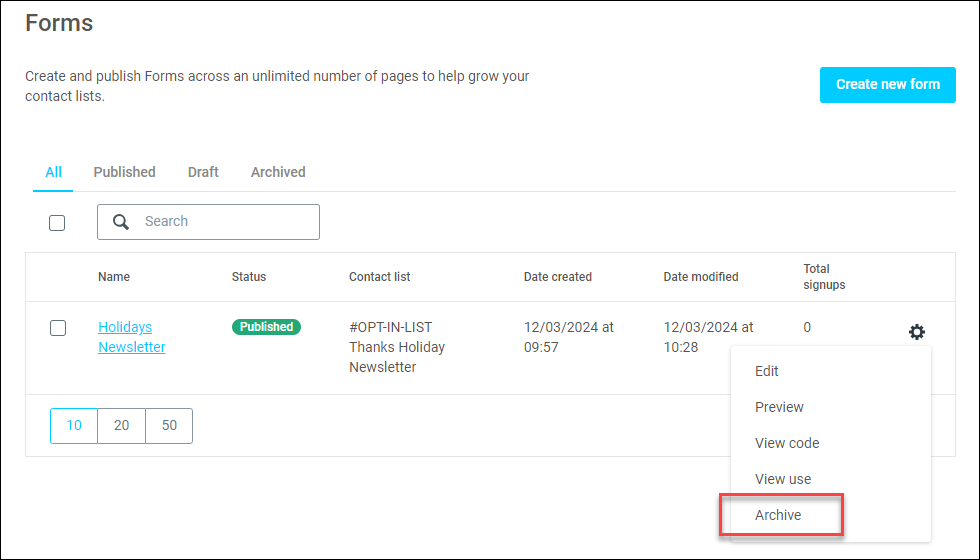
Note
To archive several forms at the same time, check the box for each form then click Archive.
If you want to permanently delete a form that has already been archived:
- From the Forms management page, click Archived at the top of the screen to go to the archived section.
- Click on the gear icon of the form you want to delete.
-
Click Delete.
Note
Always exercise caution when deleting forms or any other data in your Apteco email account, as deleted data cannot be recovered.
If you have archived a form and wish to restore it:
- From the archived section, click the gear icon of the form you want to restore.
- Click Restore.
Your archived form will now be restored to its previous state.