Creating a double opt-in email
The next step in setting up your form process is to create a confirmation email asking your customers to confirm their opt-in. This email allows you to implement a double opt-in process for your customers.
Creating a new double opt-in email template
To create a new double opt-in email template:
-
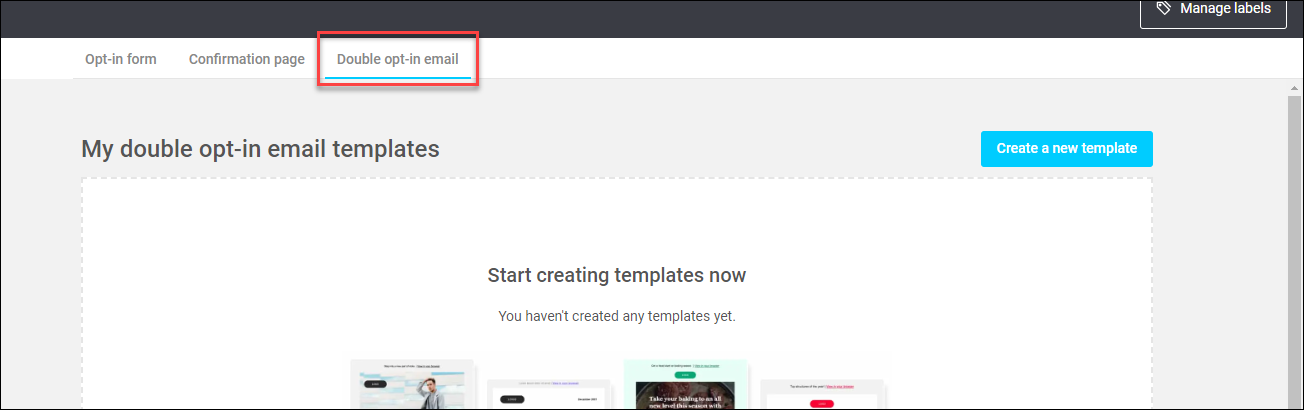
In the Form Builder, click Double opt-in email.
-
Click Create a new template.
- You can now choose to use a template from the gallery, or use one of your own. To create a brand-new template, click Using a template from gallery, then click Select under the template you want to use.
-
Choose a name for your new template, then click Use this template.
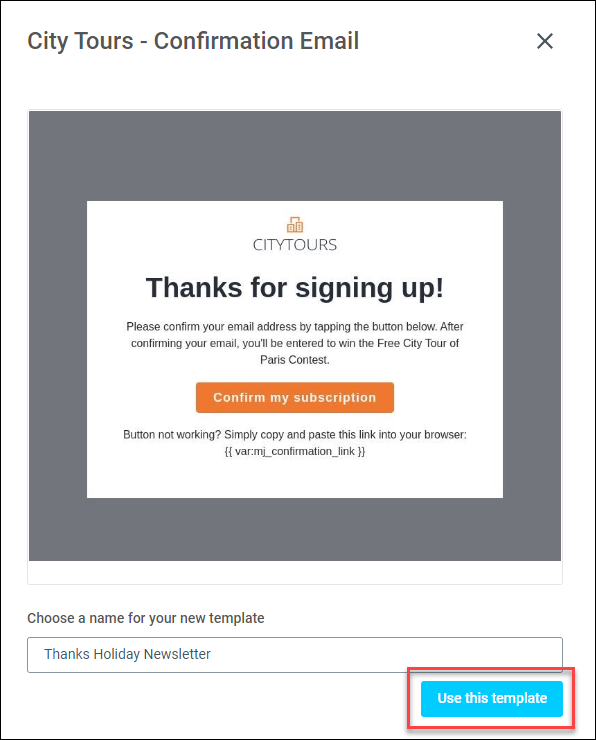
You now have a new double opt-in email template that you can customise for your needs.
Note
You can preview your email template at any time by clicking Preview at the top of the form builder.
Editing your double opt-in email template
You can customise your confirmation page in much the same way you edited your opt-in form and confirmation page. The layout tools and content tools allow you to edit columns, text, images, etc.
Add any images or text you’d like to your email template.
When you’re finished editing your template, click Save & Publish to gallery.