Applying limits
You can apply a limit at the target segment level or to each individual segment within your target audience.
Applying an overall target segment limit
To apply an overall target segment limit:
- Add a Target Segment to the journey builder.
- Via the option panel, add any required Including or Excluding audiences.
-
Click the campaign option menu, then click Add Limit.
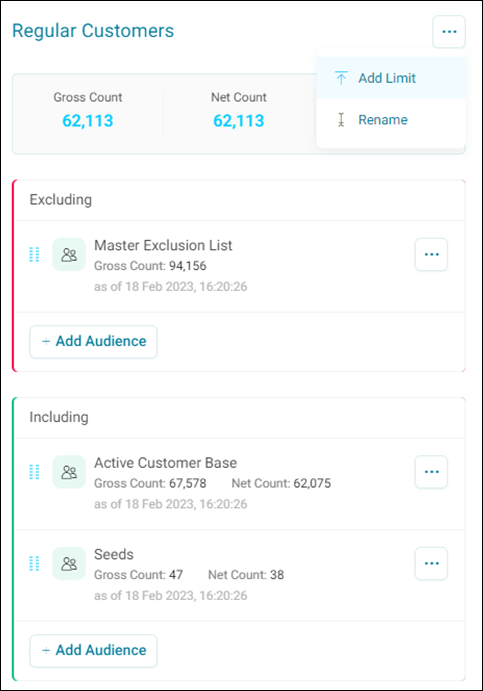
A limit can be applied by specifying a quantity or percentage. You can define quantity or percentage via the unit drop down menu.
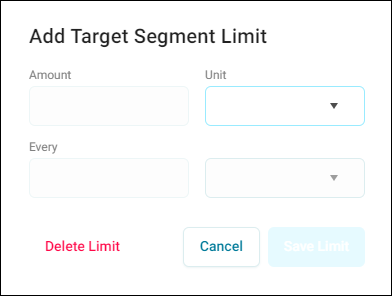
Applying a quantity limit
To apply a quantity limit:
- Enter the Amount that you want to limit.
-
Select the frequency of the limit e.g. X amount every run of the campaign, or every day, week, year, etc.
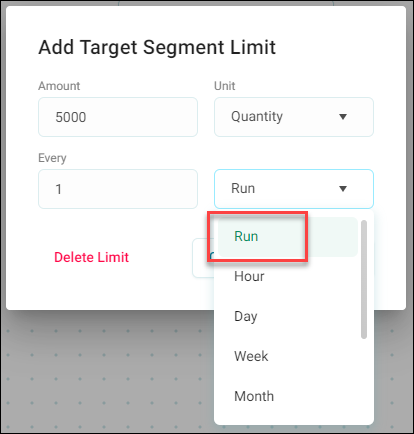
-
Click Save Limit.
Once applied, the quantity displays at the top of the screen and on the journey builder.
Applying a percentage limit
To apply a percentage:
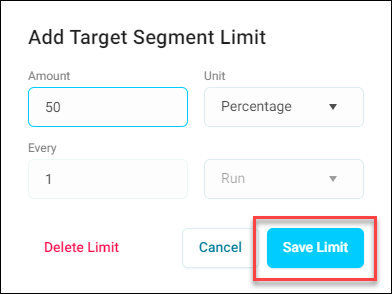
Enter the percentage you want to use as the limit.
- The frequency is limited to 1 per run.
-
Click Save Limit.
-
In order to see the limit applied, you must Save the journey. After saving, the percentage is displayed at the top of the screen on the journey builder.
Applying a limit to an individual audience
To apply a limit to an individual audience:
-
With inclusion audiences applied, select Add Limit via the audience ellipses menu.
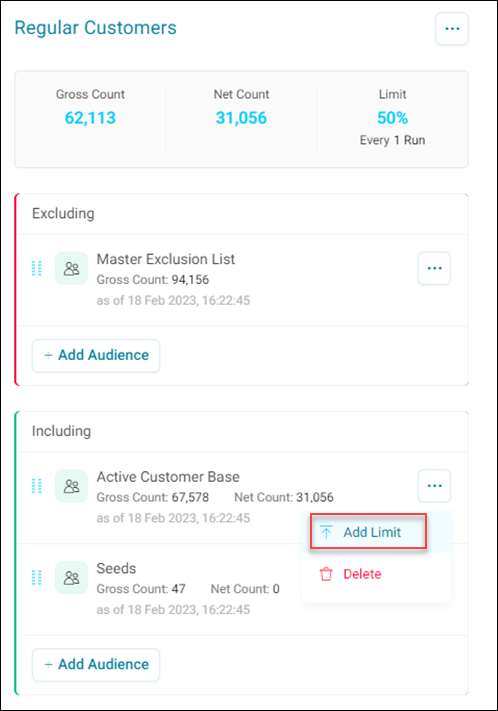
-
Again, a limit can be applied by specifying a quantity or percentage. Quantity or percentage can be defined via the Unit drop down menu.
In this case, we are going to apply a quantity limit of 5000 to our active customer base.
-
With the limit saved, click Apply to navigate away from the audience set up.
- Click Apply to save the limits and audience dedupe structure. The counts on the target segment step update to reflect the changes made.
You have now set a limit on your audience for your campaign journey.