Creating a campaign-linked dashboard
You can create a dashboard from your campaign that then remains linked to its specific journey and displays customisable metrics from its runs.
Note
You can only create dashboards from published campaigns.
Note
You must have Recording communication history turned on to use campaign-linked dashboards.
To create a dashboard from a campaign:
-
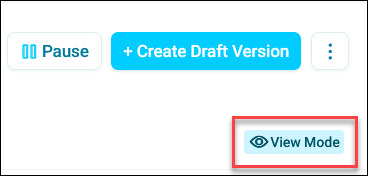
Publish your campaign and ensure you are in view mode.
-
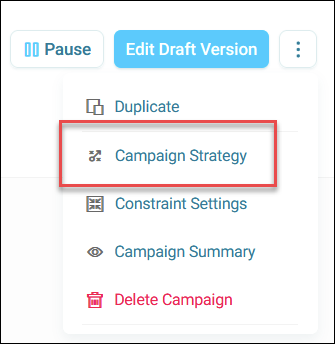
Open your campaign journey, then click the option menu in the top-right corner.
-
Click Campaign Strategy.
-
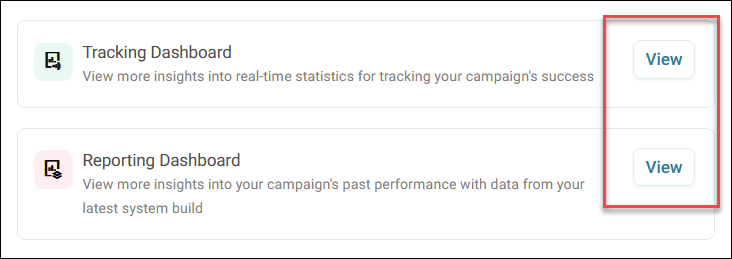
Choose the type of dashboard you want to create:
- Tracking Dashboard
- Reporting Dashboard
-
Click View next to your choice.
Note
You don't need to apply any Campaign goals or Message objectives to launch a dashboard. However, without them, your dashboard cannot benefit from metrics like Return on Investment (ROI), revenue, and responses.
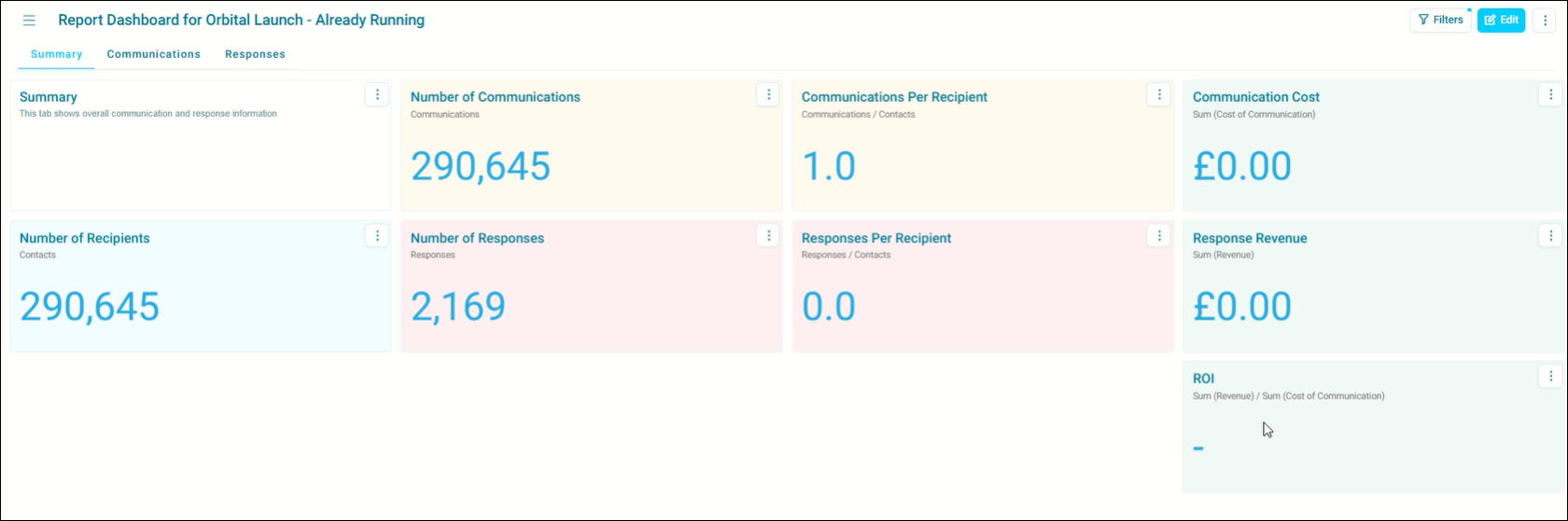
Once complete, you can launch a dashboard created from a campaign with predefined metrics on number card tiles, adding it to your list of dashboards.
Note
If you need a fresh version of a dashboard, delete or rename the existing one in your dashboard list. Then, relaunch the dashboard from the campaign to generate a new instance.
You can now fully customise your dashboard using all the tools available in the dashboard editor to meet specific campaign reporting needs.
Default metrics in campaign-linked dashboards
When launched, campaign-linked dashboards include the following summary metrics on number tile cards:
| Metric | Definition |
|---|---|
| Number of communications | Total sent communications for the campaign. |
| Number of recipients | Count of unique individuals targeted by the campaign. |
| Response count | Total responses recorded, based on campaign objectives. |
| Revenue | Total revenue generated, as defined by objectives. |
| Cost | Communication cost, derived from campaign channel setup. |
| ROI (Return on Investment) | Calculated using revenue and cost data, if objectives are defined. |
| Progress tracking | Campaign progress against defined goals and objectives. |
Note
To view metrics like ROI, revenue, and response count, you must set up Message objectives in the campaign. Without them, these fields remain blank.
Best practices
Set clear goals and objectives
Define campaign goals to unlock advanced metrics like Return on Investment (ROI) and response tracking
Use appropriate dashboard types
Choose a Tracker Dashboard for real-time monitoring and a Report Dashboard for periodic analyses
Organise your dashboard library
Regularly review and clean up unused dashboards to prevent clutter. Rename dashboards with descriptive titles that indicate their purpose
Leverage customisation
Tailor dashboards to include brand-specific metrics or variables relevant to your campaigns
Share with your team
Share campaign-linked dashboards with team members for collaboration or review.