Managing voucher codes
Upload and organise your voucher code sets through Application Settings. Orbit tracks usage automatically and displays statistics for each set.
Prerequisites
Ensure you have:
- Orbit Administrator rights or Voucher Editor permission
- Voucher codes in CSV or TXT format (maximum 20MB)
- Apteco software version Q3 2025 or later to view upload history
Creating a voucher code set
To create a new voucher code set:
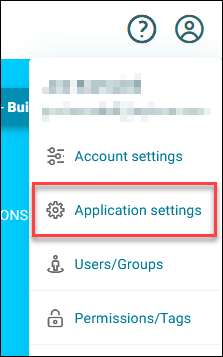
- Open Orbit and click your avatar icon in the top right corner.
-
Click Application Settings.
-
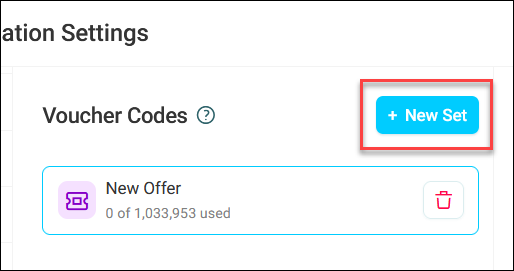
Click Voucher Codes from the left-hand menu.
-
Click + New Set.
-
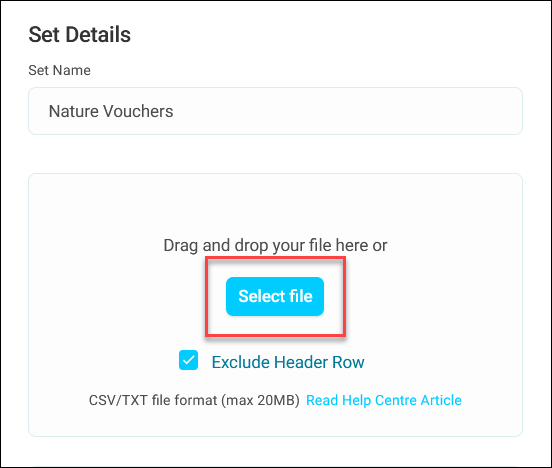
Enter a descriptive Set Name.
- Click Save.
-
Click Select file or drag and drop your file into the upload area.
Note
Check the Exclude Header Row checkbox if your file contains a header row.
-
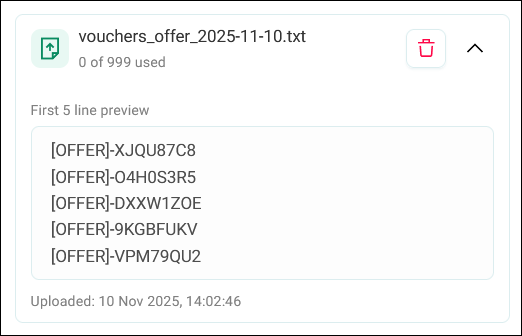
Click Save. Details of your code upload appear below.
You can top up an existing voucher code set by repeating steps 7-8. Orbit continues allocating codes in the order they appear across all uploaded files for that set.
Note
To delete a voucher code set, click the bin icon next to the set.
Viewing voucher code details
Voucher code sets appear in the left-hand panel. Click on a set to view its details on the right.
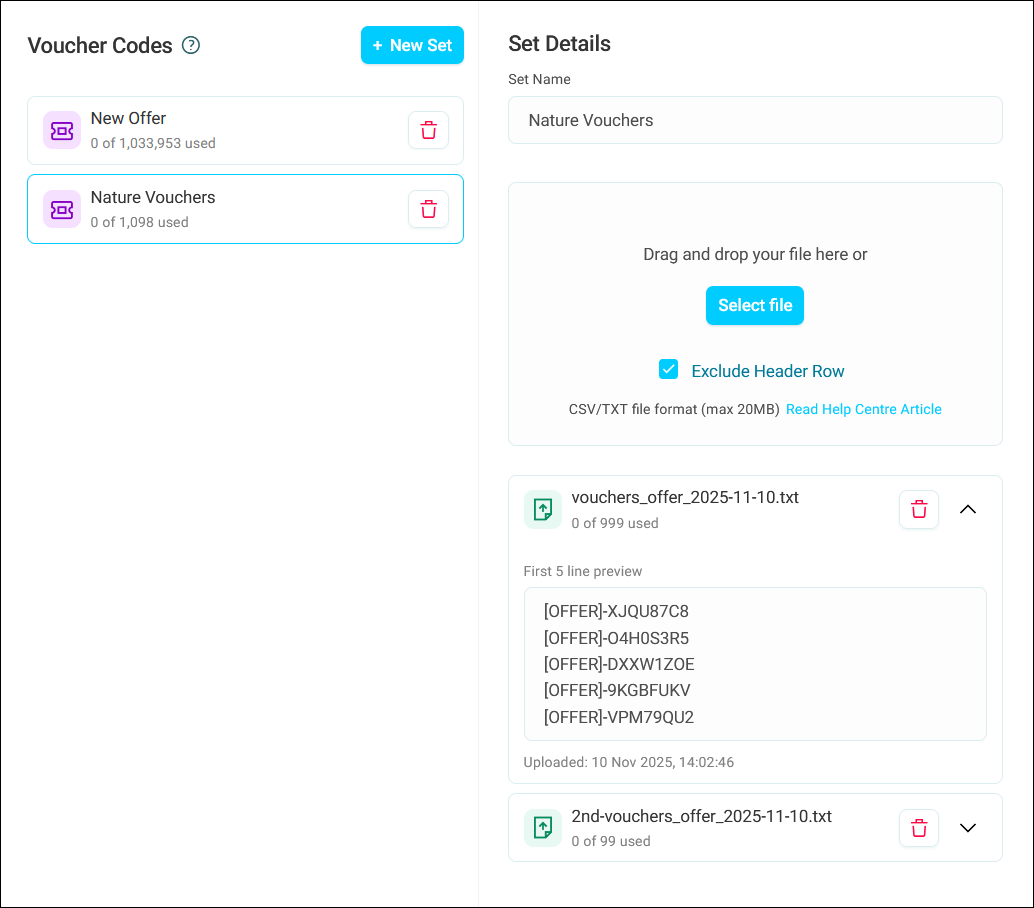
The Set Details panel displays:
- Upload history
- Code count per upload
- First 5 line preview
- Upload timestamp
- Delete option
The system updates usage counts automatically as campaigns allocate codes to recipients.
Best practices
Here are some tips for using voucher codes:
- Name sets clearly to identify their purpose (for example, Summer Sale 2025 or Nature Tour Discounts)
- Monitor remaining code counts regularly and top up code sets before they run out
- Create separate sets for different promotion types to maintain clear organisation