Running and Rolling
The Running/Rolling functionality allows us to establish the value of a transaction from a defined number of previous transactions.
- Running Aggregation – will work out a value for this transaction from ALL the transactions up to and including it
- Rolling Aggregation – will work out a value for this transaction from a fixed number of transactions up to and including it
You can optionally group a person's transactions by the categories within a selector variable - see example below.
To get started with creating running and rolling aggregations, open a new expression window:
- Click on the Add Aggregation button and then on the tab that opens up.
-
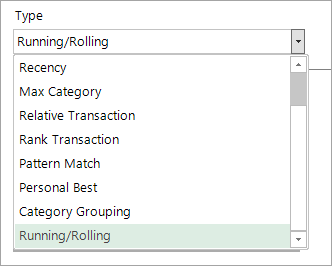
From the Type drop down select Running/Rolling.
-
Select the appropriate Transactional and Grouping tables – in the following examples, Bookings and People.
Running
- Order Records by Booking Date from Earliest to Latest.
- Pick the Cost.
-
Ensure the Running radio button is checked.
The functions available are Running - Sum, Average, Minimum, Maximum.
-
Select Running Sum.
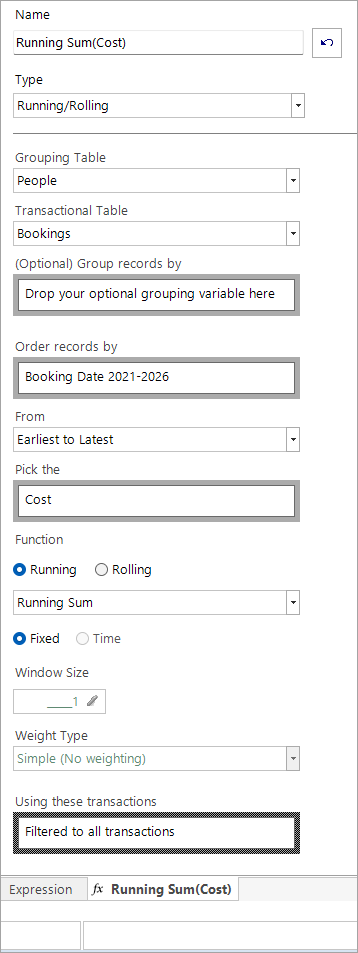
If required, it is possible to add a transaction filter, rather than applying the aggregation across the entire database.
-
Name the expression Running Sum of Cost.
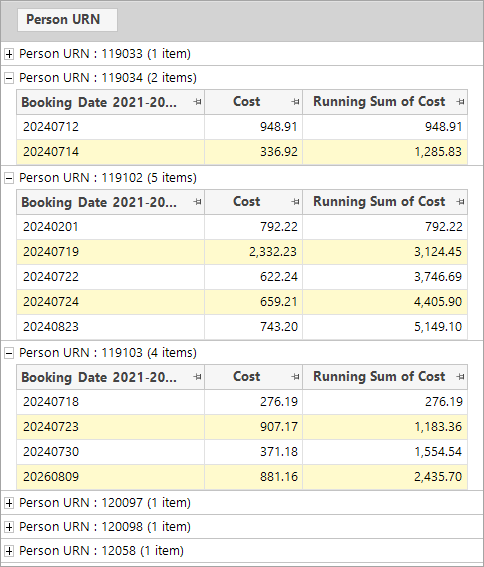
We can sense check the expression using a Data Grid, grouped by Person URN and ordered into ascending order by Booking Date:
Rolling
- Order Records by Booking Date from Earliest to Latest.
- Pick the Cost.
-
Ensure the Rolling radio button is checked.
The functions available are Rolling - Sum, Average, Minimum, Maximum.
-
Select Rolling Sum.
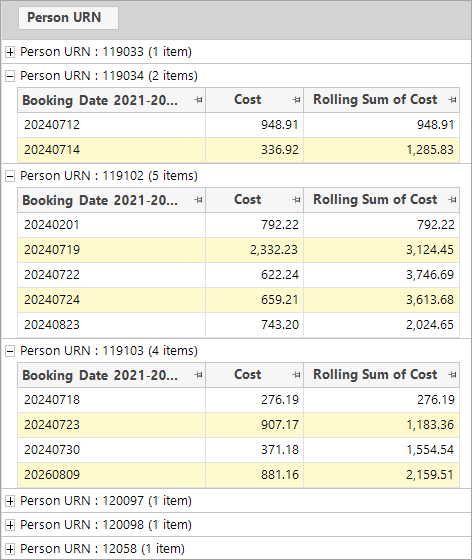
- Enter a Window Size of 3 so that our rolling sum is across 3 transactions.
- Name the expression Rolling Sum of Cost.
We can sense check the expression using a Data Grid, grouped by Person URN and ordered into ascending order by Booking Date:
When selecting the Rolling Average function, the Weight Type drop-down becomes accessible, with 3 options to control the weighting of how important the previous transactions are:
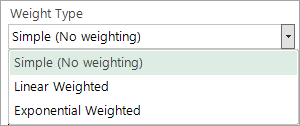
- Simple (No Weighting) - applies no weighting
- Linear Weighted – weights the transactional value over time, decreasing in a linear fashion, with the highest weighting being assigned to the most recent transaction
- Exponential Weighted – weights the transactional value over time, decreasing exponentially, with the highest weighting being assigned to the most recent transaction
Linear and exponential weighting are useful, giving higher importance to more recent transactions.
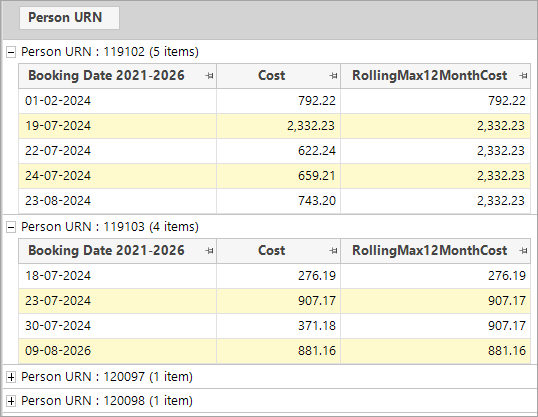
With the rolling time window option you can, for example, determine the highest amount spent by a customer in any 12 month period.
Rolling count
It is possible to create a rolling count of transactions on a time window going backwards. This allows you to answer questions such as 'from this transaction, how many transactions were there in the previous N days, weeks, months, quarters or years.
The rolling count option is only available when:
- No item variable is selected
- Rolling is selected
-
You set a time window
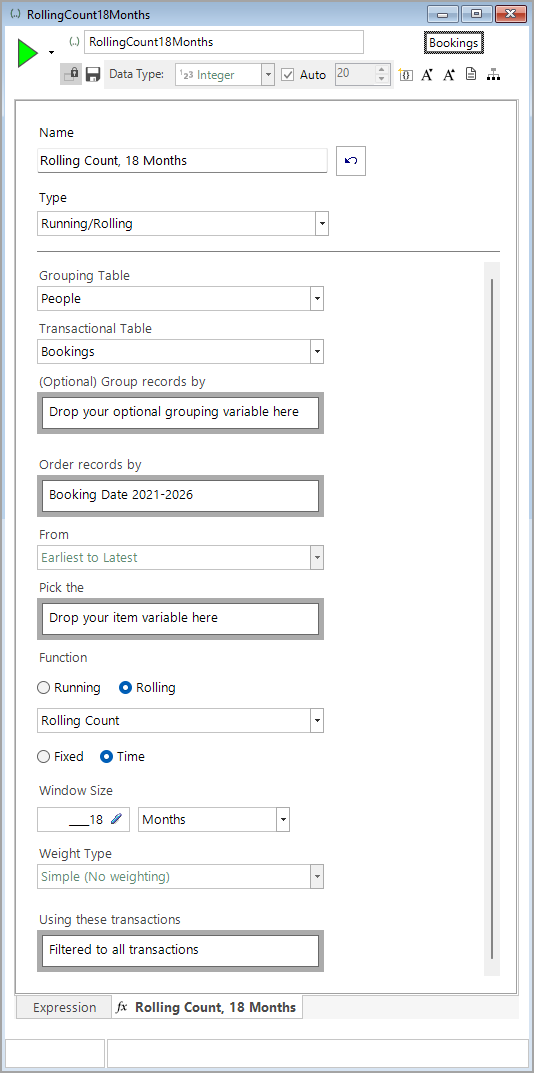
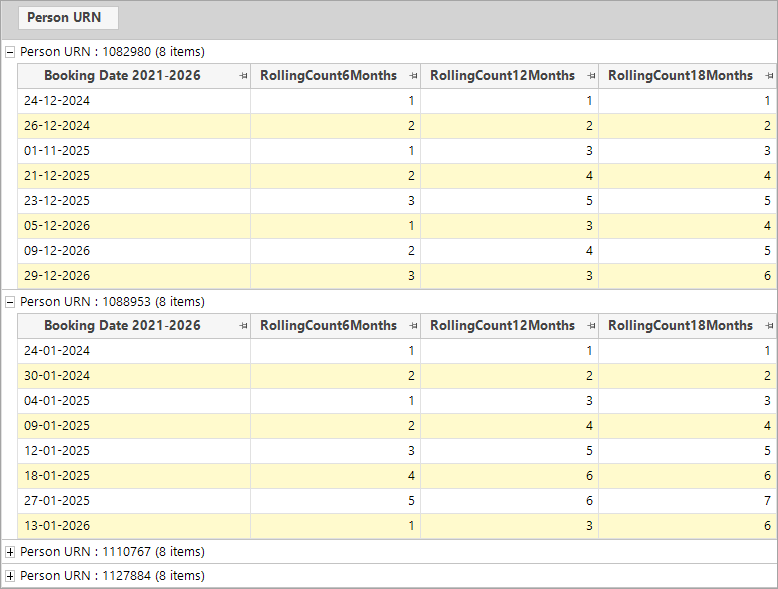
The following screenshot displays the rolling counts of transactions over 6, 12 and 18 months:
Using a grouping variable
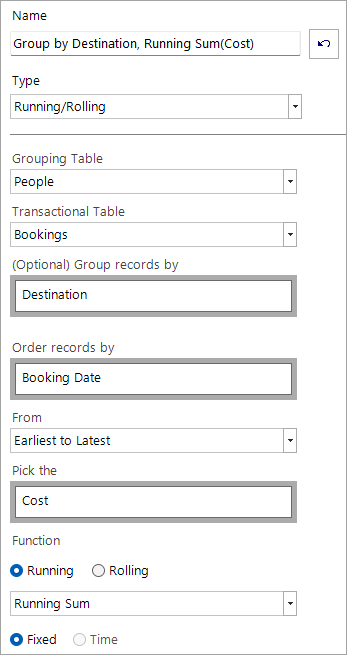
Running and rolling aggregations allow you to optionally group a person's transactions by the categories within a selector variable. For example, to display the running total cost spent by an individual, grouped by the different destinations they have visited:
- Create a new Running/Rolling aggregation.
- Select the appropriate Transactional and Grouping tables – in this example, Bookings and People.
- Drag and drop Destination as the selector variable to group by.
- Order records by Booking Date from Earliest to Latest.
- Pick the Cost.
-
Select Running and Running Sum as the function.
You can view the results on a data grid:
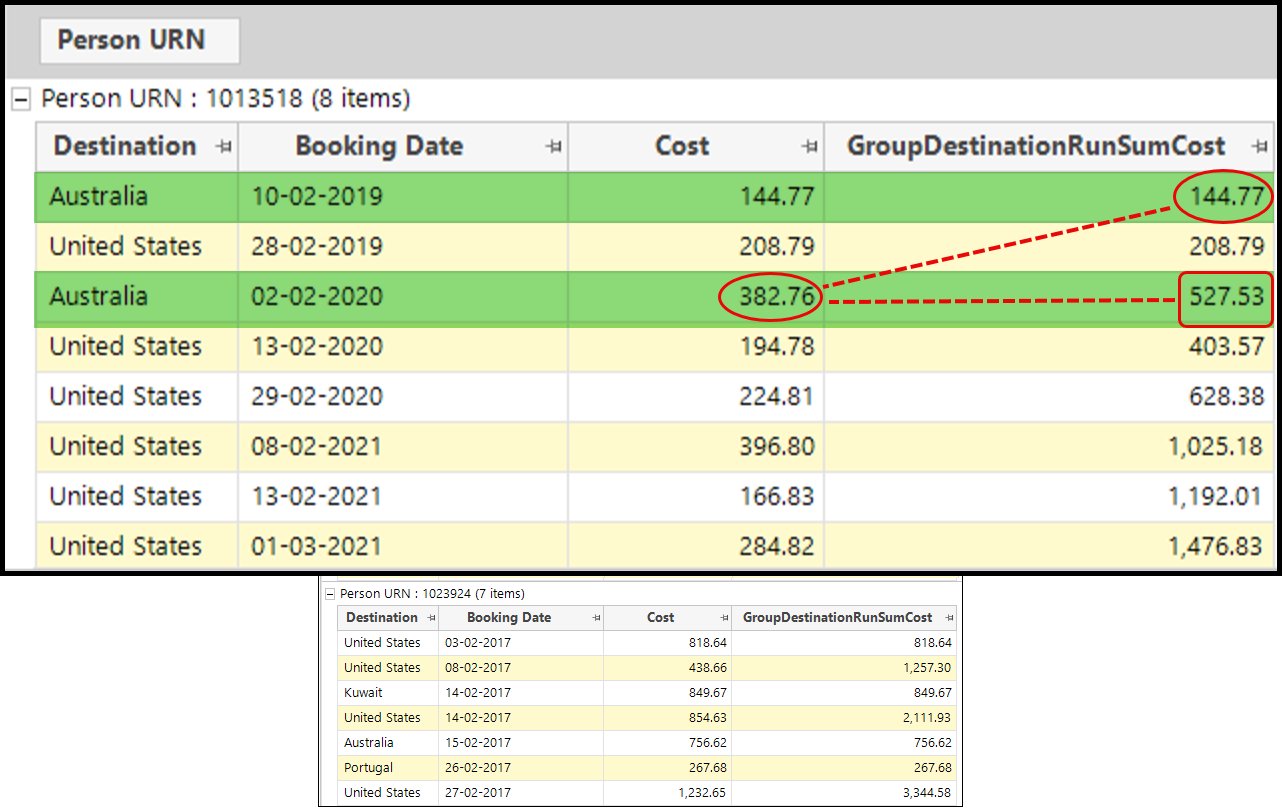
Grouping is supported for running, rolling across a fixed number of transactions, and rolling across a time period. The results within each group start from the first transaction.