Pattern match
The Pattern Match functionality of on the fly aggregations has multiple, powerful applications. You can use this functionality to define a pattern match aggregation on:
- A selector variable alone - see below
- A numeric alone - see Numeric pattern match
- A selector and numeric together - see Selector and numeric
See also:
- Transactional table
- Positional wildcards
- First matched pattern
- Any matched pattern
- Pattern match with grouping
- Longest sequence
- Include or exclude list
- Numeric longest particular
- Numeric ranges
- Minimum/maximum number of days
- Sequence analysis wizard
Combining the power of the Category Grouping and Pattern Match aggregation techniques, see also:
The ability to search for and return transactions, where particular parts of a pattern fall into particular time periods. See:
The following examples demonstrate how you can define a pattern match aggregation on a selector variable only.
Scenario
Find people who:
- Have been to the same destination 4 times;
- Been to France and then anywhere (which could be France) and then France;
- Been to Germany, then anywhere (which could be Germany), repeated the booking to the same "anywhere", before then going to Germany.
To get started:
- Click on the
 Add Aggregation button and then on the tab entitled Frequency(Bookings) that opens up
 - In the Type drop down select Pattern Match
- Set the Grouping Table to People and Transactional Table to Bookings
- Drag the Booking Date variable onto the Order records by drop-box and leave the From as Earliest to Latest
- Select the Pattern Match Selector Variable option, then drag the Destination selector variable onto the Drop your pattern match variable here drop box
-
Specify the Maximum days between transactions, if required; here enter 400 days to approximate to a person's annual holiday
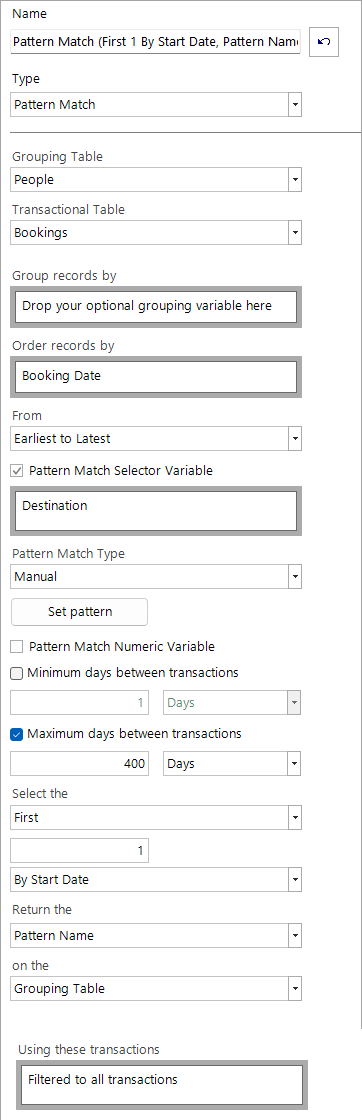
The above settings allow us to search for patterns in people's holiday choices, ordered by their booking date.
Note
Using the Minimum days between transactions option you can define regularity to ensure, for example, that transactions don't happen on the same day (Min = 1), that there are at least 90 days since the last transaction (Min = 90), or that there is an exact number of days between transactions (Max = 30 and Min = 30). See Minimum/maximum number of days for a worked example.
Next:
-
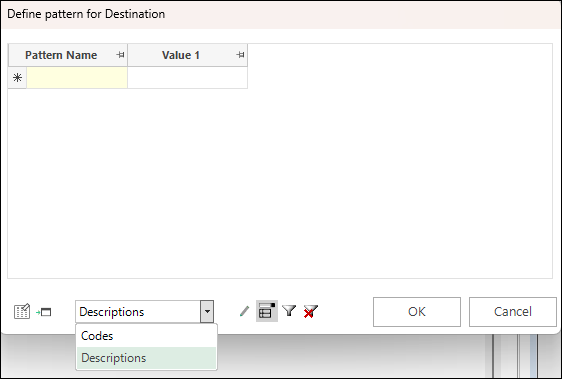
Click Set pattern - a new window will open
Using the Show drop-down, choose if you would like to define patterns using the selector variable Codes or Descriptions
-
Select Descriptions
-
Enter Greece as Value 1 on the first row
You can manually enter patterns in priority order using the Freeform Edit Mode or, alternatively switch to Dropdown Edit Mode
.png) to select the categories in the required order.
to select the categories in the required order.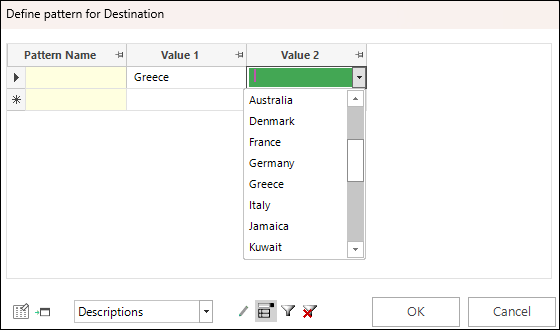
Right-clicking on a cell gives access to the menu options:
-
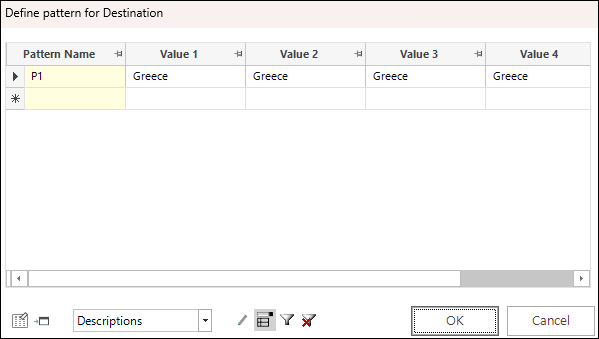
Right-click the Greece Value 1 cell, select Copy Across and set to Copy this value across to 4 times
This results in the same outcome as manually entering Greece 3 times and allows you to identify people who have been to Greece on 3 consecutive occasions.
-
Name the pattern
Positional wildcards
Note
See also Positional wildcards and Positional wildcards summary
A number of wildcards are supported - **, ? , * , = , <> , , = , ?1, **
You can, for example:
Use of the * allows you to specify and find a desired sequence of transactions – e.g. that a person should have booked a holiday to Australia first, followed by one to New Zealand; it does not matter how many other bookings fall in between, nor does it matter what the other destinations are – as long as there is a sequence of Australia followed by New Zealand.
We can use ? to represent a single value in that position and an = to match the previous value in the pattern; in a marketing context this might be used to examine sequences of the same result – for example, to find people who are repeatedly buying the same product.
Use 'not equal' <> when a value should be different to the value in the previous record - for example to find patterns of transactions where each product is different to the last.
Use the 'inequalities' to compare the ordinal value in this record to the ordinal value in the previous record. Note: These options are only supported for ordinal selectors and will not be offered in the drop-down menu for nominals.
Example 1
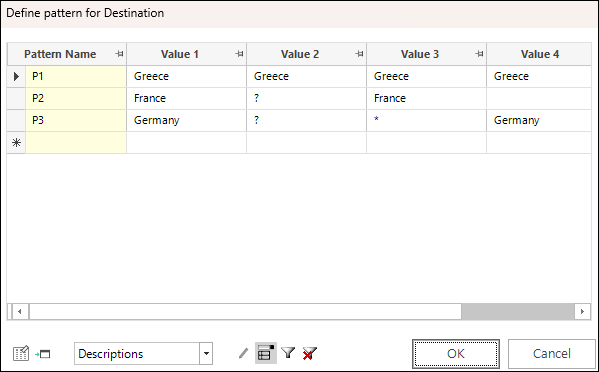
In the case of the above defined settings:
P1 identifies people who have been to Greece 4 times in succession
P2 identifies people who have been to France and then anywhere (which could be France) and then France
P3 identifies people who have been to Germany, then anywhere (which could be Germany), repeated the booking to the same "anywhere", before then going to Germany
To select people who meet the defined patterns:
- Drag the Pattern Match expression onto a new selection window
-
Enter the Pattern Name into the free-form text window
Note
In this example, to search for people meeting the criteria of all 3 patterns, select Ranges and Wildcards and ensure the Match case check-box is unticked.
.png)
-
Enter P* into the free-form text window
As an alternative approach:
-
Drag the Pattern Match Expression onto a cube as a dimension and Build
.png)
-
Highlight and drag off the required cells to create the selection:
.png)
A Data Grid can be used to validate the results:
.png)
Example 2
Aim: To find people who have consecutive sequences of products where each transaction is considered to be an upgrade on the one before.
To demonstrate this in the context of Holidays, we have created a version of the Destination variable (Destination_Ascending) which is ordinal; the categories are ordered according to their distance from the UK, on the assumption that greater distance represents a higher value or upgraded type of transaction.
.png)
We are looking for sequences of holiday bookings where the destinations are getting steadily further away.
To start the analysis:
-
Open a new Expression window and click on the Add Aggregation icon
To access the ‘on the fly’ options:
-
Click onto the Frequency(Bookings) tab
- Select Pattern Match from the Type drop-down menu options
- Set the Grouping Table to People and the Transactional Table to Bookings
- Order records by Booking Date
- Add Destination_Ascending as the Pattern Match Variable
- Click Set Pattern to open the Define pattern for Destination_Ascending window
-
Click on the drop-down menu in the Value 1 cell to access the available options:
.png)
-
Select >
-
Complete the settings as in the screenshot below and enter the Pattern Name as Destination_Ascending
.png)
Note
Right-click on the Value 1 cell to access the copy and fill options.
Using a Cube and dragging the Expression on as a dimension, allows you to determine that the longest of such sequences on the Holidays system is 5 bookings, the behaviour demonstrated by 14 people:
.png)
-
Drag this cell from the Cube to create a selection and add a Data Grid
-
Add the Booking Date and Destination_Ascending variables to the display and build
- Group by PURN and then sort into ascending order by Booking Date
The screenshot below demonstrates the booking sequences:
.png)