Ordering values
The ability to search for and return transactions, where particular parts of a pattern fall into particular time periods, allows you to carry out advanced transactional analysis such as, for example, examining campaign responses. You can see and select people based on their behaviour in time windows leading up to, after, or even between events.
- Selector, numeric and selector/numeric pattern types are supported - you enter a date, datetime, or numeric variable as an ordering value within the pattern.
- You can specify and position one or multiple ordering values anywhere within the specified pattern.
- All pattern matching functionality is supported, including wildcards, return values, filter selections, and include/exclude lists.
Scenario 1, scenario 2 and scenario 3 provide worked examples.
You can also specify order values within pattern match to allow for dates/datetimes which are not fixed and, instead, work like a date rule which can be relative to the time at which you run your analysis. This is particularly useful, for example, when carrying out response analysis, or examining behaviour before an event. The support for relative time points also means that you can use these expressions in regular scheduled tasks, or automated campaigns, without the need for user intervention to update the date values.
Scenario 4 provides a worked example.
Scenario 1
Let's imagine a marketing campaign ran on 1st June 2025 and, following this campaign, you are interested to look at customer transactional behaviour - in this example, those who booked a holiday to Australia and then the United States.
To create the expression:
- Start a new pattern match aggregation expression in the usual way.
- Order records by Booking Date.
- Choose Pattern Match Selector Variable and drag and drop Destination as the pattern match variable.
- Leave the pattern match type on manual and click to set the pattern.
-
Define the pattern:
- Give the pattern a name.
-
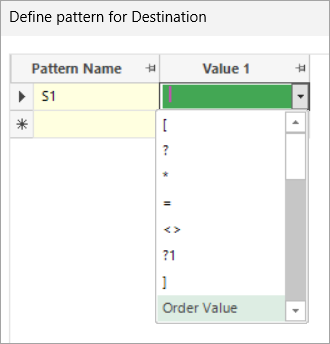
For value 1, click the drop-down and select Order Value.
-
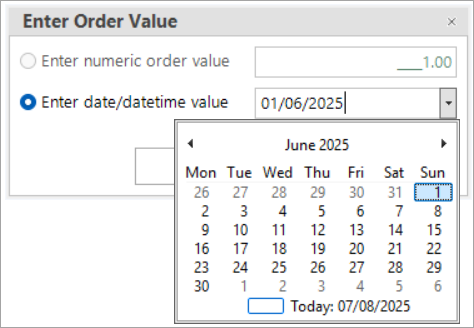
Manually enter, or use the date picker to select the required date/datetime.
-
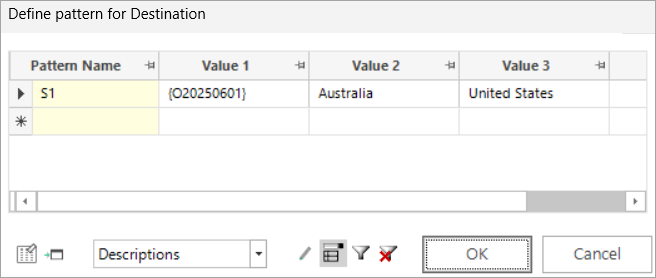
Select Australia for value 2 and United States for value 3, then OK to close the dialogue and return to the expression window.
-
Name the expression.
-
To use this expression in a new selection, simply right click and drag the
 icon and select Add expression to new selection.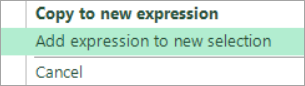
-
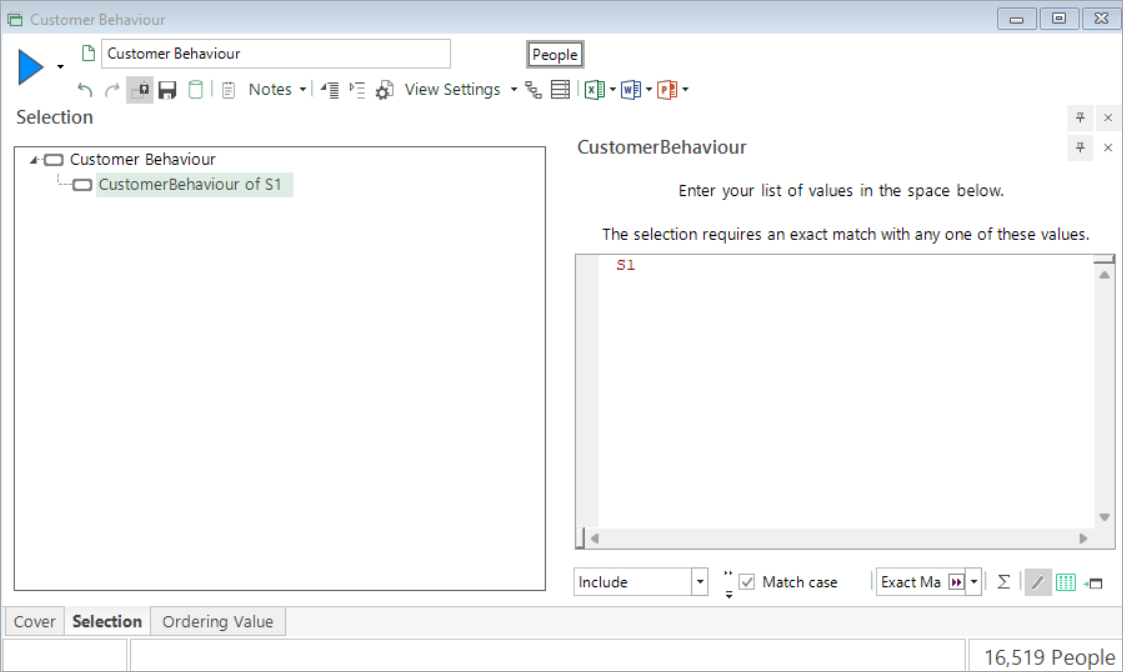
Enter the pattern name as the value to select and build to return a count of all the people who match the pattern criteria.
-
You can use a data grid to verify the results:
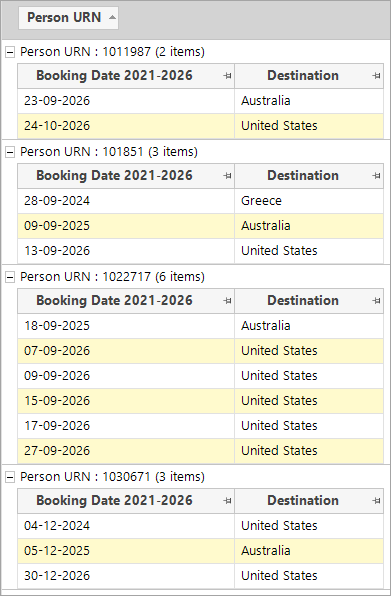
With booking date sorted into ascending order, you can see that each person here satisfies the pattern match criteria by having a booking to Australia followed by a booking to the United States after the campaign date of 01/06/2025 - i.e. from 2nd June 2025 onwards.
But can you really attribute a transaction made in December 2026 to a campaign which ran in June 2025? If you need to narrow down the time window(s) in which your pattern occurs, you can do so very easily - for example, to limit the results only to bookings made up until the end of 2025:
-
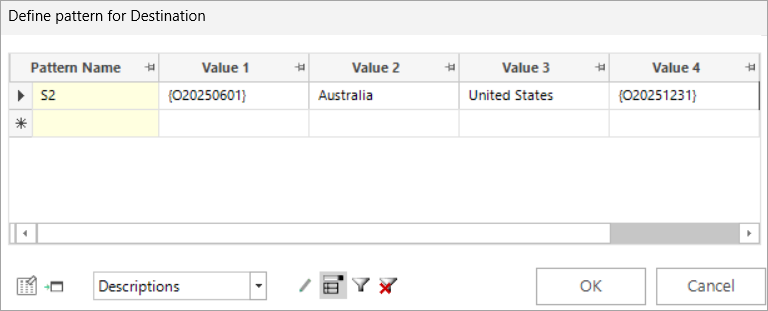
Return to the expression and edit the pattern, adding 31/12/2025 as a second ordering value for Value 4.
-
Rename the pattern and OK.
-
Repeat the above steps to create a new selection, search for the new pattern, and use a data grid to verify the results.
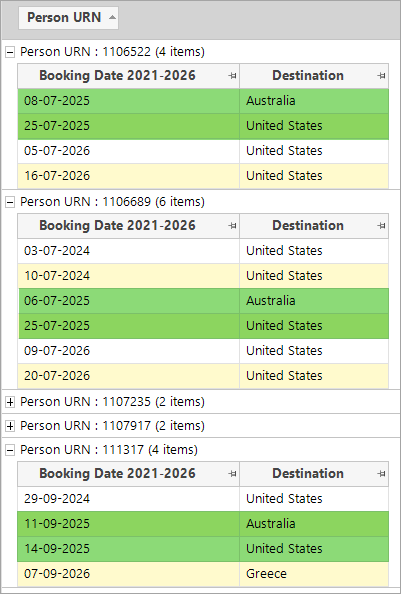
To be included, each person matches the pattern criteria of making a booking to Australia and then the United States after the defined ordering date values of 01/06/2025 (i.e. from 2nd June 2025) and before or on 31/12/2025.
Scenario 2
In this example, the same campaign date applies but, this time, it is a cross-sell campaign with a focus on people who went to France before the campaign, but then went on to book to Italy as their next destination following the campaign. Once again, ordering values are included to limit the time window before and after the campaign date.
- Start a new pattern match aggregation expression in the usual way.
- Order records by Booking Date.
- Choose Pattern Match Selector Variable and drag and drop Destination as the pattern match variable.
- Leave the pattern match type on manual and click to set the pattern.
-
Define the pattern as shown below:
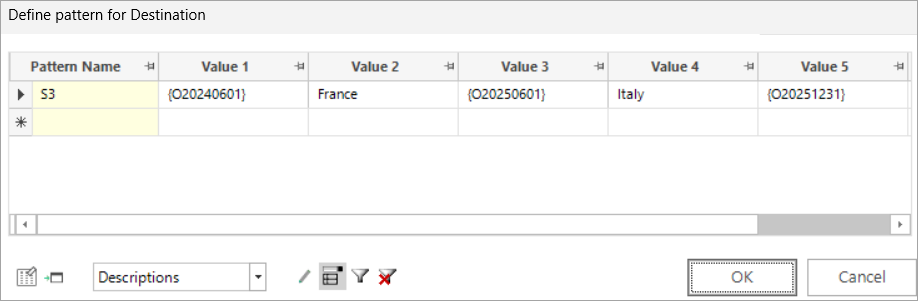
Based on the above, the cross-sell campaign takes place on 1st June 2025, and to satisfy and be selected by the pattern, a person must have made a booking to France from 2nd June 2024 to before or on 1st June 2025 - and then a booking to Italy from 2nd June 2025 to before or on 31st December 2025.
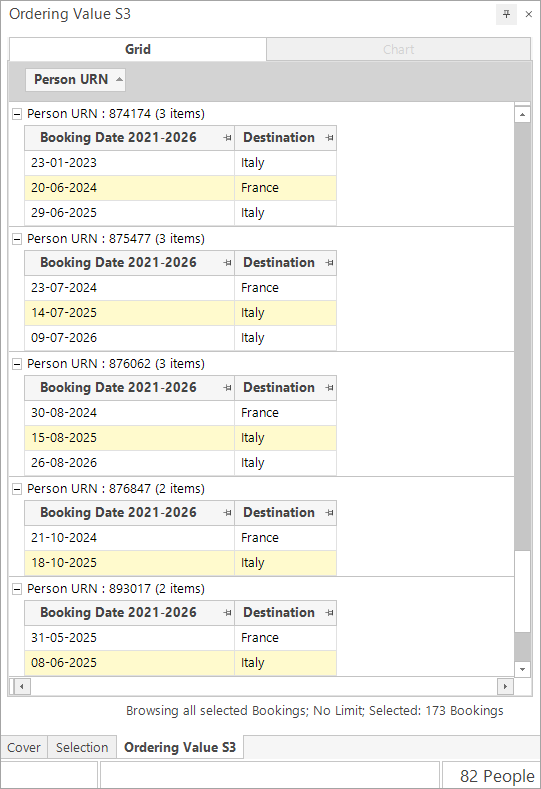
The data grid below displays records for some of the 82 people who satisfy the pattern criteria.
Scenario 3
The following example demonstrates how you can use ordering values in conjunction with wildcard characters to define a pattern.
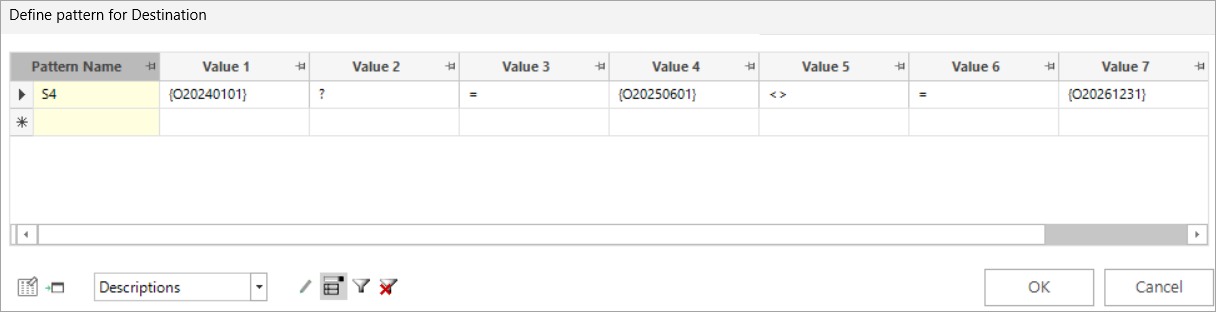
To be selected a person must, after 1st January 2024 (i.e. from 2nd January onwards) and before or on 1st June 2025, have:
- Booked to any destination (?)
- Booked to the same destination again (=)
Then after 1st June 2025 (i.e. from 2nd June onwards) and before or on 31st December 2026, have:
- Booked to a different destination ()
-
Booked to the same 'different' destination again (=)
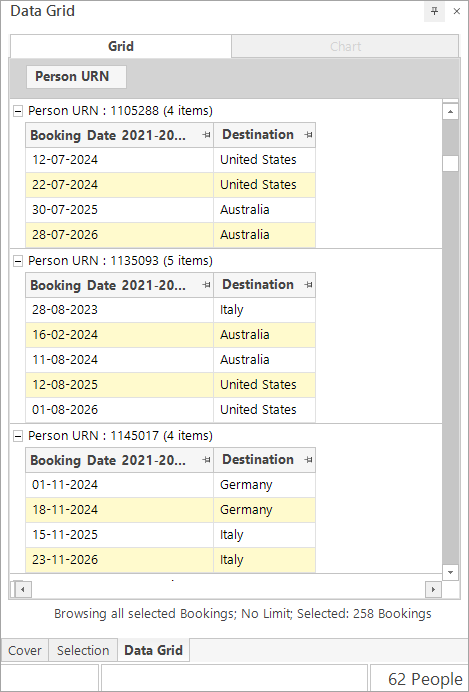
The screenshot above provides a snapshot of 3 from the 62 people who meet the defined pattern match criteria.
Note
When working with date variables, FastStats will search and return the transaction pattern beginning from the following day, whilst with datetime variables, the transaction pattern starts from any time after the defined datetime point.
Scenario 4
The following example demonstrates how you might use relative ordering dates to examine regular post-campaign behaviour. This is a cross-sell campaign that runs regularly and you are interested in finding people who bought the same product twice, but then bought something different following your marketing campaign.
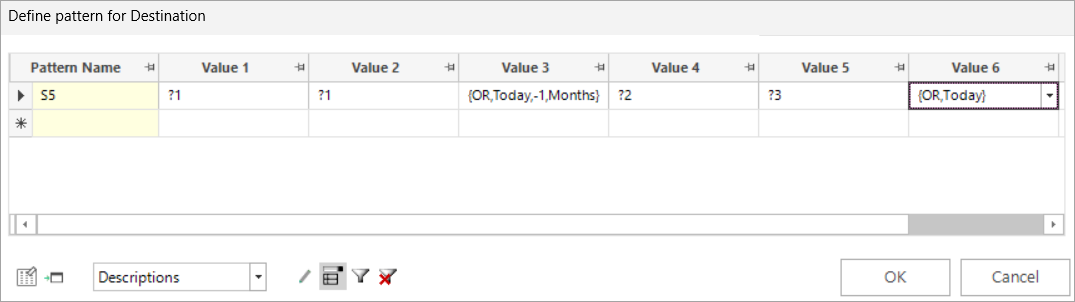
Enter your relative date/datetime values using the Enter Order Value dialogue - for example, to set Value 3 above:
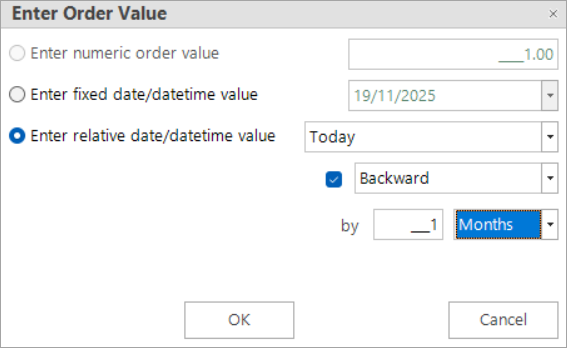
Based on the above definition, today being the 19th November 2025, and the assumption that a cross-sell campaign has run, to be selected a person must:
- Have booked to any - but the same - holiday destination twice in a row prior to 19/10/25
- Between a month ago (19/10/25) and today (19/11/25) have made two further bookings to two different destinations
To view the results:
- Right drag the expression and choose to Add expression to new selection.
- Enter the pattern name to search - here S5.
-
Drag and drop a data grid onto the selection, add Booking Date and Destination and build.
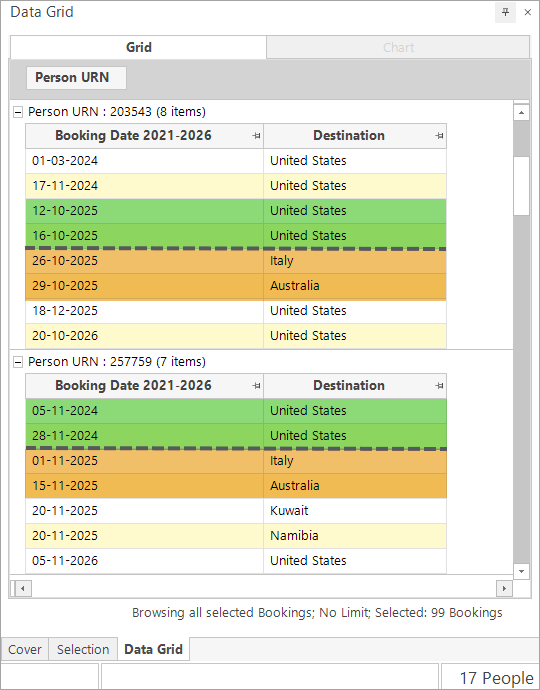
Ordered ascending by Booking Date, the screenshot above provides a snapshot of 2 of the 17 people who currently satisfy the defined pattern match criteria.