Numeric pattern match
You can use the on the fly functionality to define a pattern match aggregation on:
- a value (numeric or currency) variable alone
- a selector variable alone
- a selector and value variable together.
The following example demonstrates how you carry out powerful and insightful pattern match analysis using a value variable.
Scenario
Find the longest sequence of holidays a person has made where the cost is decreasing. Find the start and end numeric values for each sequence
To get started:
- Open a new expression window and click on the
 Add Aggregation button and then on the tab entitled Frequency(Bookings) that opens up.
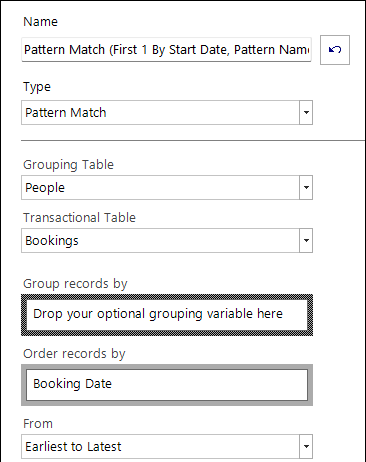
 - In the Type drop down select Pattern Match.
- Set the Grouping Table to People and Transactional Table to Bookings.
-
Drag the Booking Date variable onto the Order records by drop-box and leave the From as Earliest to Latest
-
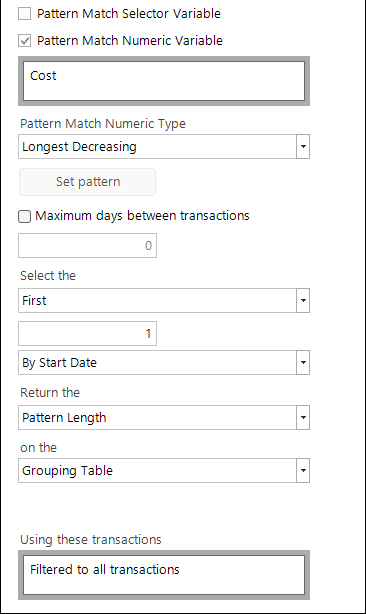
Select Pattern Match Numeric Variable then drag the Cost variable onto the pattern numeric drop-box.
-
From the Pattern Match Numeric Type drop-down, select Longest Decreasing.
Note
When manually defining a pattern, you must specify if the type of range is F-fixed, R-relative to previous, or a P-percentage change from previous. See Sequence Analysis: Value Definition for more information on this.
-
From the Return the drop-down, select Pattern Length.
-
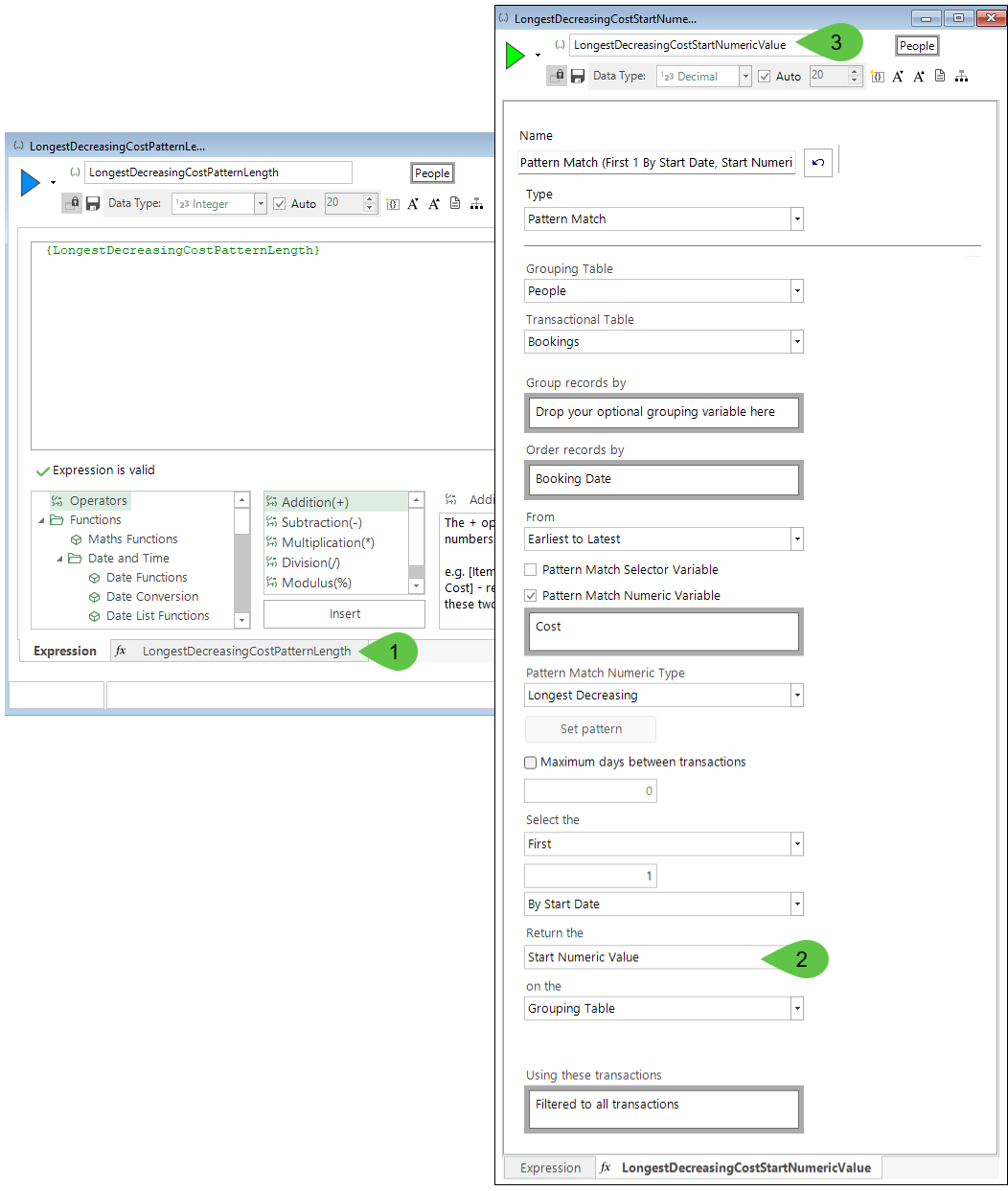
Name the expression - e.g. LongestDecreasingCostPatternLength
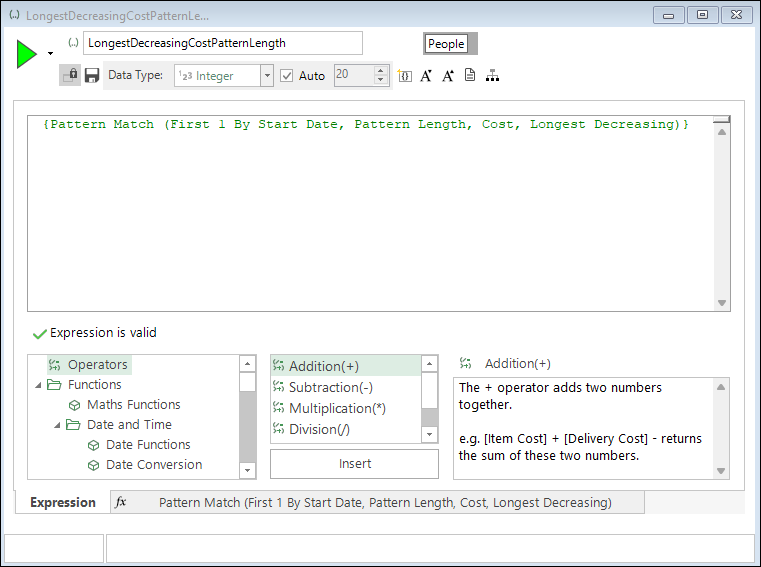
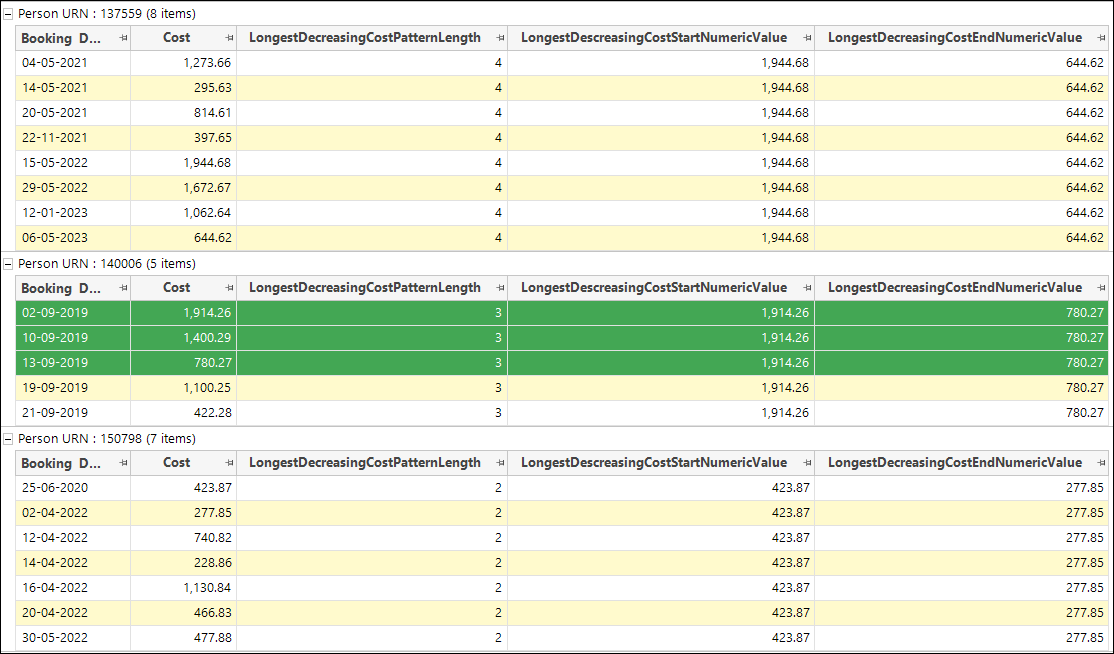
The expression can be added as a column on a data grid to display the results for each person.
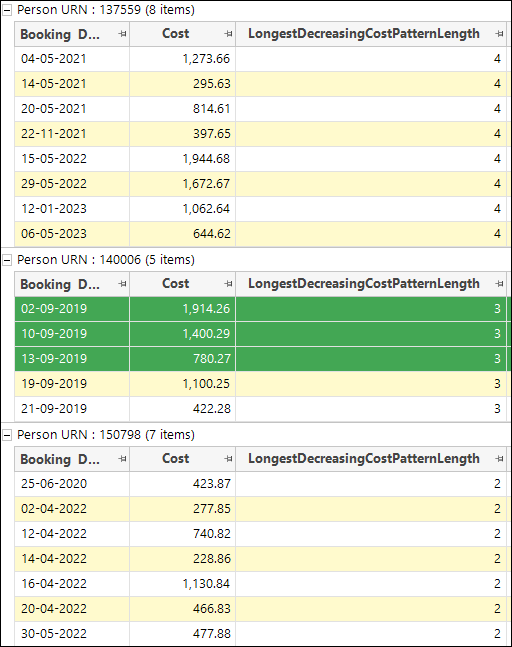
- Open a new People level data grid and drag and drop Booking Date and Cost into the display
-
Drag your pattern match expression into the display and build.
Note
Grouping your data grid by Person URN and then sorting into ascending order by Booking Date will make it easy to interpret the results.
For this scenario, to create the two additional pattern match aggregation expressions, you can make a copy of this first expression and then:
- Click into the aggregation tab at the bottom of the editor window.
- Edit the Return the setting and select Start Numeric Value
-
Rename the expression.
-
Repeat for the End Numeric Value expression.
You can now drag the two new expressions onto the data grid as additional columns to display:
For related topics see: