Creating a template
Use templates to construct emails that you can select as messages in both Apteco Orbit and Apteco PeopleStage.
There are 2 types of templates:
- Marketing templates: These templates are designed for emails that require personalisation based on each recipient. In these templates, you can define Contact Properties such as Firstname, Surname, or contact details. They are ideal for messages that need to reach a wide audience or for broadcasting general messages such as newsletters or announcements.
- Transactional templates: These templates are more diverse in nature, allowing you to include Contact Properties and data attributes. You can use data to set conditions for section display or for additional content, such as the product purchased or the subscription renewal date.
For more information, see Email templates: Marketing vs. Transactional.
Note
If you have set up your Apteco email channel for contractual use, then only transactional email templates appear in the email builder. This is because you can choose to add an Unsubscribe link in the email or not. For marketing emails, an Unsubscribe link is automatically added.
To create a new marketing template:
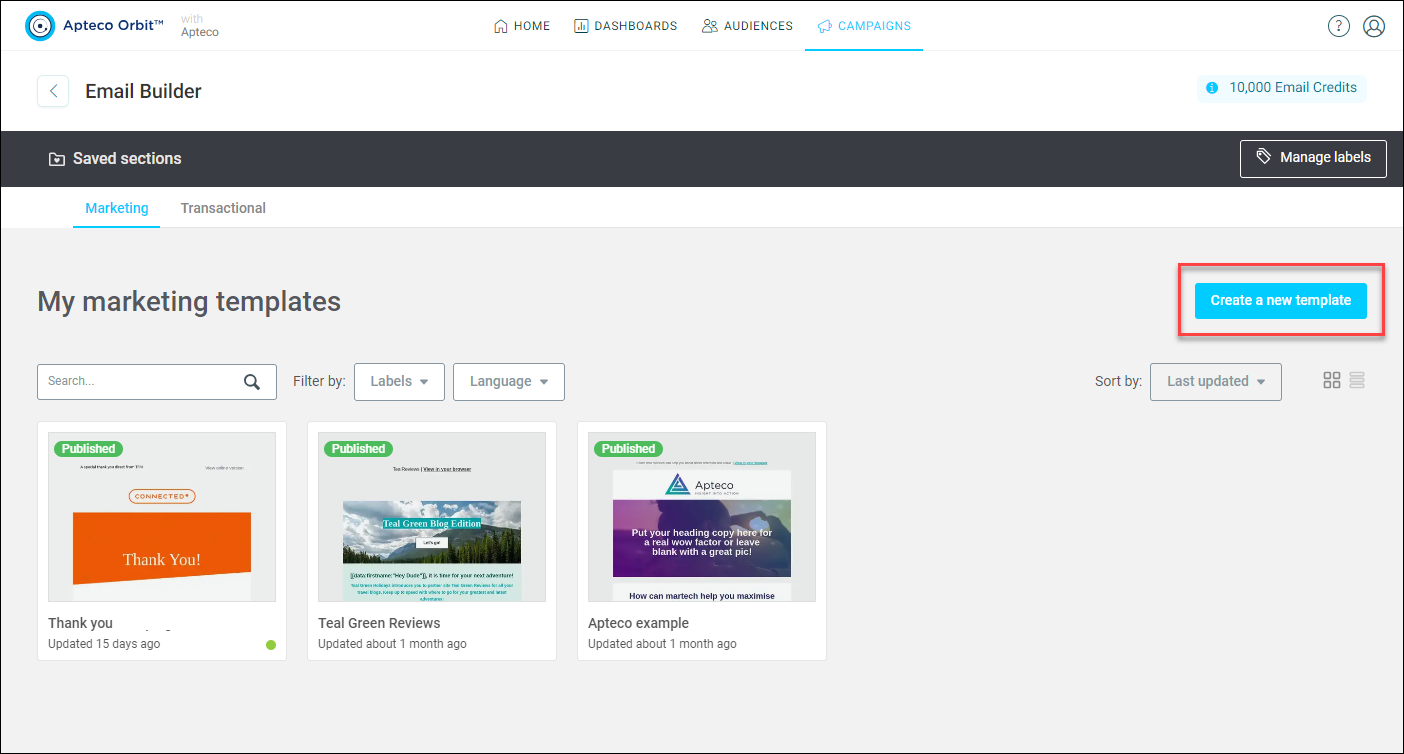
- Open the email builder.
-
Click Create a new template.
-
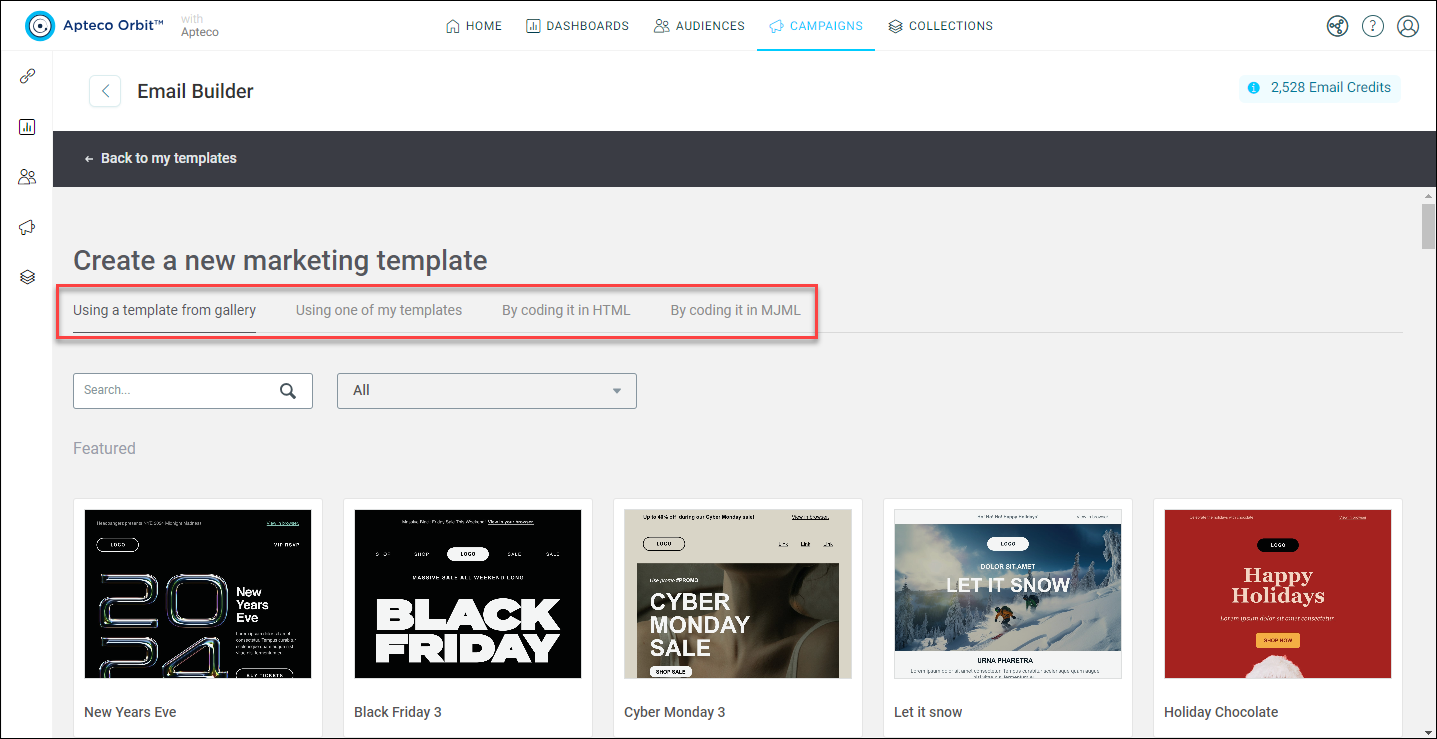
Choose from the following template options:
-
Using a template from gallery
Choose from a number of predefined templates.
-
Using one of my templates
Your own set of previously created templates.
-
Code in HTML
Create a campaign using HTML or import your own code.
Note
Apteco only recommends this option for users with advanced HTML skills as no support is provided for troubleshooting custom code.
-
Code in MJML
Create a campaign using MJML or import your own code.
Note
Apteco only recommends this option for users with advanced MJML skills as no support is provided for troubleshooting custom code.
This example uses a template from gallery.
-
-
After deciding on the template to use, select it and give it a name.
Once you have selected a template, the next step is to design your email with the email builder.
Creating a template from HTML
You can create a new campaign using HTML or import your own template from a different Email Service Provider (ESP).
There are a few different ways to do this:
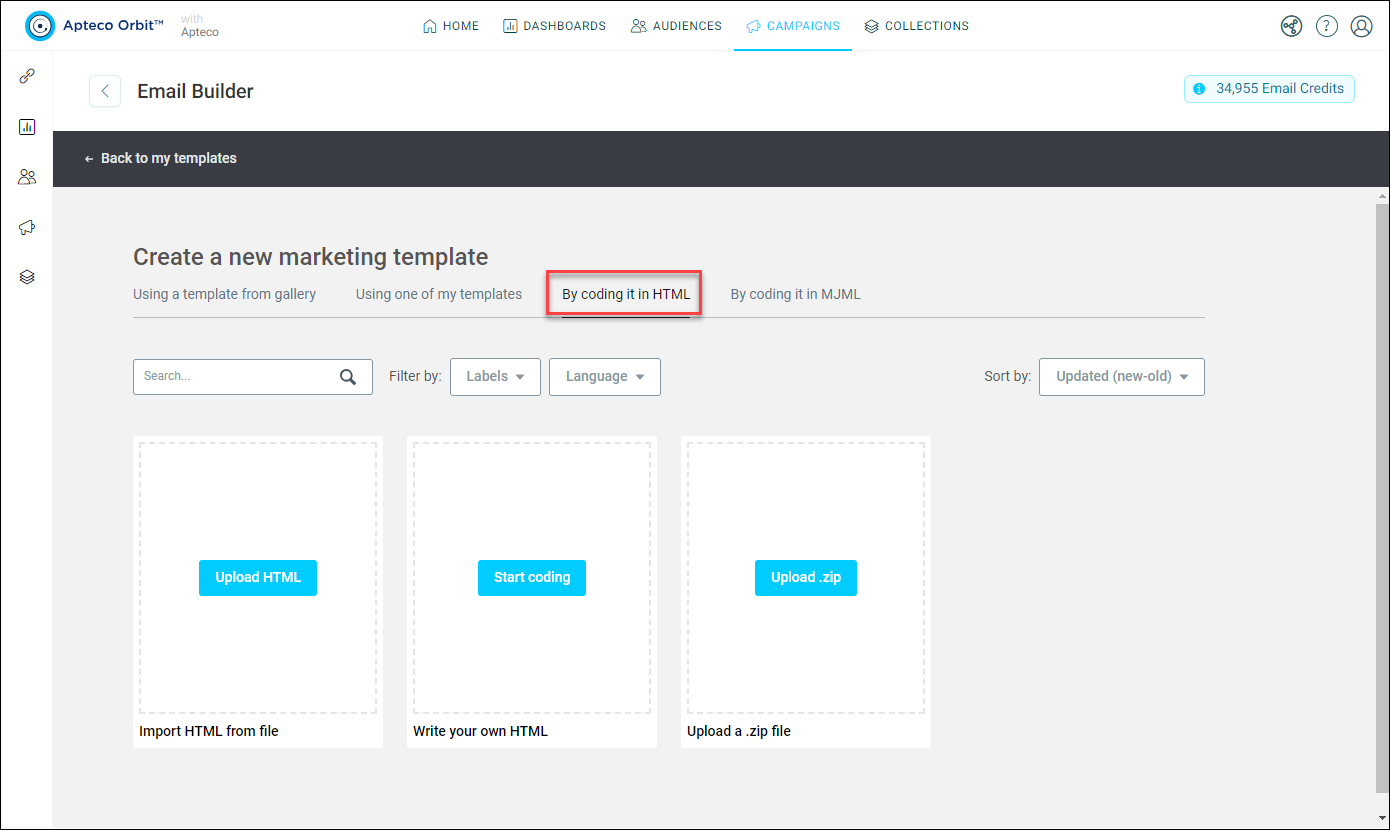
- Import HTML from a file
- Write your own HTML
- Upload a .zip file
Note
Apteco only recommends writing your own HTML for users with advanced HTML skills as no support is provided for troubleshooting custom code.
Create a new template by importing an HTML file
To import an HTML file:
- Open the Email Builder.
- Click Create a new template.
-
Click By coding it in HTML.
-
Click Upload HTML.
-
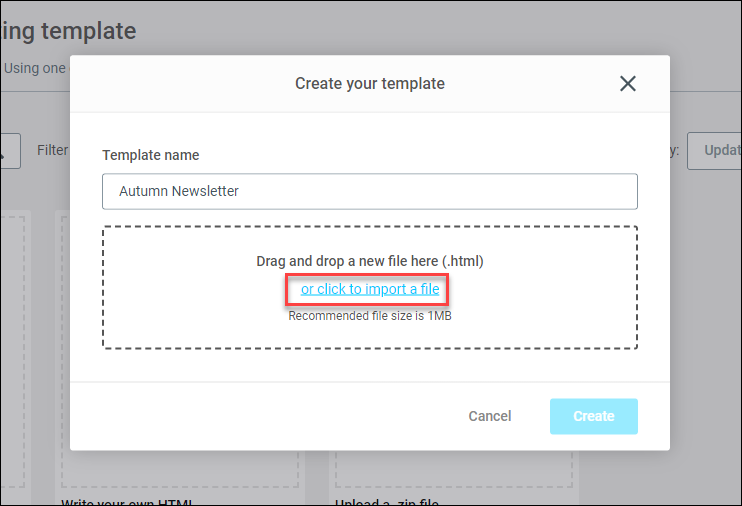
Give your template a name, then either drag your file onto the box or click to import a file.
-
Click Create.
- Once your template has loaded in the email builder, click Save & Publish to gallery.
You have now successfully imported your HTML template file and can begin editing and publishing.
Editing an existing template
If you need to make small tweaks to an existing template before sending it, then you can do so during the journey building process.
To edit an existing template:
- Choose an email template from the drop-down menu.
-
Use the action button alongside this, and click Edit Template.
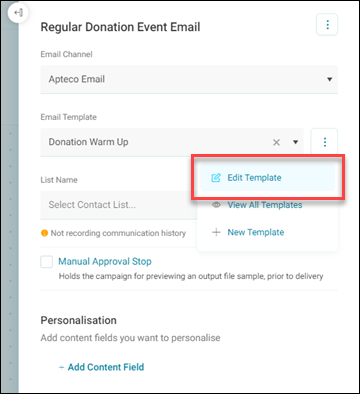
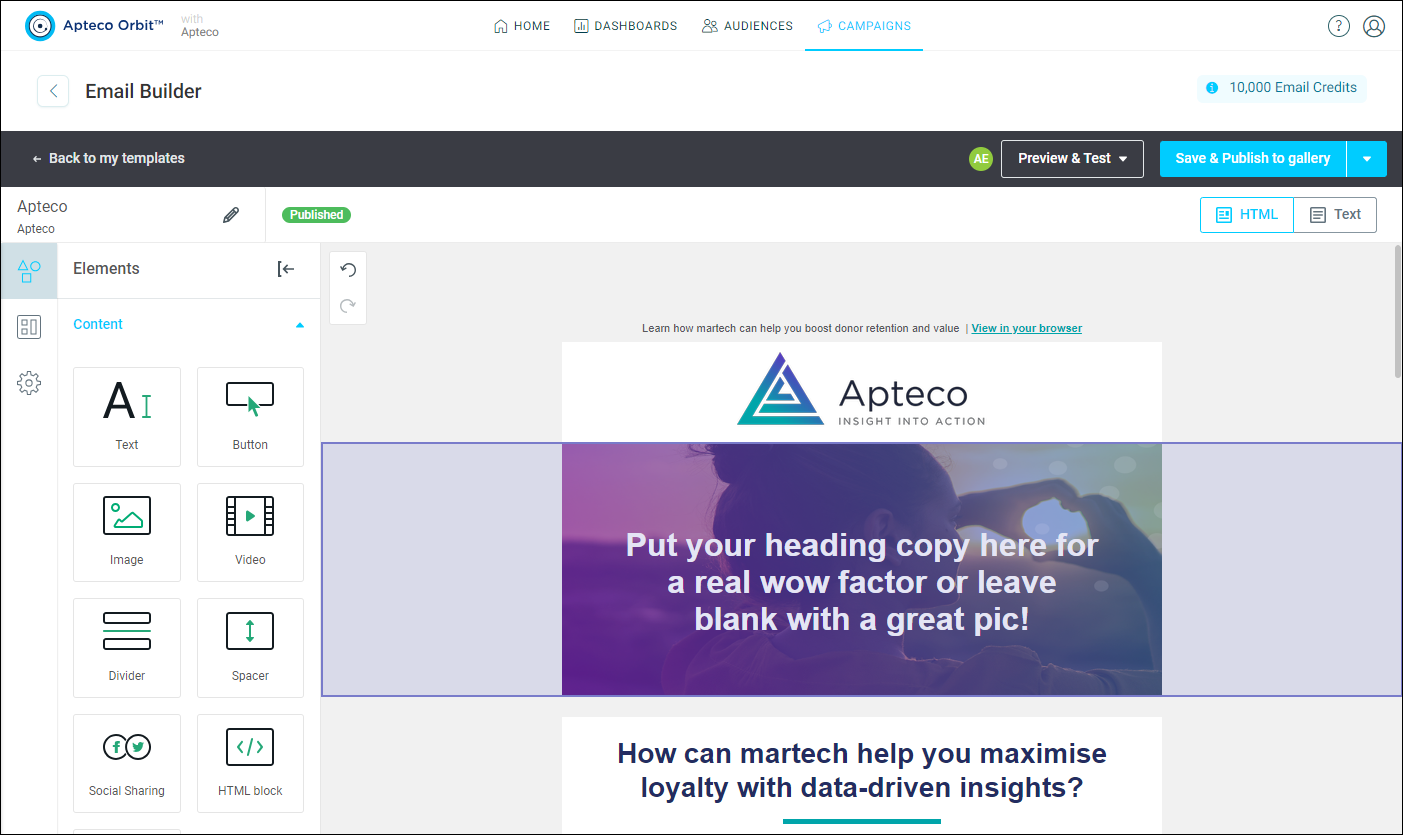
Editing the template launches the email builder, where you can amend and republish the template.
Note
See Email builder.
View all templates
To ensure that you have selected the correct email template or to reselect a template within the campaign building process:
- Open the email step in your campaign journey.
-
Click View All Templates to launch the email builder.
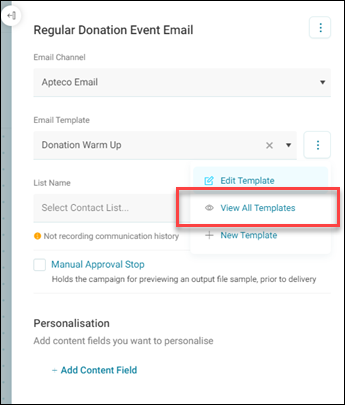
This displays all the templates set up in the email builder, allowing you to select the one that best fits your campaign needs.