Content elements
You can drag elements onto the email template.
The content elements include:
- Text
- Button
- Image
- Video
- Divider
- Spacer
- Social Sharing
- HTML block
- RSS item
To add a content element:
-
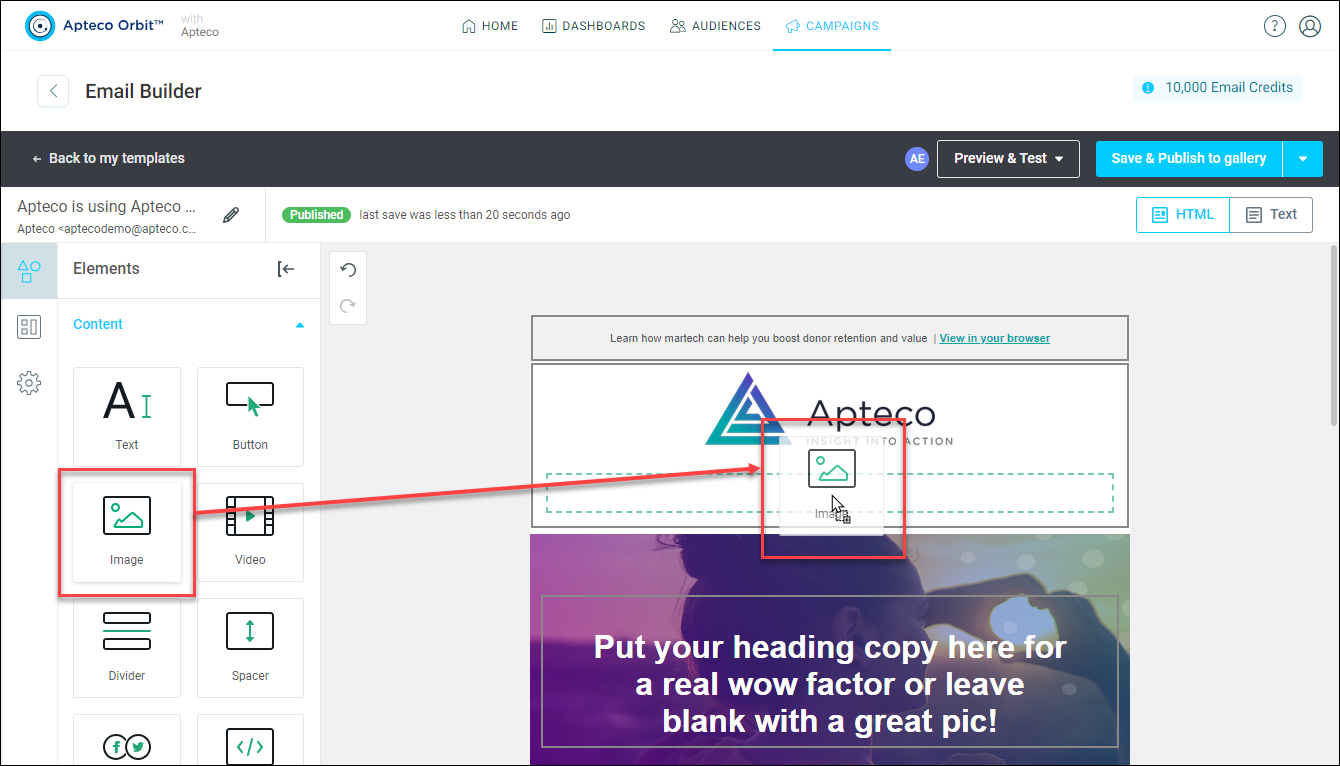
Drag the element that you want onto the part of the template where you wish to place it.
In this example, we drag an image element to add the Apteco Logo.
-
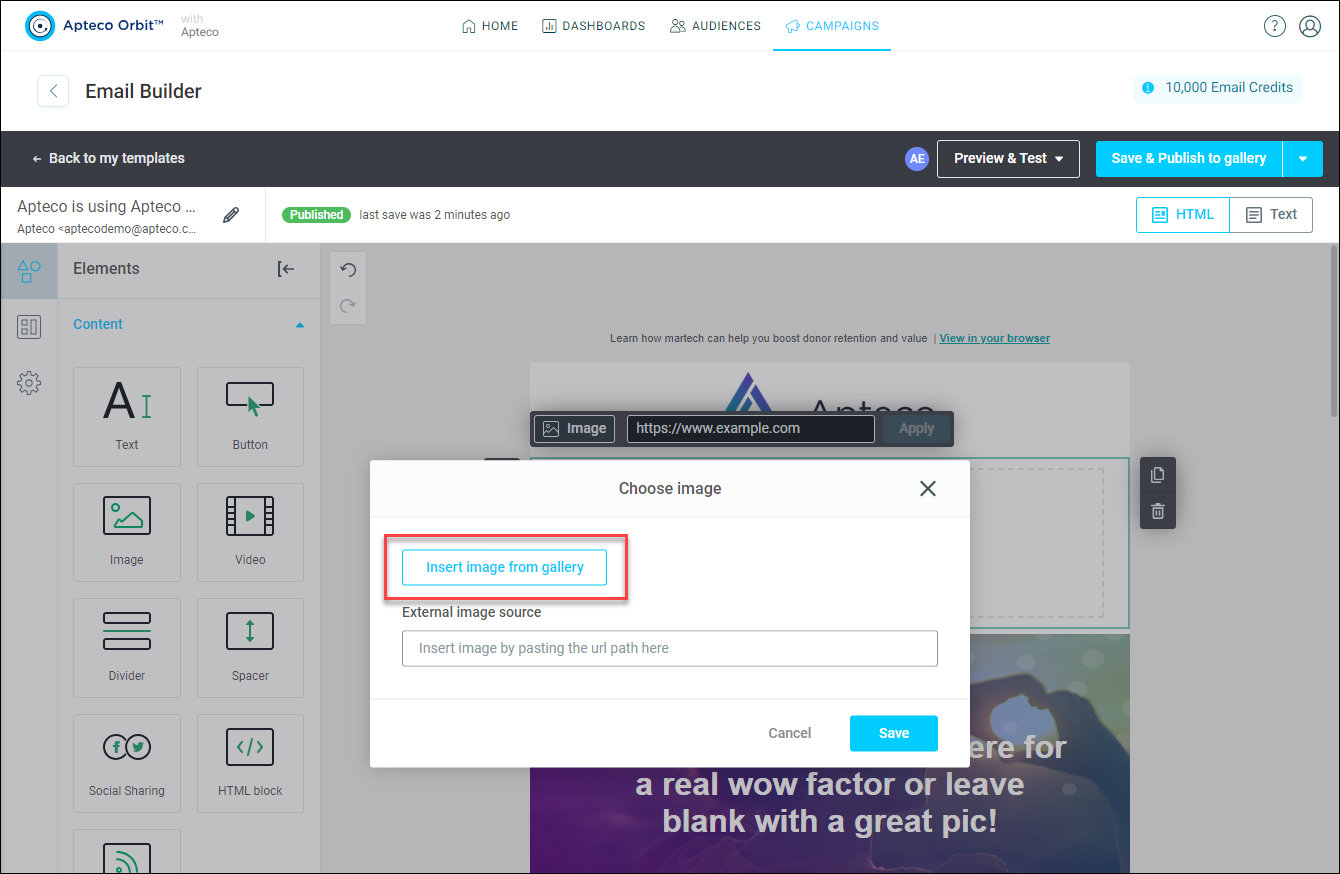
The Choose image dialog box appears, allowing you to enter a link or upload an image.
-
After dragging the image, you can choose an image from your image gallery.
-
Click Save. You also have the option to add a link if you wish.
Text
To edit text:
-
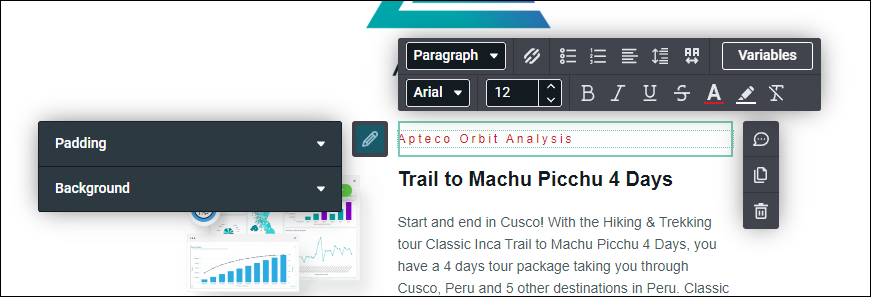
Click on the Text box. The pencil icon allows you to change the Padding and Background. To edit the text itself, highlight the current text and type to overwrite it.
-
The formatting options box allows you to change various formats for the Text. For instance, you can use the Heading 3 type and modify the text colour to teal while making it bold.
-
Another option is to enter variables. Click on the Variables button and the Insert variable box appears, offering the choice between a Contact property or Predefined tags. The example below shows the of firstname, with the Default value set to Friend.
This displays the variable name and its default value in brackets.
With the paragraph text also edited, this section of the email is complete.

Note
When you add an email address link, Orbit automatically includes mailto: so that clicking the link opens the customer’s default mail app with the To field pre-filled.
Images
If you are using a Pre-built or Saved layout, then it’s still possible to change the images from the loaded layout. The example below uses the Pre-built layout Text and Image left.
Note
Images must be below 2MB in size. You can upload as many images as you like.
To change an image:
-
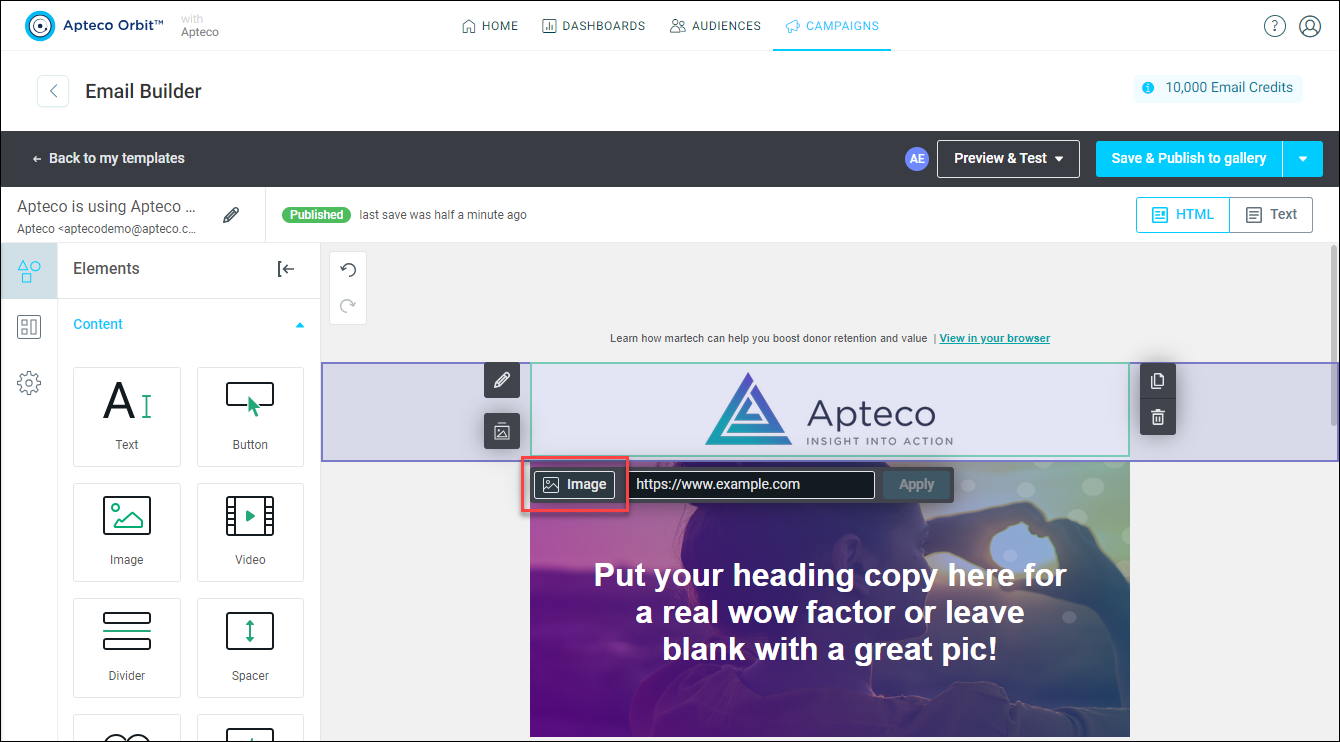
Click on it to highlight it, then click the Edit image icon.
-
The Choose image box then appears and allows you to Choose another image or Edit image. In this example, the image is replaced with a different image.
-
There are now three options:
- Upload new: Choose a new image.
- External link: Enter the link of an image.
- Recently uploaded: Choose from recently uploaded images.
In the example below, an Upload new image is used by dragging the image file onto it.
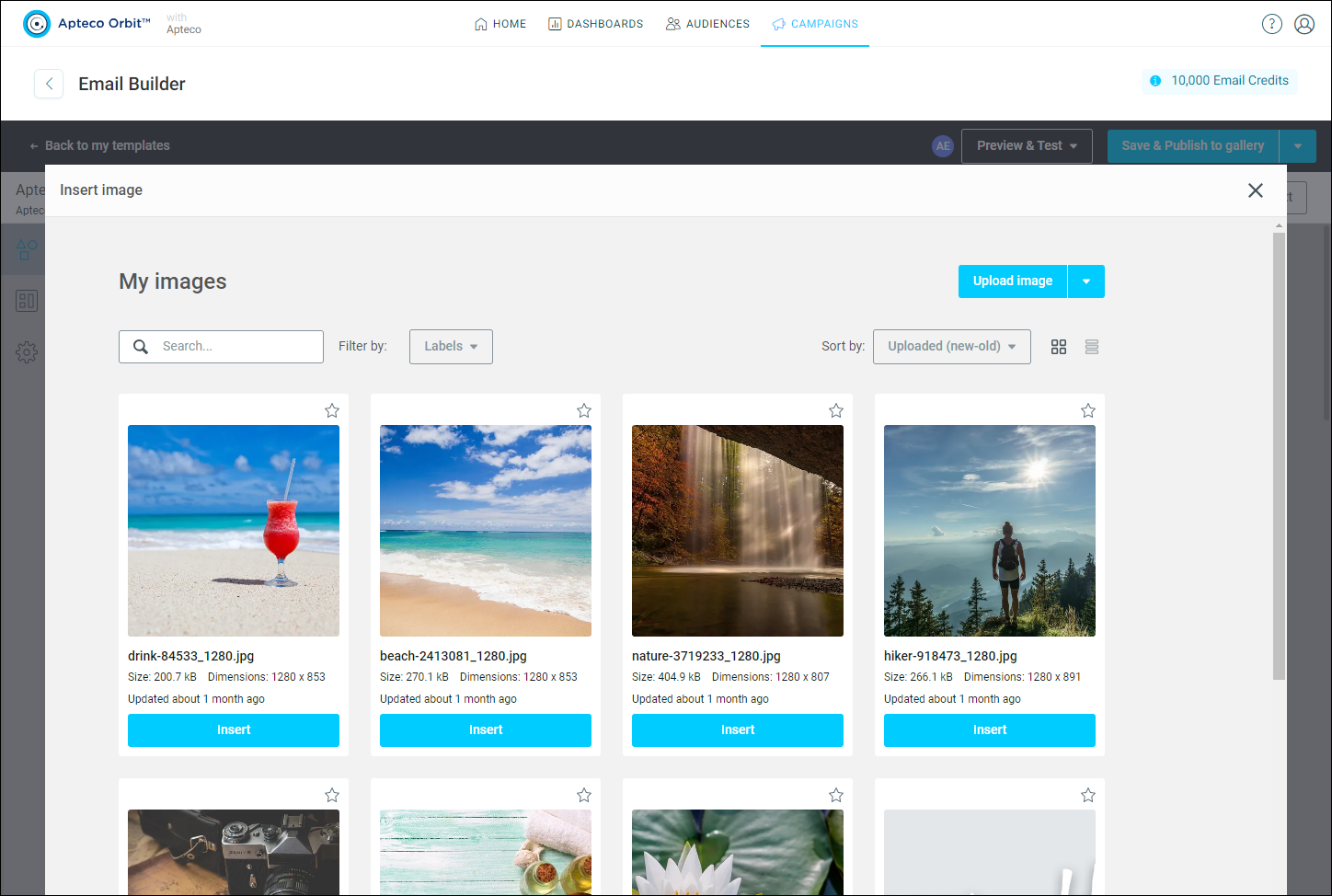
-
The image is then automatically assigned an Image link and you have the option to add ALT text.
-
Click Save.
The new image appears, and you have the option to add a hyperlink.
-
Enter the URL that you want people to visit when they click the image in the email, then click Apply.
Subject
As part of an email template, you must to add an email subject.
To edit the subject:
- Click on the pencil on the top left panel, next to Edit subject.
-
Enter the Subject to appear on the email subject line, and the Name to be displayed as the email sender.
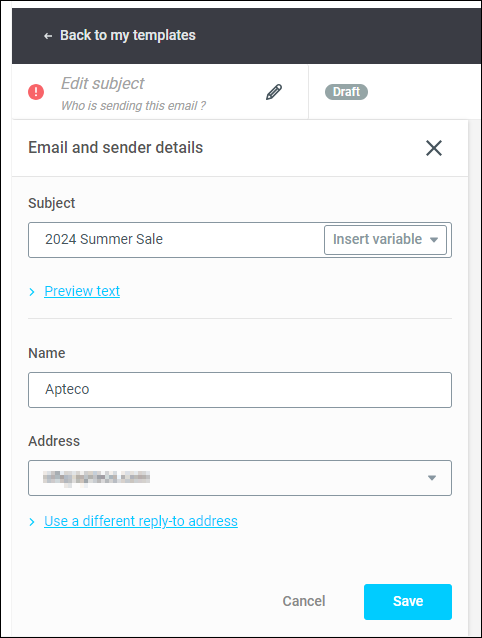
-
Click Save.