Layouts
You can drag layouts onto the email template.
The layouts include:
- Pre-built
- Standard
- Saved
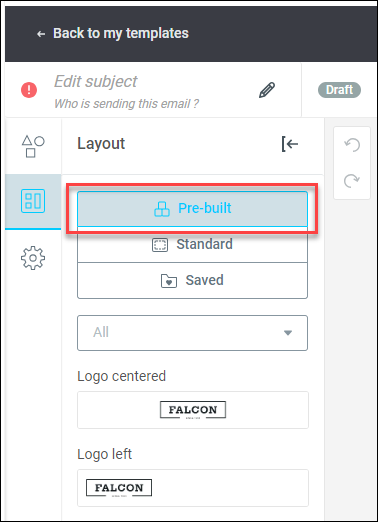
Pre-built layouts
The pre-built templates can save time when creating a professional-looking layout. For instance, the ‘Text and image left’ template offers a quick way to add a layout for a newsletter email template.
Standard layouts
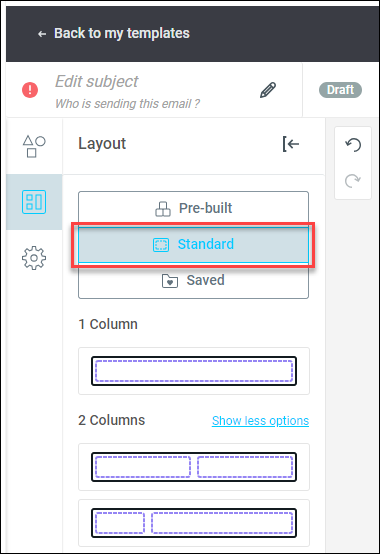
The standard layouts refer to the number of columns and the arrangement of the columns.
Saved layouts
Saved sections allows you to save a part of your campaign or template (content, colour, formatting) for use in your future emails. This is especially helpful when using them as headers and footers.
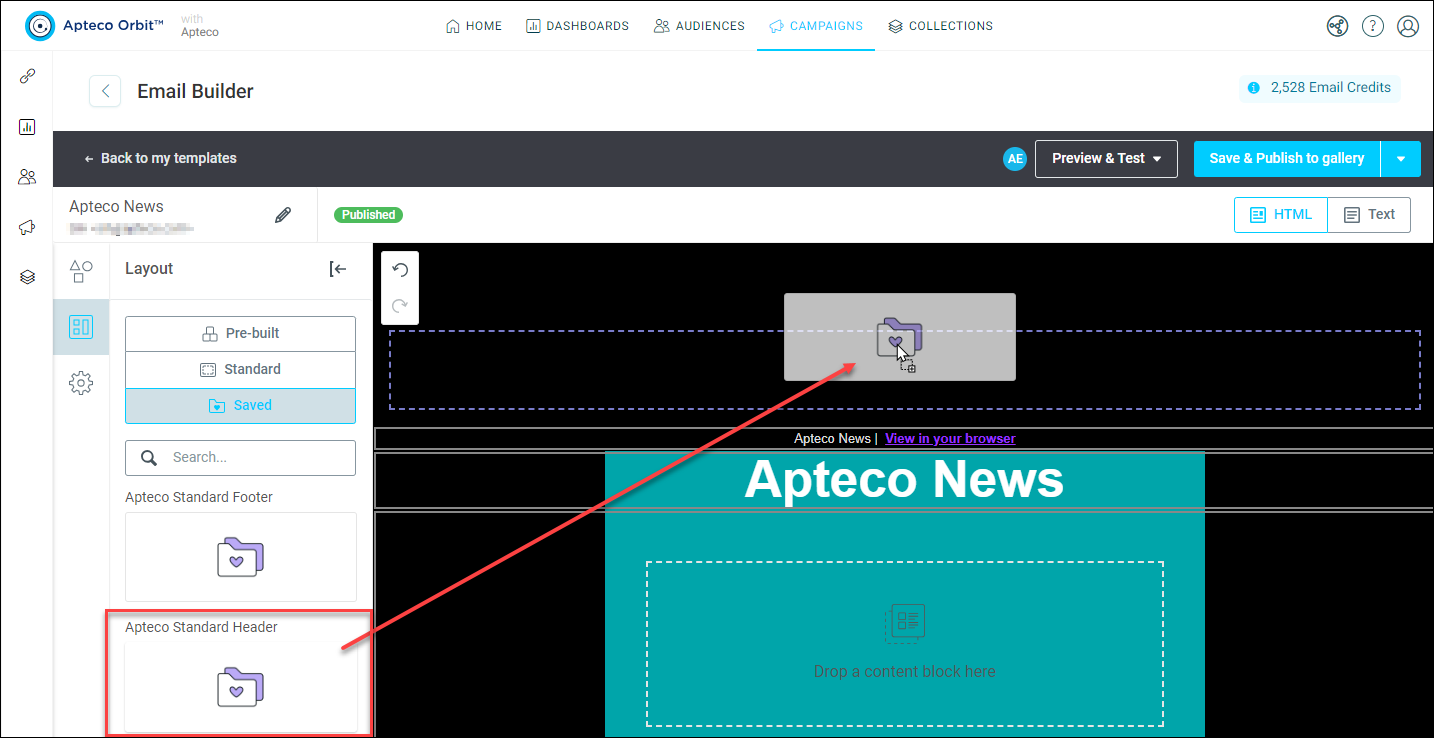
In this example, there is a saved header that you can easily drag and drop onto the email template.
All sections are saved into the saved sections gallery where you can:
- Save your sections from the email builder to the saved sections gallery.
- Drop a saved section into a template or many templates at once.
- Work on draft versions to update sections without impacting the templates they are linked to. Here the saved section needs to be unlinked.
- Edit and publish changes to your sections, updating all templates they are linked to. Here the saved section needs to remain linked.