Saved sections
There are two ways to create a new saved section:
- Use the section builder to design a new section.
- Save a section from an existing template or campaign via the email builder.
From the saved sections gallery
To create a saved section from the gallery:
-
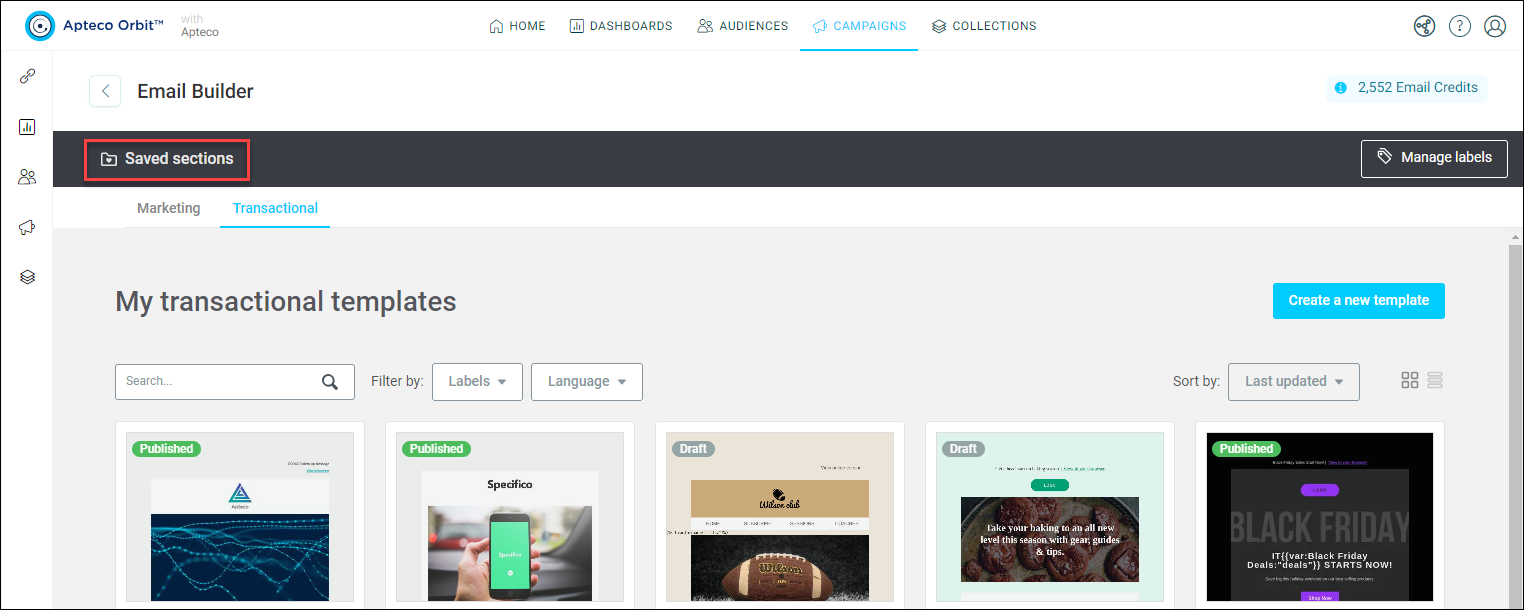
Click Saved sections from any templates page.
-
Click Create a saved section.
- Enter a name and description for your new saved section, then click Create.
- Design your new section using the section builder, which is a mini version of the email builder.
- Once your section is ready for use, click Save & Publish to gallery.
You can now use your new saved section in your campaign emails.
From an existing template
You can also create a saved section from an existing template.
To create a saved section from a template:
-
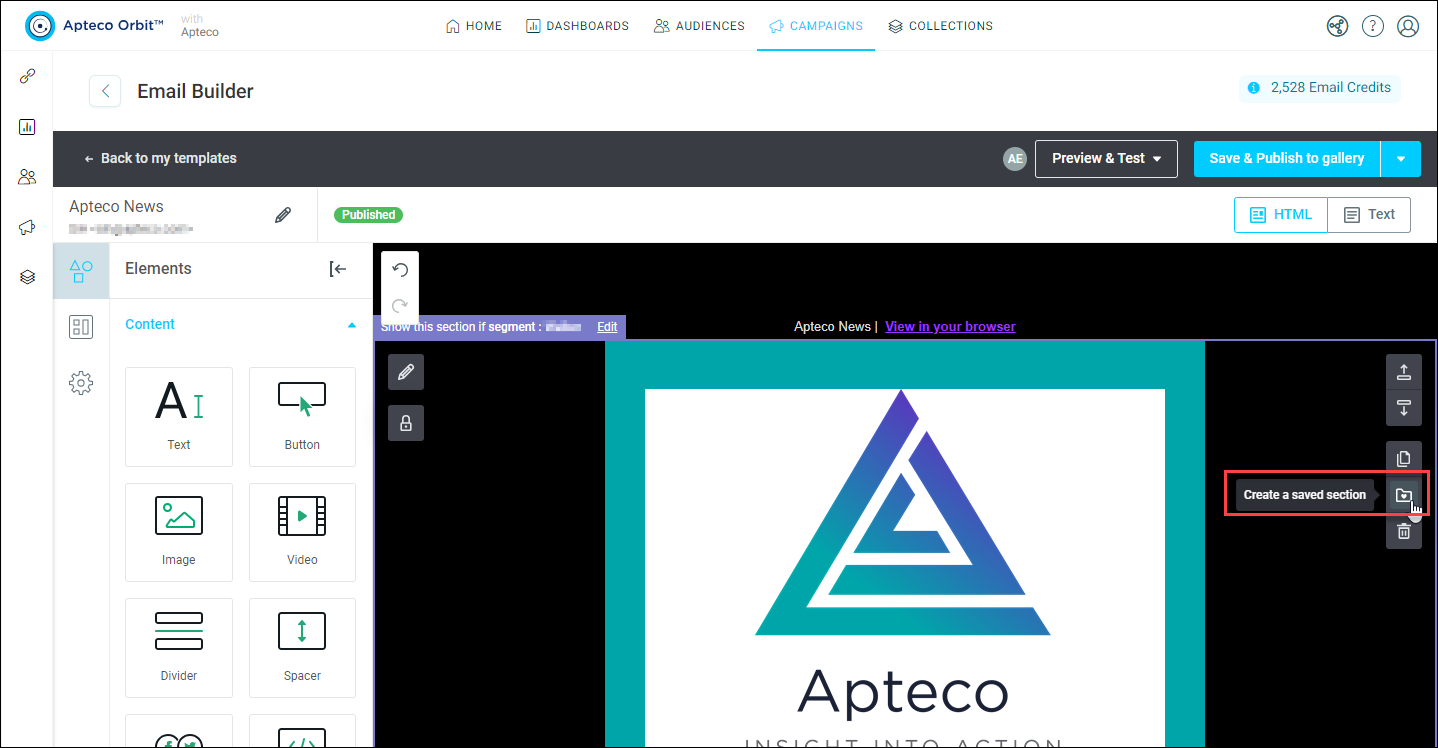
Within the email builder, select the section you want to save, then click Create a saved section.
-
In the pop-up window, enter a name for your saved section and (optional) description.
- Alternatively, you can also quickly save a section by dragging it to the content tools area, on the left of the builder.
Once you choose a name and click Save, the section is added to your saved sections gallery.
Delete sections
To delete a section:
-
Click on it to highlight it, then click the bin icon (or press delete on your keyboard).
A confirmation message appears.

-
Click Yes.