Conditional sections
Content sections are the essential building blocks of your email templates. These take the form of headers, footers, and body sections. For more information on these and other template components, see Layouts.
You can display specific content sections to certain audience segments by applying a condition. By creating a conditional section, you can choose to base the condition on the recipient's existing contact properties or their user activity.
Example
You might consider displaying a promotional section exclusively to your female clients, or offering a discount code to clients who haven't opened your newsletters in the past three months.
Setting up a conditional section
To set up a conditional section:
- In the top-right hand corner of the campaign screen, click Email Builder.
-
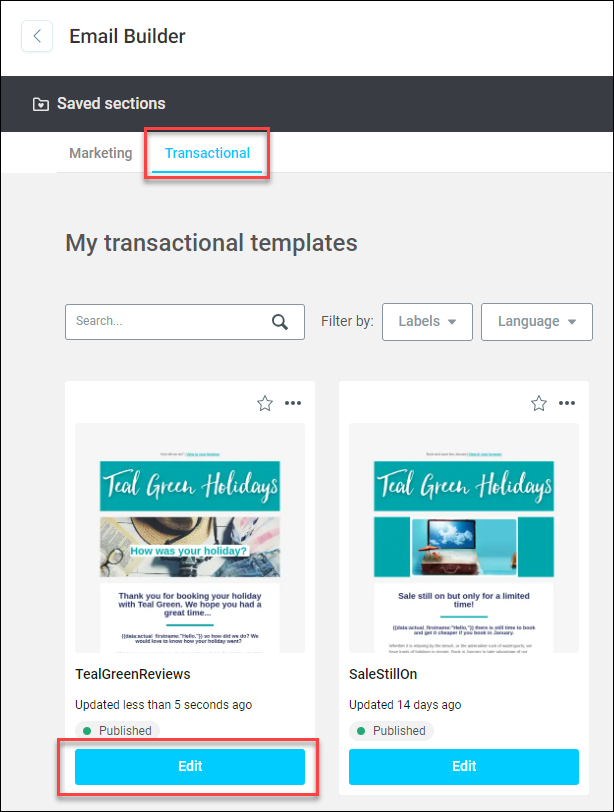
Select Transactional, then click Edit on the template you want to use.
-
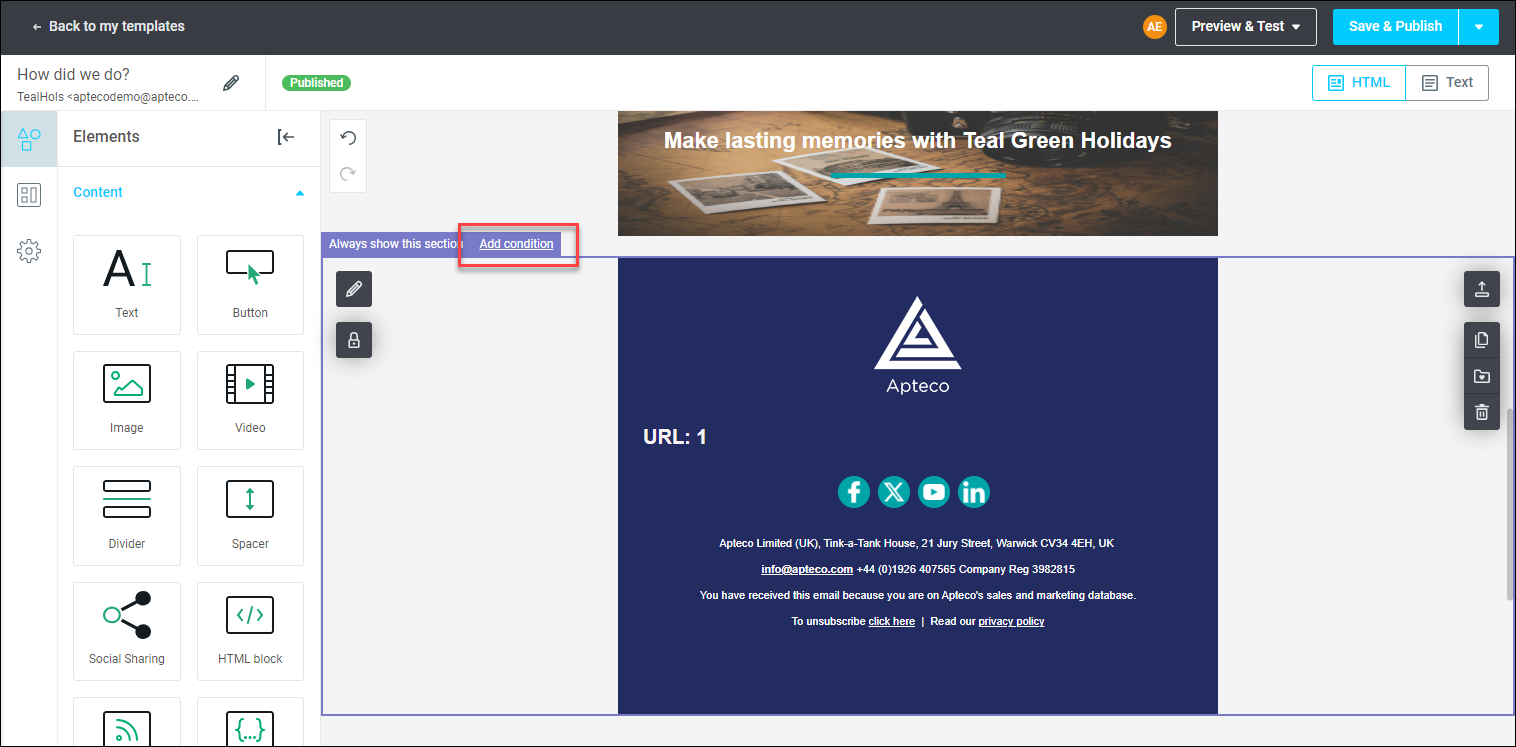
To view the current conditional status of a section, click within that section.
Note
By default, all sections are shown to all users.
-
Click Add Condition.
-
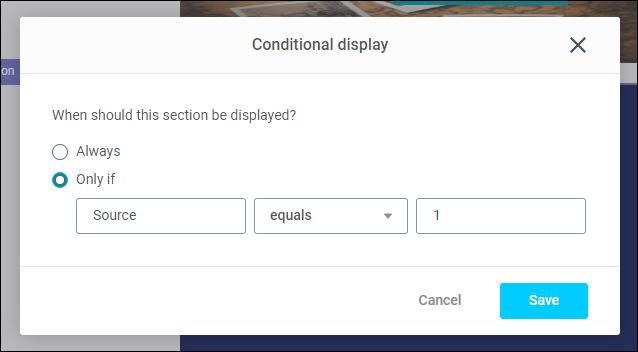
Click Only if.
-
In the conditional display dialogue:
- Add the Variable name.
- Choose the logic from the dropdown menu.
- Add a Value.
-
Click Save.
Note
Repeat steps 3-6 for any other conditional sections you want to configure.
Note
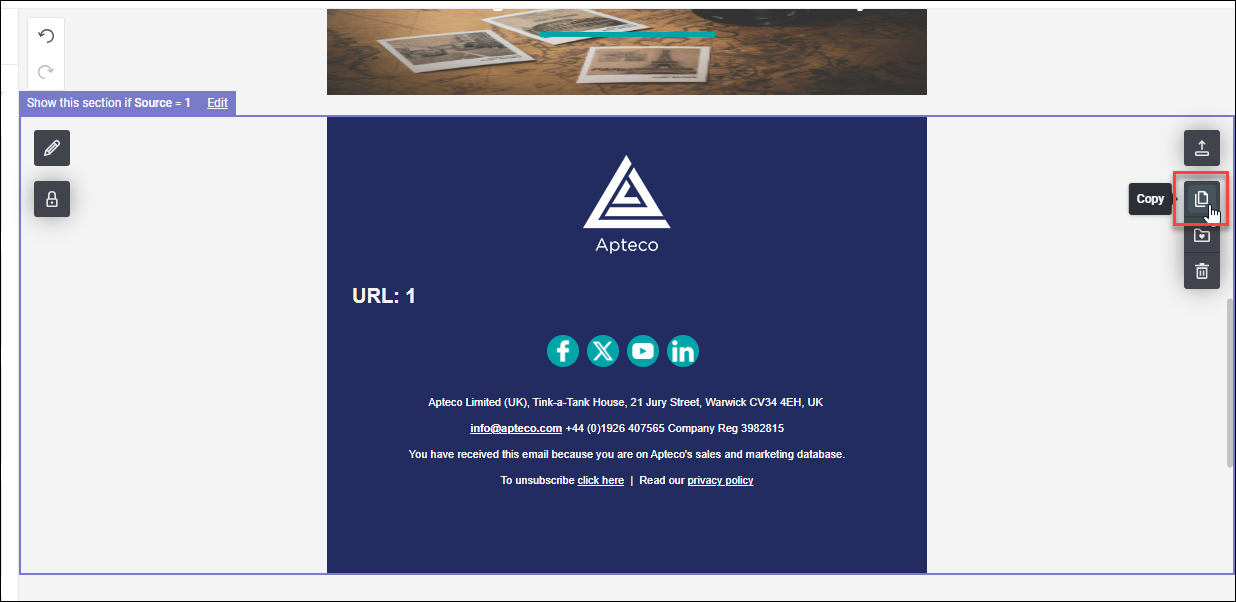
You can duplicate a section by clicking the Copy button on the right-hand side of a section.
-
Click Save & Publish.
You have now set up your conditional sections in your email template.
Apply conditional sections in a campaign journey
The next step is to apply your conditional sections in your campaign and send a test email.
To apply conditional sections in a campaign:
-
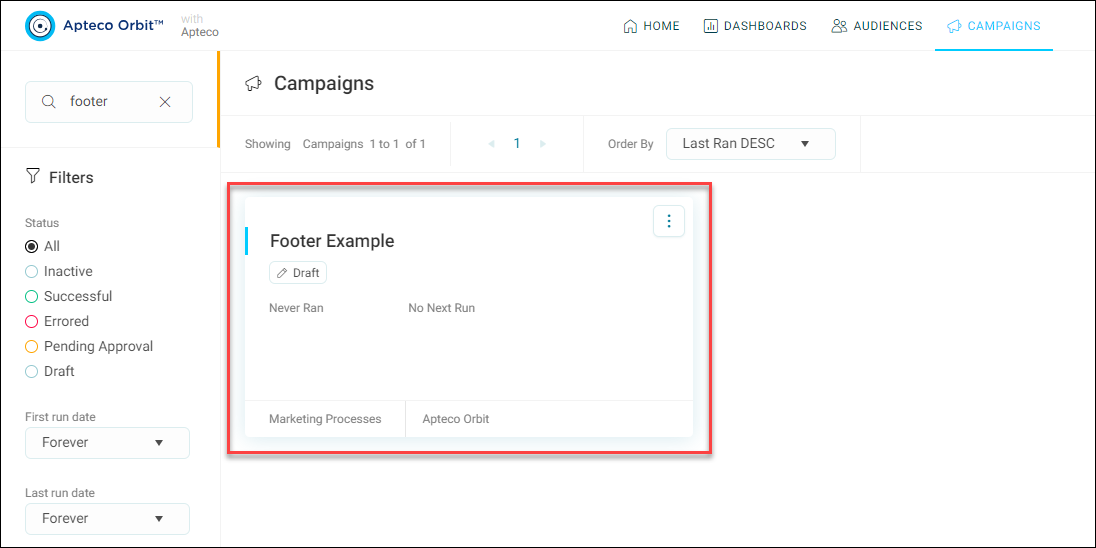
Click on a campaign to open it.
-
From the option menu, click Edit to open your Email step.
- Select Apteco Email Channel as your Email Channel, then select your Email Template from dropdown menu.
-
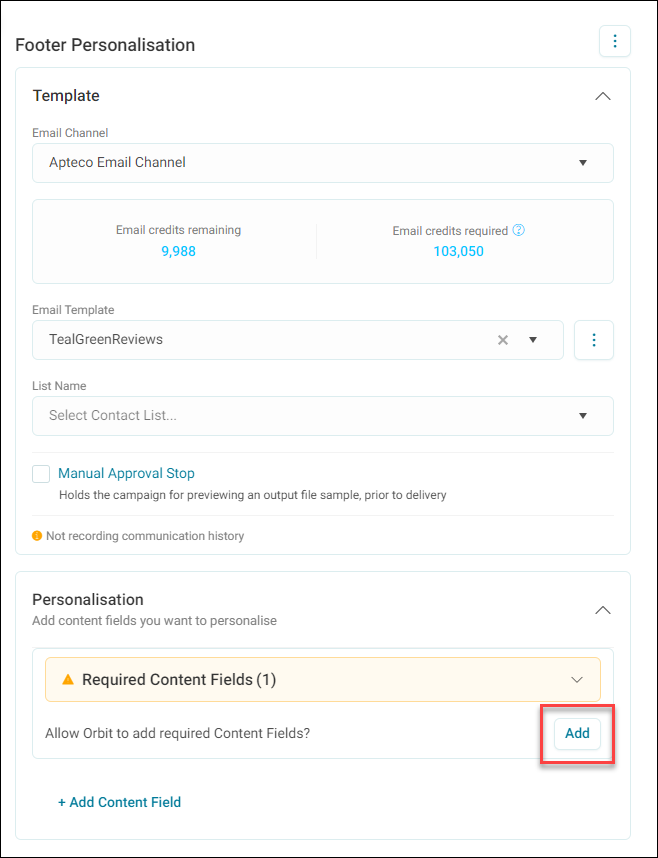
Orbit now requires a content field. Click Add.
-
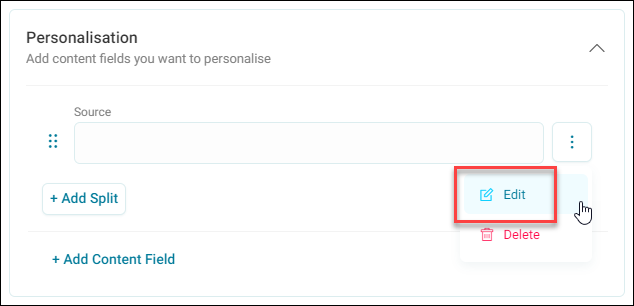
Click the option menu next to the content field, then click Edit.
-
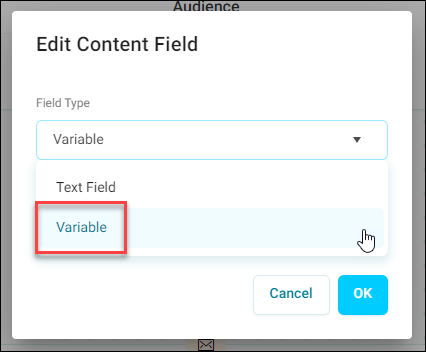
Select Variable from the dropdown menu, then click OK.
-
Click Add Variable in the content field, then select the Variable you want to use.
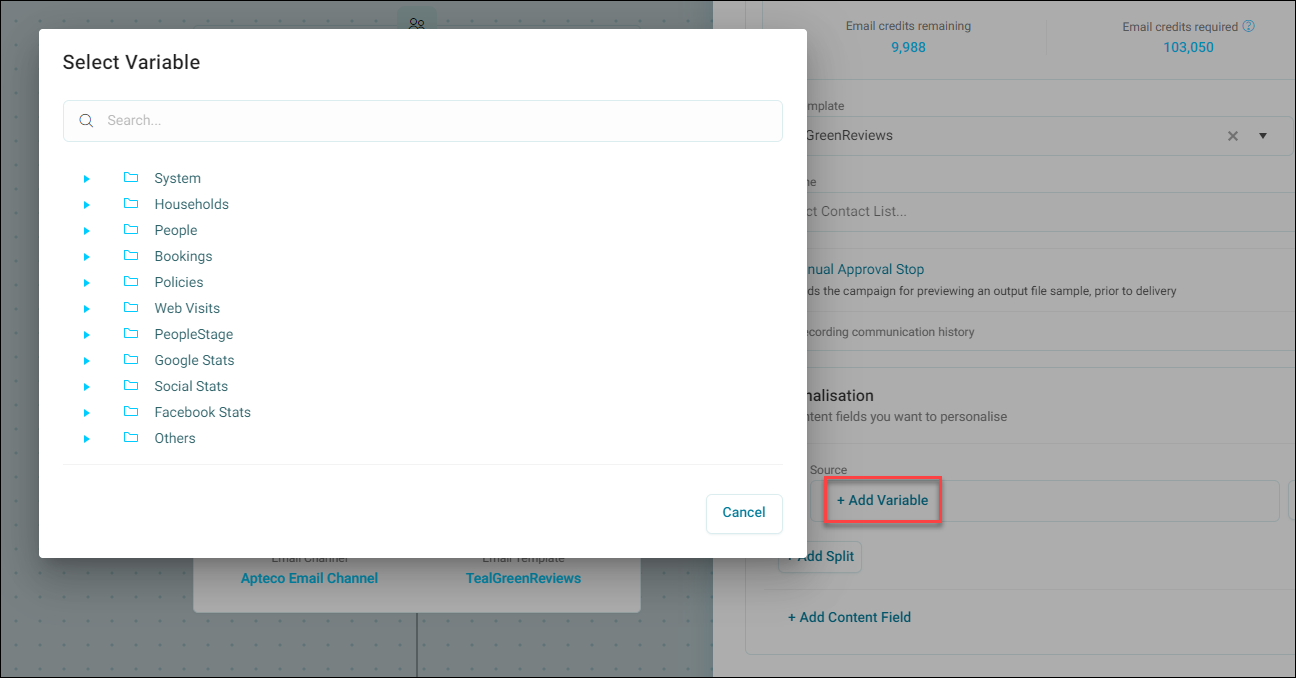
-
Click Apply.
You have now applied your conditional sections to your campaign journey.
Tip
You can use IF statement expressions to determine who gets to see the conditional section, if needed.
Preview and test your email template
To test your email template personalisation:
- On your Email step, expand the option menu, then click Preview and Test.
- Add any recipient information in the boxes and check the test email address is correct.
- Input which conditional section you want to display under Personalisation.
-
Click Send Test Email.
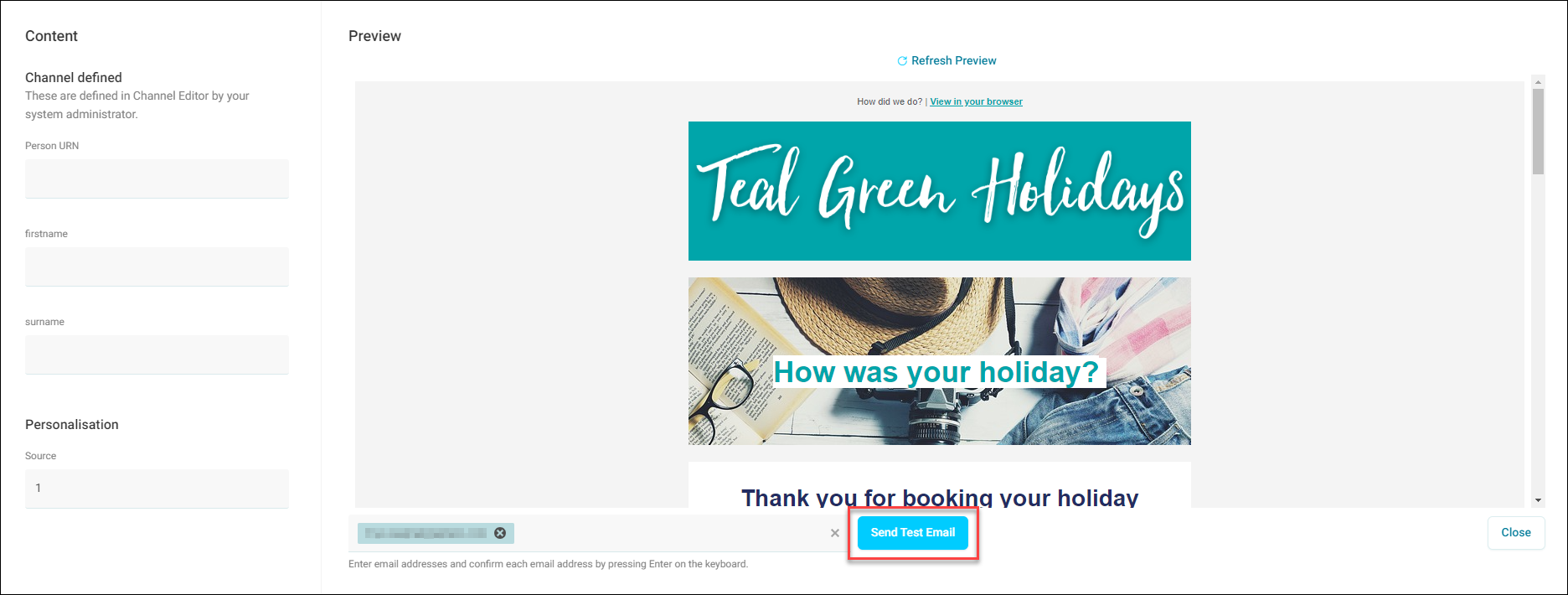
The email address receives a test email where you can check the conditional section is working correctly.