Using redirect sections
You can create redirect sections within your journey, redirect any paths in or out of them, and duplicate sections for easy reuse.
Creating a redirect section
To create a redirect section:
- From the Campaigns screen, select your campaign.
-
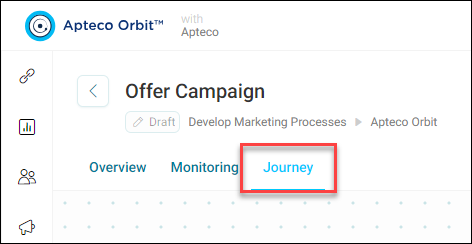
Click Journey.
-
Add a new redirect section using one of the following methods:
-
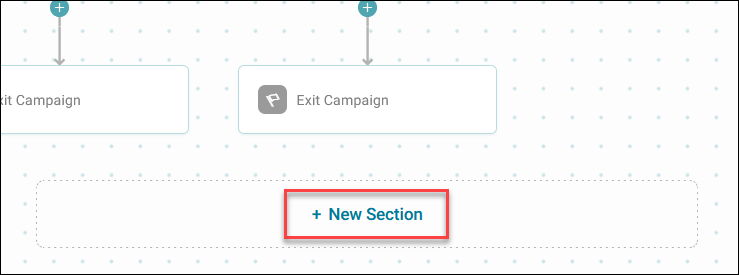
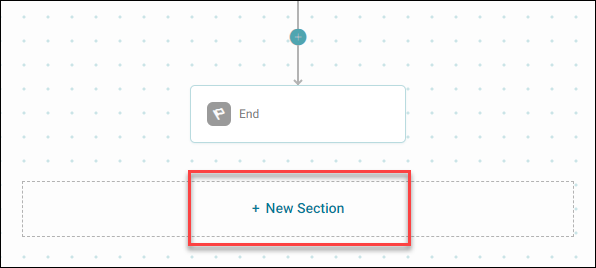
Click + New Section below your journey.
-
Click a + above where you want to start a new redirect, then click Redirect.
This creates a new campaign section. The preceding journey step becomes a Path redirect.
Note
When adding a redirect section, all steps after a path redirect are automatically included.
-
-
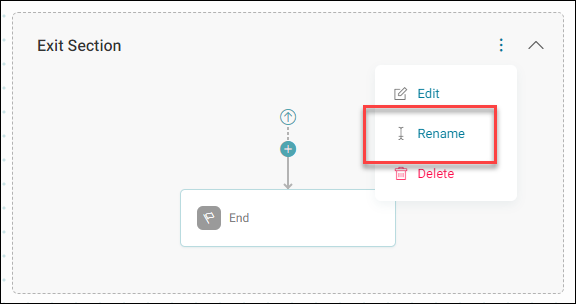
Rename redirect sections via the option menu to clarify their purpose.
You can now add more paths to redirect your main diagram to this section.
Redirecting paths to a redirect section
To redirect more paths to your section:
- Expand the option menu on your redirect section, then click Edit.
-
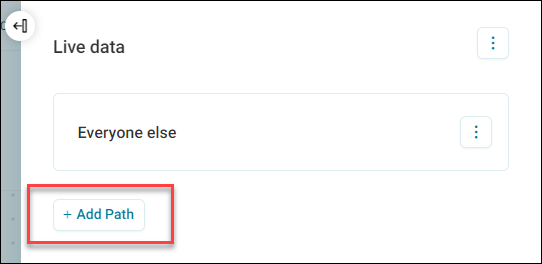
Click + Add Path.
-
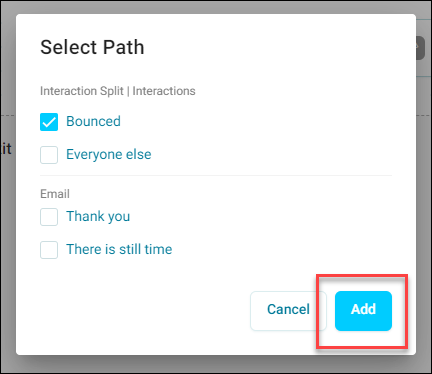
Select the path(s) to redirect, then click Add.
-
When you have all the relevant paths leading into the redirect section, click Apply.
Note
Clicking an arrow below a redirect step takes you to the relevant redirect section.
-
You can also redirect additional paths by clicking the + on any path in the journey diagram. Click Path Redirect, select the redirect section, then click OK.

Note
If no redirects exist, then a Redirect isn't available in the Add Step dialog box.
You can now copy your sections steps and reuse them in other parts of your campaign journey.
When you go to publish your campaign, the Publish Summary screen shows details of any sections with redirected paths, including the type of journey step that redirected to the section.
Note
You can reorder your sections using drag-and-drop functionality.
Note
If you want to delete a section, and the section has no parent items, then a dialog box appears indicating that all child steps will be deleted.
Duplicating a redirect section
Duplicate sections to maintain consistency, test variations, and reduce errors.
To duplicate a redirect section:
- Open your campaign journey.
-
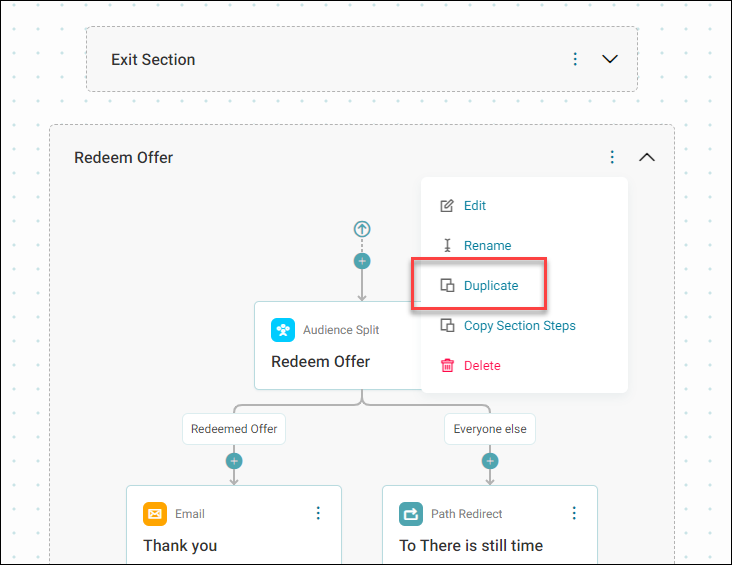
Expand the option menu on the section you want to duplicate, then click Duplicate.
The duplicated redirect section appears at the end of the list with the original redirect name followed by '(Copy)'.
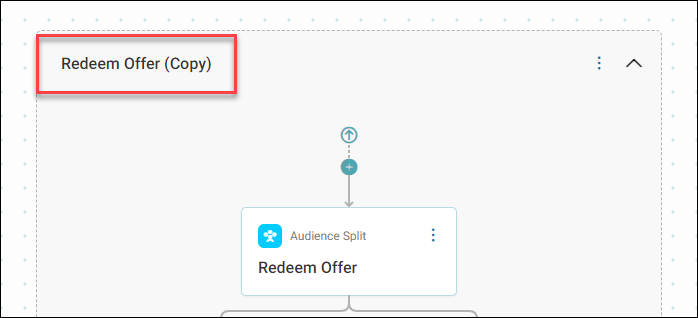
You can rename your duplicated section, as required.
You can now reuse this duplicated section in your campaign journey.
Note
Redirect paths automatically point to the new redirect section.
Note
Rename the duplicated redirect section as needed.