Configuring the Orbit web application
Note
We recommend you make a backup of any web.config files before starting. If this is a fresh install, you may not have any settings or web.config files set up for Orbit. For existing Orbit installations, you may have a web.config file in the Orbit folder which is configured by the installer.
URL rewrite/redirect rules
Three redirect rules must be applied at the parent node in IIS. The Orbit node rules are set automatically during install.
Overview
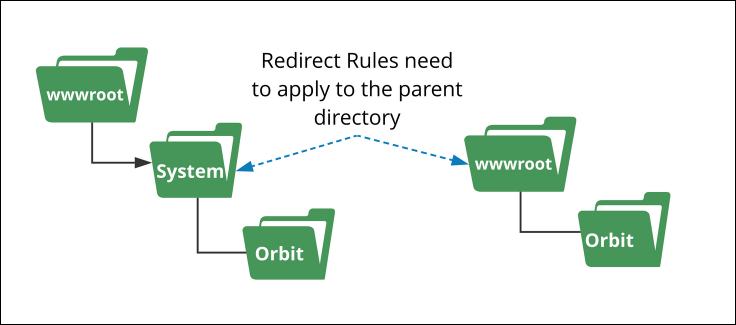
Orbit parent node (redirect rules)—viewed in the IIS console URL Rewrite panel after completed setup:

The three parent node rules are:
- Orbit: compensate for no courtesy redirect—maps from the directory name without a trailing slash to the default document. This compensates for disabling default documents in the Orbit directory (which also disables courtesy redirects).
- Orbit: compensate for no courtesy redirect with slash—maps from the directory name with a trailing slash to the default document.
- Orbit: handle lowercase versions of URLs—redirects lowercase URLs to their uppercase equivalents. Must be a redirect (not a rewrite) to avoid confusing Angular.
Orbit node (rewrite rules)—viewed in the IIS console after setup:

The first three rules are inherited from the parent directory. The last is set at the Orbit directory level.
Note
The language for non-language deep links is set by the rule Orbit—redirect non-language deep links to default language, which defaults to en. To change the default language, edit this rule and change the Redirect URL to ./de/{R:2}, ./en-AU/{R:2}, ./en-US/{R:2}, or ./nl/{R:2} as appropriate.
Setting the parent folder URL redirect rules
Open IIS Manager and navigate to the Orbit UI installation virtual directory—Orbit Parent node (this could be the Default Web Site root).
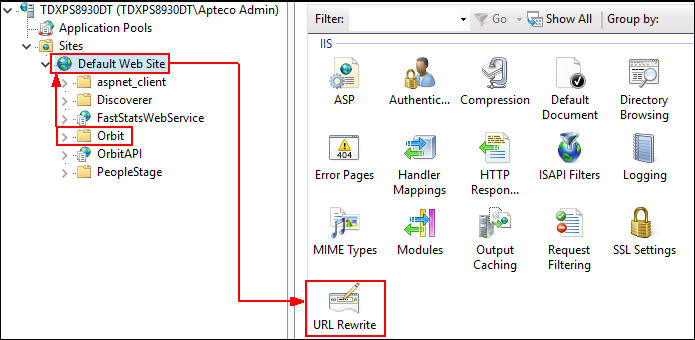
- Open the URL Rewrite module and select Add Rule(s)… from the Actions panel, then select Blank rule and click OK.
Orbit: compensate for no courtesy redirect
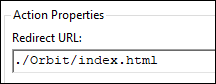
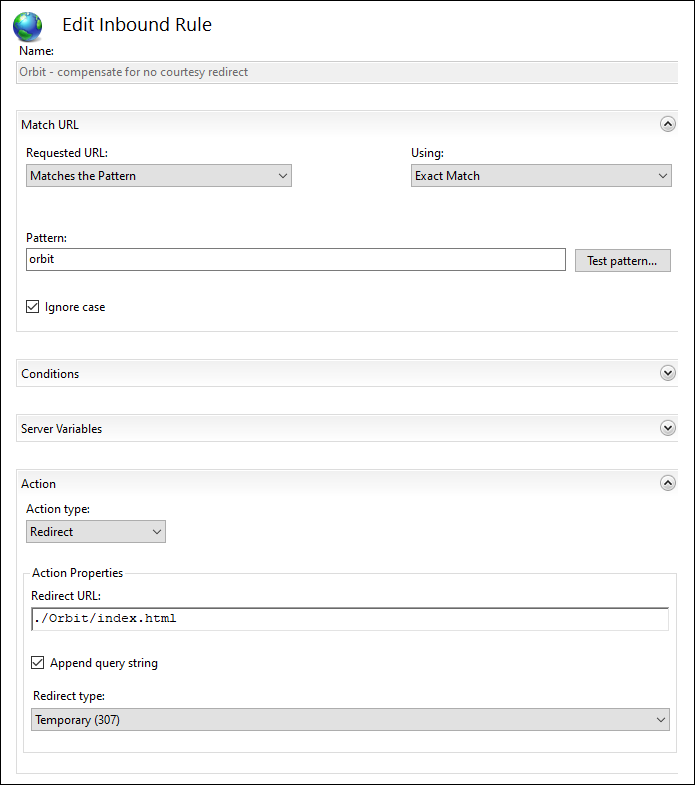
| Field | Value |
|---|---|
| Name | Orbit – compensate for no courtesy redirect |
| Using | Exact Match |
| Pattern | orbit |
| Ignore case | Selected |
| Action type | Redirect |
| Redirect URL | ./Orbit/index.html |
| Append query string | Selected |
| Redirect type | Temporary (307) |
- Click Apply from the Actions panel, then add another rule: Add Rule(s)… > Blank Rule > OK.
Orbit: compensate for no courtesy redirect with slash
Create a copy of the above rule with a trailing slash in the pattern:
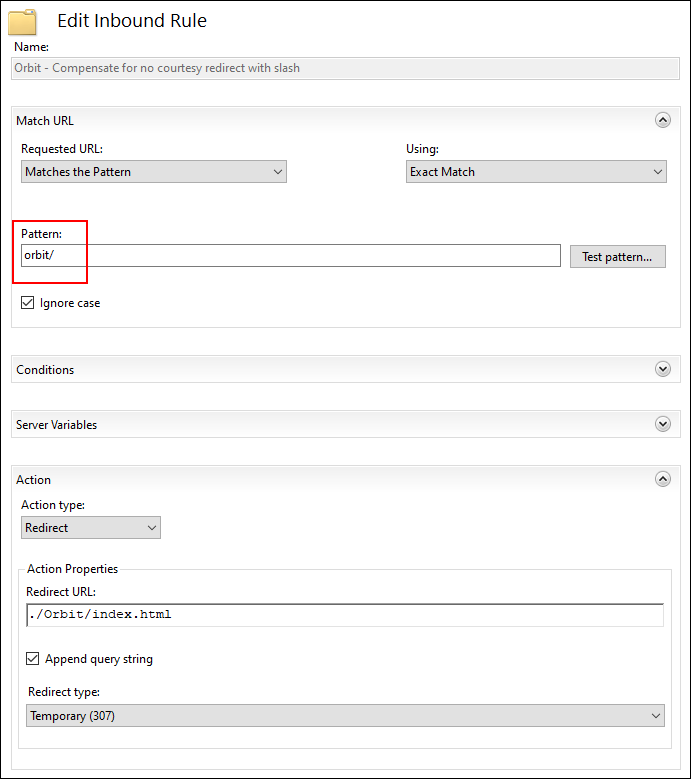
| Field | Value |
|---|---|
| Name | Orbit – compensate for no courtesy redirect with slash |
| Using | Exact Match |
| Pattern | orbit/ |
| Ignore case | Selected |
| Action type | Redirect |
| Redirect URL | ./Orbit/index.html |
| Append query string | Selected |
| Redirect type | Temporary (307) |
Orbit: handle lowercase versions of URLs
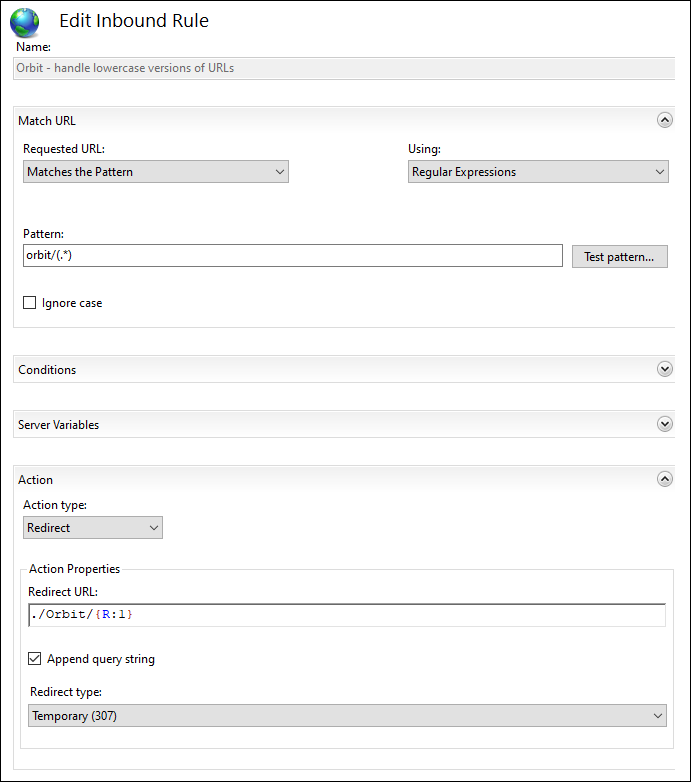
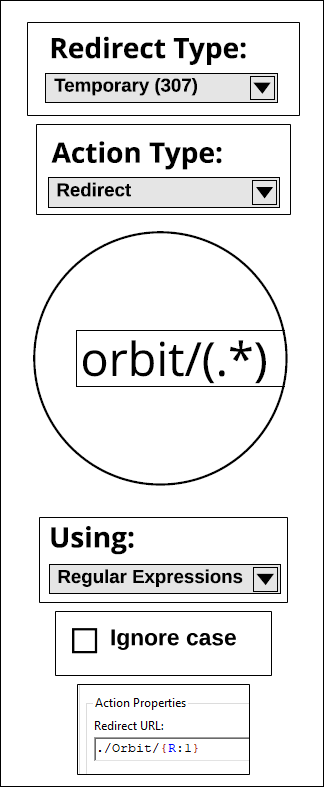
| Field | Value |
|---|---|
| Name | Orbit: Handle lowercase versions of URLs |
| Using | Regular Expressions |
| Ignore case | Deselected |
| Pattern | orbit/(.*) |
| Action type | Redirect |
| Redirect URL | ./Orbit/{R:1} |
| Append query string | Selected |
| Redirect type | Temporary (307) |
Click Apply from the Actions panel.
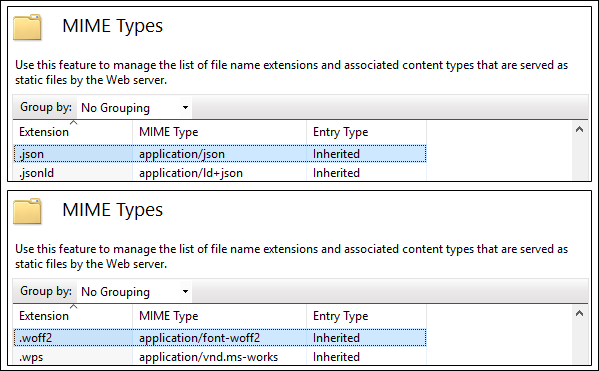
MIME types
Using the IIS Management Console, ensure that .json and .woff2 files are mapped to the appropriate MIME types (application/json and application/font-woff2) for this directory or one of its parents.