FastStats configuration
Before configuring Twitter in FastStats, ensure you have created a Social database (see Twitter prerequisites).
FastStats Service configuration
Open the FastStats Configurator:
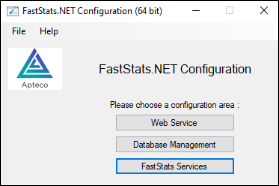
To configure the Social database connection for the FastStats Service:
- Select FastStats Services.
- Select the System tab.
-
Select the Twitter node.
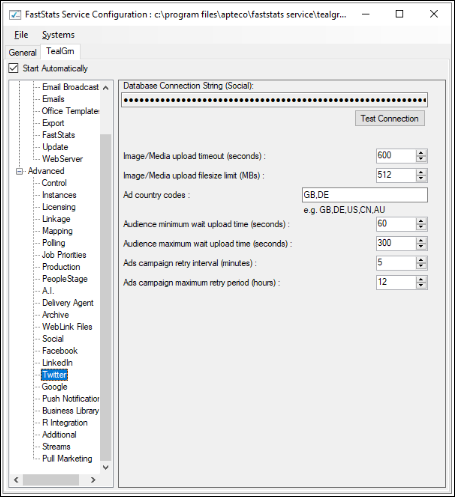
-
Select File > Save to save the changes.
| Setting | Description |
|---|---|
| Database Connection String | Automatically picks up the connection string from the Social database. |
| Image/Media upload timeout (seconds) | Timeout for uploading images or video to a Twitter Handle. Increase if your network is slow or you are using large files. |
| Image/Media upload filesize limit (MBs) | The maximum file size for Twitter is 5 MB. |
| Ad country codes | Default country codes for targeting custom audiences in adverts. Can also be set per channel in PeopleStage. |
| Ads campaign retry interval (minutes) | How often PeopleStage checks with Twitter whether the audience has loaded successfully. |
| Ads campaign maximum retry period (hours) | How long the service retries connecting to Twitter for audience upload progress before stopping. |
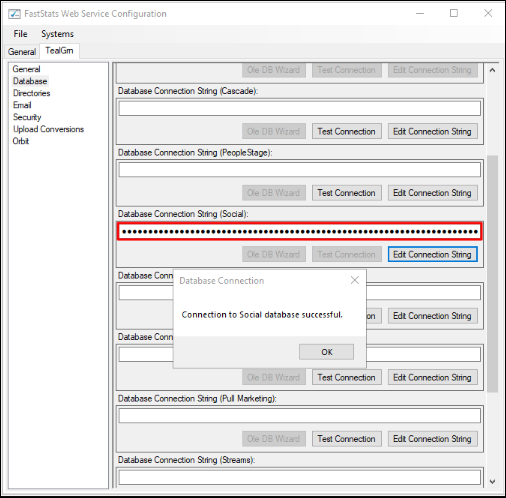
FastStats Web Service configuration
Define the Social database connection string for the FastStats Web Service.
FastStats roles configuration
Access to Twitter functions is controlled by Roles.
Twitter Administrator role
A Twitter Administrator can modify Apps, modify Handles, and manage tokens.
- In Users Explorer, right-click on an administrator.
-
Select Modify > Modify Roles.
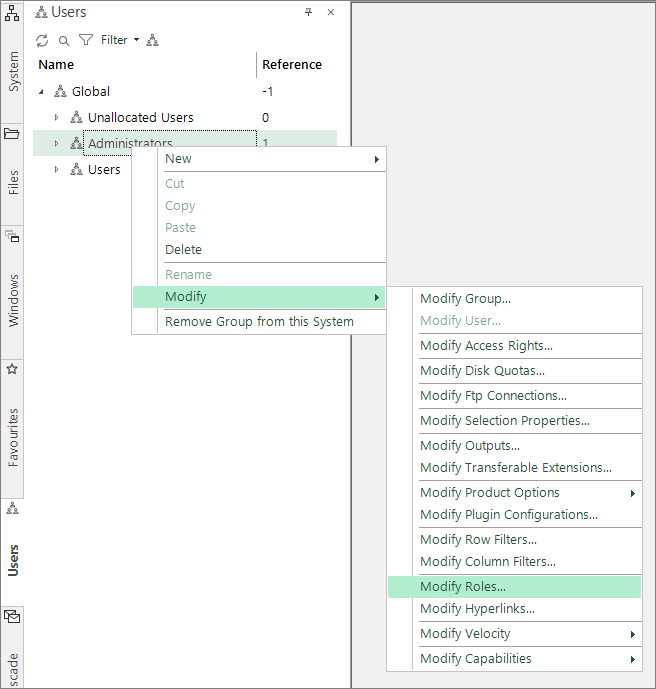
-
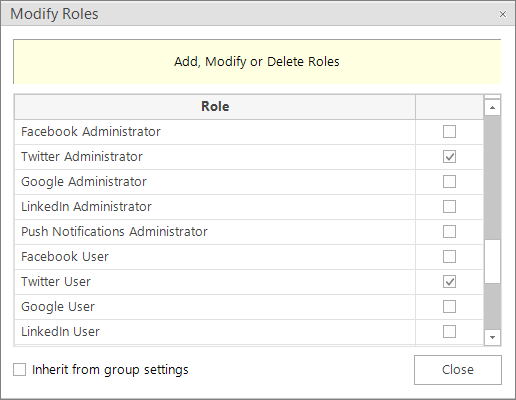
Select both the Twitter Administrator and Twitter User roles.
-
Click Close.
Twitter User role
A Twitter User can manage tokens within Administrative Functions.
- In Users Explorer, right-click on a username.
-
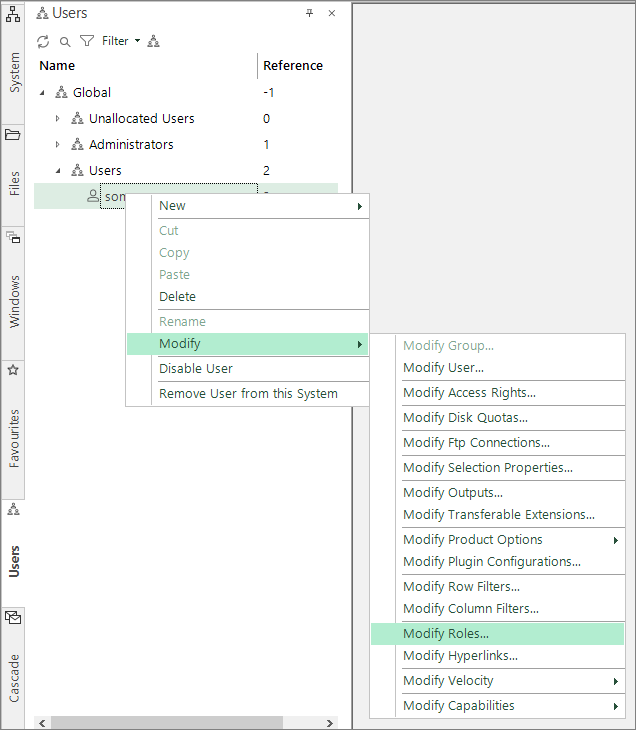
Select Modify > Modify Roles.
-
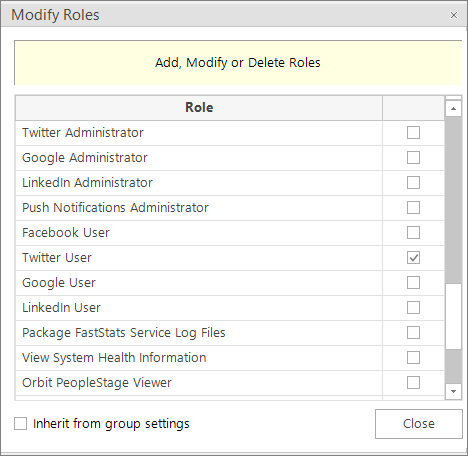
Select the Twitter User role.
-
Click Close.
Administrative functions
Administrative functions are available from File > Tools > Administrative Functions.
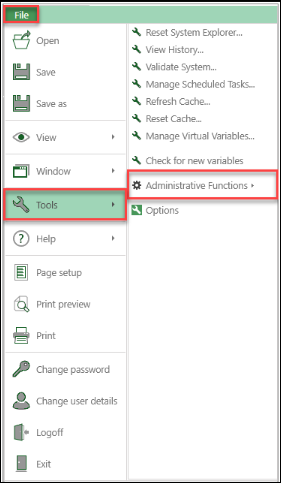
A user with the Twitter Administrator role can Modify Apps, Modify Handles, and Manage Tokens. A user with only the Twitter User role can only Manage Tokens.
Modify Apps
FastStats requires the Twitter App Id, Consumer Key, and Consumer Secret to allow users to obtain the correct Access Tokens via FastStats' built-in Twitter login mechanism.
Obtain these from the Twitter Developer portal.
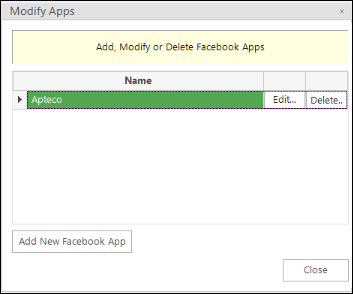
- To add a new App, click Add New Twitter App
-
To edit an existing App, click Edit next to the App Name
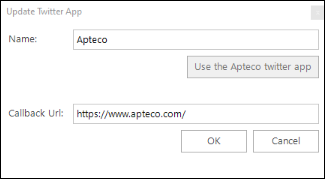
Apteco provides a shared Twitter App. To use it, click Use the Apteco twitter app—the name is automatically populated and the App Id, Consumer Key, and Consumer Secret fields are hidden.
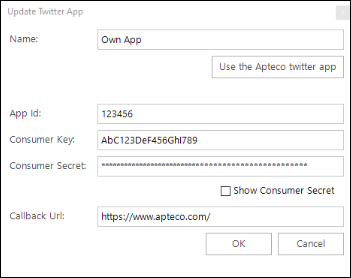
| Field | Description |
|---|---|
| Name | Used internally within FastStats; should match the app name in the Twitter Portal (or "Apteco" if using the Apteco App) |
| App Id | The Twitter App Id (only required if using your own app) |
| Consumer Key | The Twitter App Consumer Key (only required if using your own app) |
| Consumer Secret | The Twitter App Consumer Secret (only required if using your own app) |
| Redirect URI | Used for click-through actions from Twitter; typically your brand's home page |
Modify Handles
To find your Twitter Handle, log in to Twitter, click your profile picture—the Handle is shown under your name starting with @.
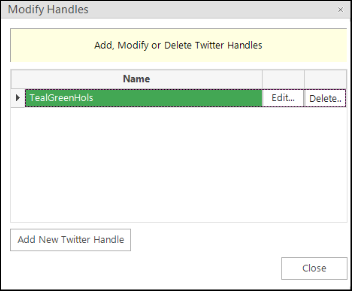
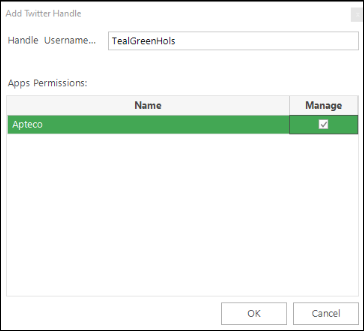
- To add a new Handle, click Add New Twitter Handle.
-
To edit an existing Handle, click Edit.
-
Enter the Twitter Handle Username.
Twitter capabilities configuration
This configuration allows FastStats users to log in to their Twitter profile and generate user access tokens for Apps and Handles.
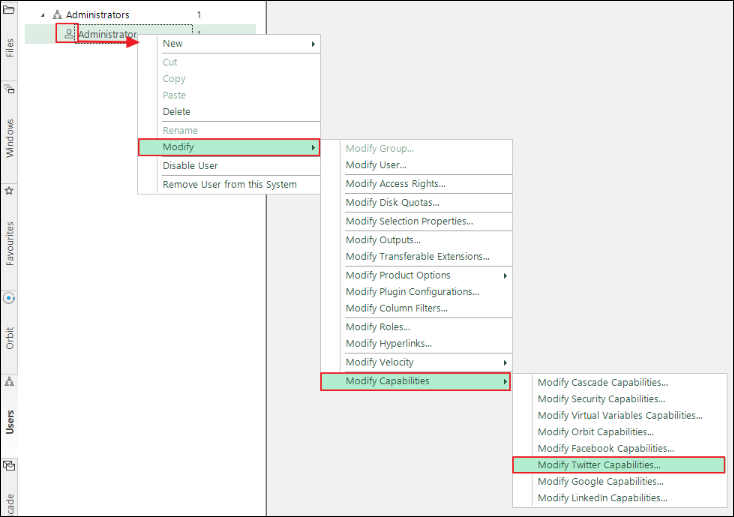
In Users Explorer, right-click on a user and select Modify > Modify Capabilities > Modify Twitter Capabilities.
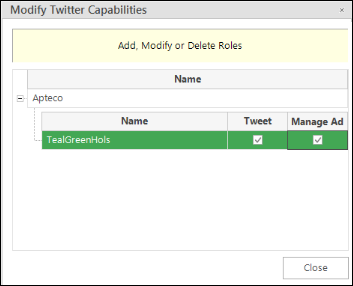
Manage Ads—select to allow the user to publish adverts, upload custom audiences, and gather adverts statistics.
Tweets—select to allow the user to publish tweets and gather tweet responses.
Manage Tokens
A Twitter User role can see the Apps and Handles assigned by an administrator.
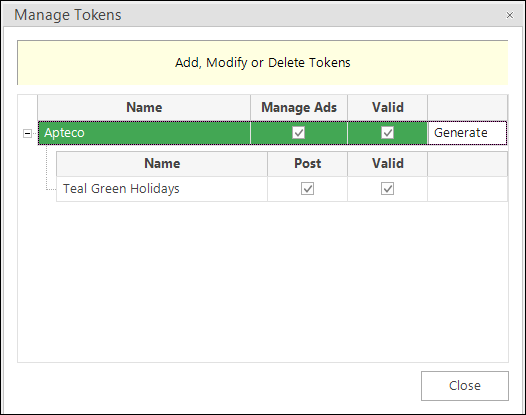
When you first access the Manage Tokens dialogue, click Generate.
The Twitter login dialogue opens. Enter your Twitter credentials—these are stored as a token in FastStats.
After successfully logging in, close the dialogue. The Valid check-boxes for the App and branded Handles are ticked to confirm the tokens have been validated.
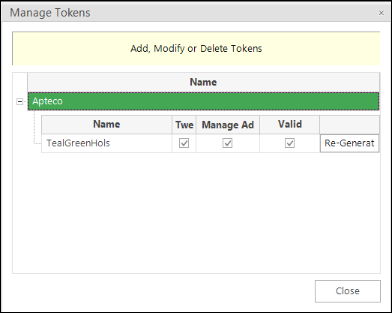
If tokens become invalid, click Re-Generate to request a new set.
Note
Without valid tokens stored in FastStats, it is not possible to create Tweets or Adverts activities in PeopleStage.