Twitter Response Gatherer
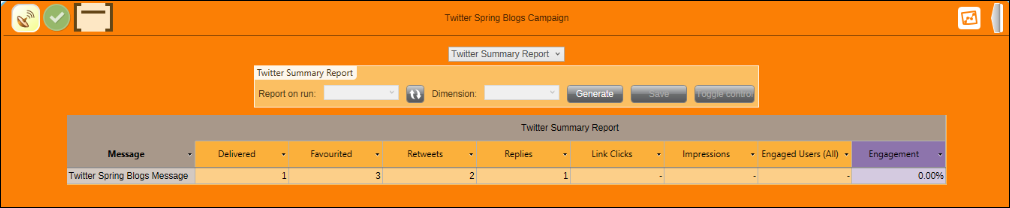
The FastStats Twitter Response Gatherer (FTRG) collects campaign responses from Twitter and stores them in the Social database, making them available in PeopleStage reports.
Installation
The Twitter Response Gatherer installer is in the DigitalIntegration.zip file in the Apteco Software Releases area of the Apteco portal.
- Extract
DigitalIntegration.zipto the PC where you want the response gatherer to run. - Run
TwitterResponseGatherer64Setup.msiand follow the installation wizard.
The default installation directory is C:\Program Files\Apteco\FastStats Twitter Response Gatherer x64. We recommend installing in your FastStats application files directory on the FastStats Application Server, but the gatherer can run on any PC in your system.
Configuration
After installation, edit TwitterResponseGatherer64.exe.config in the installation directory to update the following settings:
- Connection string for the Social database (
SO_) - Connection string for the Control database (
WS_) - Bulk Insert directory
<configuration>
  <add key="db_connection_twitter" value="Data Source=localhost;Initial Catalog=SO_TealHols;User Id=faststats_service;Password=fa5t5tat5!;"/>
  <add key="db_connection_users" value="Data Source=localhost;Initial Catalog=WS_TealHols;User Id=faststats_service;Password=fa5t5tat5!;"/>
  <add key="db_bulkinsert_directory" value="C:\FastStats\Publish\TealHols\bulkinserts\"/>
  <add key="db_connection_timeout" value="1200"/>
  <startup/>
</configuration>
Note
Run Notepad as Administrator to save changes to files within Program Files.
Running the Response Gatherer
The FTRG is run using Windows Task Scheduler and a batch file. Place the batch file and a Logs subdirectory in a folder called FTRG within the FastStats base directory. Create the Logs subdirectory manually before running the batch file for the first time.
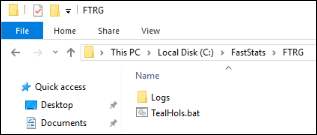
Example batch file
REM - Twitter Response Integration
@echo off
cls
echo Twitter Response Integration
SET FTRG="%ProgramFiles%\Apteco\FastStats Twitter Response Gatherer x64\TwitterResponseGatherer64.exe"
SET LOGFILE="C:\FastStats\FTRG\Logs\TealGrnTwitter.txt"
SET LOGFILEDETAILS="C:\FastStats\FTRG\Logs\TealGrnTwitter_Details.txt"
echo. >> %LOGFILE%
echo. >> %LOGFILEDETAILS%
echo %date% %time% - Starting FastStats Twitter Response Download >> %LOGFILE%
echo %date% %time% - Starting FastStats Twitter Response Download >> %LOGFILEDETAILS%
echo. >> %LOGFILE%
echo. >> %LOGFILEDETAILS%
%FTRG% Administrator . TealHols "TIMEPERIOD=1W;APPLYANALYTICWINDOW=No" >> %LOGFILEDETAILS%
:OK
echo %date% %time% - FastStats Gathered Twitter Responses OK >> %LOGFILE%
goto Complete
:Complete
echo %date% %time% - Completed FastStats TealHols Twitter Response Download >> %LOGFILE%
| Parameter | Description |
|---|---|
SET FTRG |
Location and name of the FTRG executable |
SET LOGFILE |
Location and name of the log file |
SET LOGFILEDETAILS |
Location and name of the detailed log file |
| Argument 1 | FastStats system user—must be a user who has generated the Twitter Token |
| Argument 2 | FastStats user password—a single character can now be used |
| Argument 3 | System name |
| Argument 4 | Time period to gather responses (e.g. TIMEPERIOD=1W, TIMEPERIOD=1D) |
Scheduling with Windows Task Scheduler
In Windows Task Scheduler, create a task to run the FTRG as frequently as required.
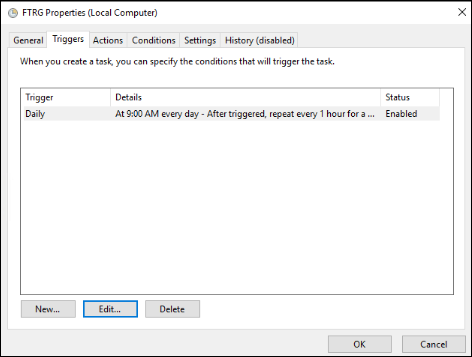
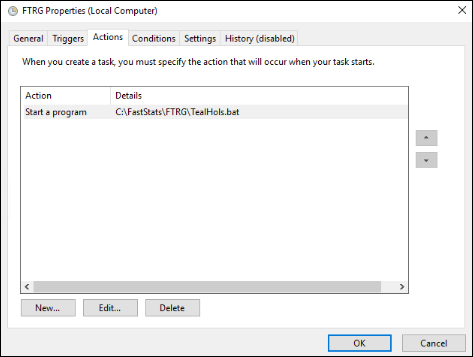
Select the batch file you have created. Once the FTRG is running, responses are available in the PeopleStage Twitter Summary Report immediately.