Apteco integrates with Facebook using the Facebook Graph API, Facebook Ads API, and OAuth 2.0 protocol. The integration is supported by the FastStats Service and Web Service, a Social database, and the Facebook Response Gatherer component.
Using the Administration Suite within FastStats, you can:
- Set up Facebook Apps and Pages
- Grant permissions to FastStats administrators and users to manage Apps and Pages
- Obtain and store App User Tokens and Page User Tokens via FastStats' built-in Facebook login mechanism
Once valid tokens are stored in the Social database, you can create campaigns and reports in PeopleStage and gather responses.
Process summary
The following diagram describes the typical interactions between Apteco and Facebook.
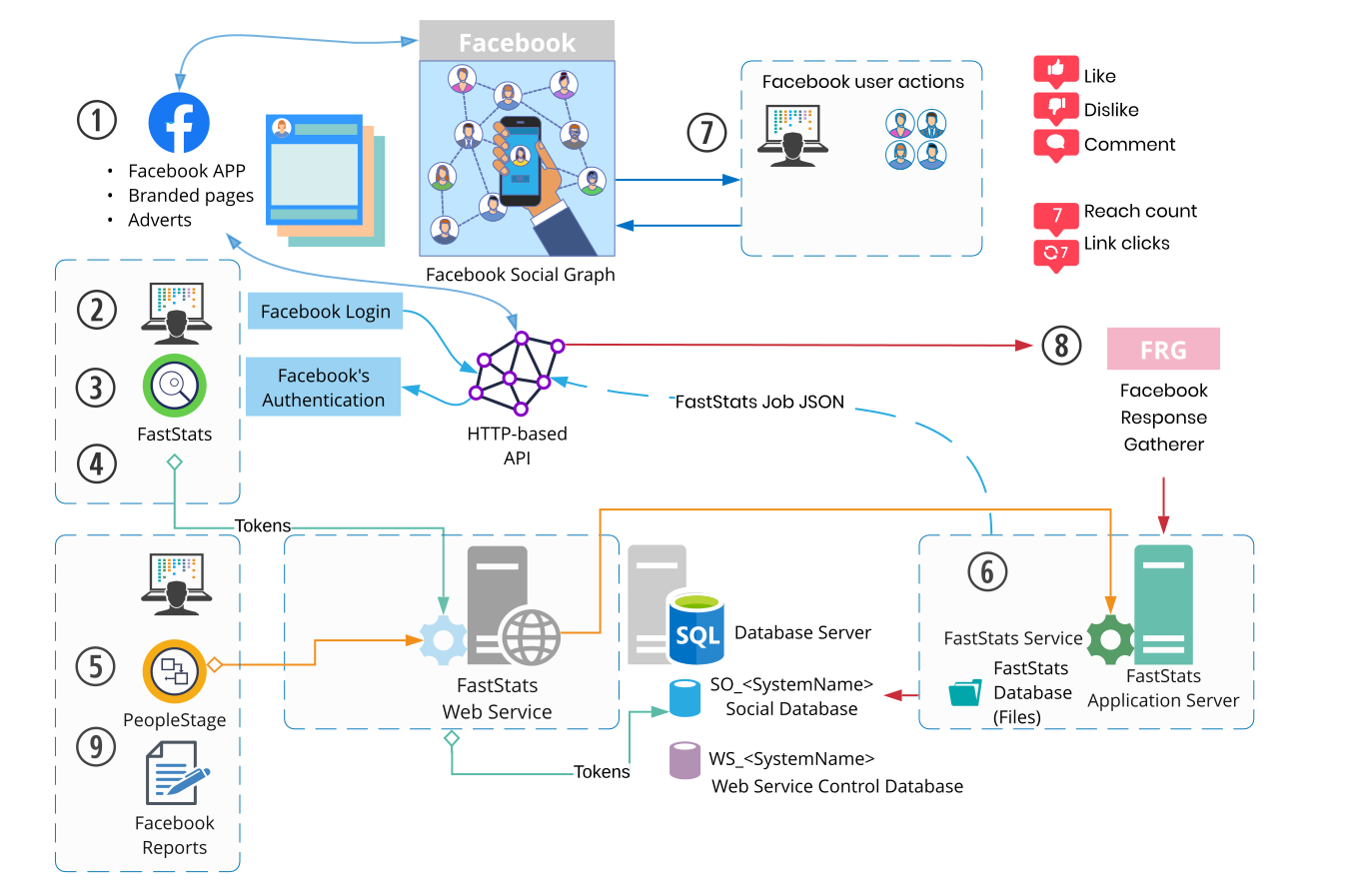
- An Apteco administrator whitelists the Facebook App in FastStats.
- A FastStats user logs in to the Facebook App via the FastStats Facebook login dialogue. FastStats requests the additional permission scopes granted by the administrator to manage Pages and Adverts.
- Facebook authorises the user and returns:
- An App User Access Token (for managing the App)
- Page User Access Tokens (for managing branded Pages)
- Apteco stores the tokens in the Social database and validates them when the user runs the Facebook Administrative Functions.
- PeopleStage uses the matching tokens for Facebook authentication when publishing campaigns. Campaigns can publish Direct Posts, Unpublished Posts, or Adverts.
- The FastStats Service posts to the HTTP-based API and receives returned data as JSON.
- Facebook user interactions (likes, dislikes, clicks, comments) are recorded.
- The Facebook Response Gatherer runs scheduled jobs and saves responses (likes, dislikes, comments, engagement, reach, link clicks) into the Social database.
- Facebook Summary Reports are available in PeopleStage.
Prerequisites
Ensure you have installed:
- A pre-existing FastStats system with PeopleStage
- A Social database (see below)
- The Facebook Response Gatherer
Creating a Social database
All Apteco social integrations share a single Social database. If you already have a Social database for another integration, Facebook can use the same one—skip ahead to FastStats configuration.
To create the Social database:
-
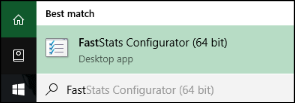
Search for FastStats in the Start Menu.
-
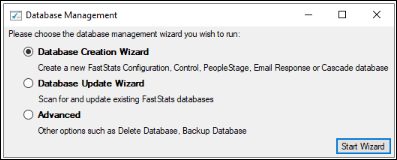
Open the FastStats Configurator and select Database Management.
-
Select Database Creation Wizard (first time) or Database Update Wizard (if the Social database already exists), then click Start Wizard.
-
Connect to the database server using the credentials used when installing your Apteco system.
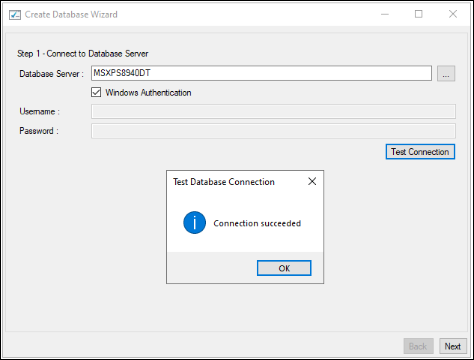
Note
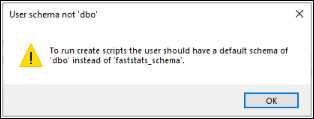
If you see a connection error, click OK but do not proceed—you may have used the FastStats default username and password, which connects but should not be used.
-
Click Test Connection, then click OK.
-
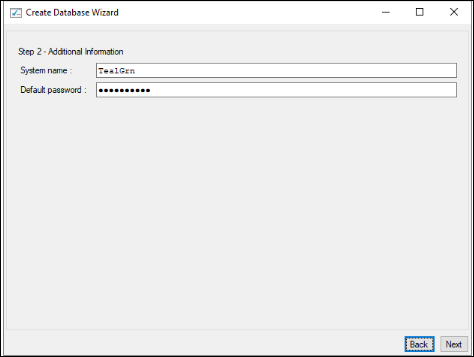
Enter your System name and Password.
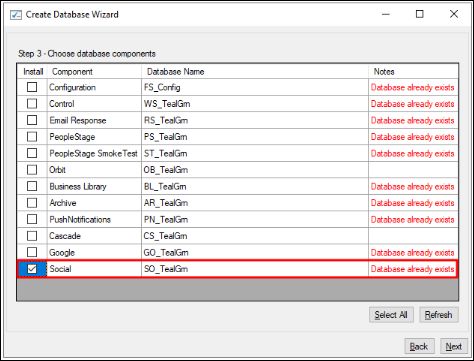
At this stage you may find the Social database already exists.
FastStats services connection
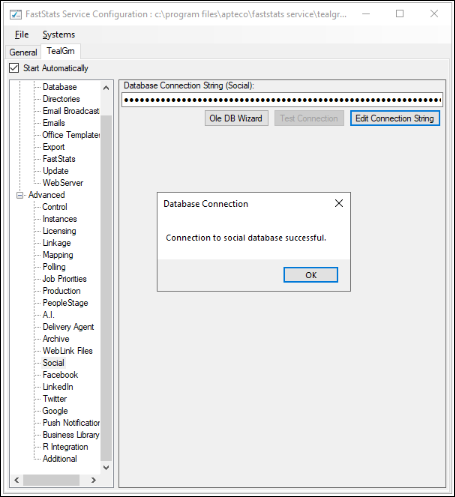
Click Edit Connection String to define the database connection string for the Social database using your FastStats Service credentials.
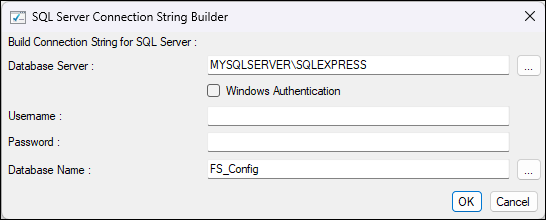
To test the connection, click Test Connection, then click OK.
Web services connection
Define the Social database connection string for the FastStats Web Service by clicking Edit Connection String.