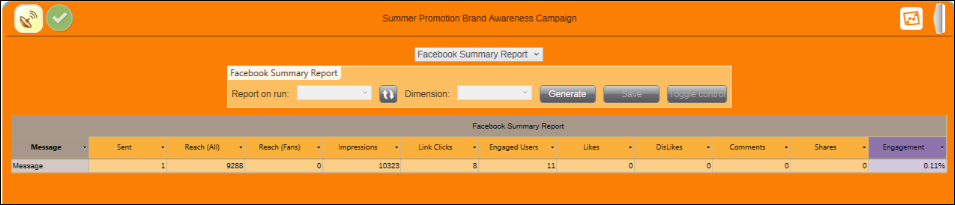
Facebook Response Gatherer
The FastStats Facebook Response Gatherer (FFRG) collects campaign responses from Facebook and stores them in the Social database, making them available in PeopleStage reports.
Installation
The Facebook Response Gatherer installer is in the DigitalIntegration.zip file in the Apteco Software Releases area of the Apteco portal.
- Extract
DigitalIntegration.zipto the PC where you want the response gatherer to run. -
Run
FacebookResponseGatherer64Setup.msiand follow the installation wizard.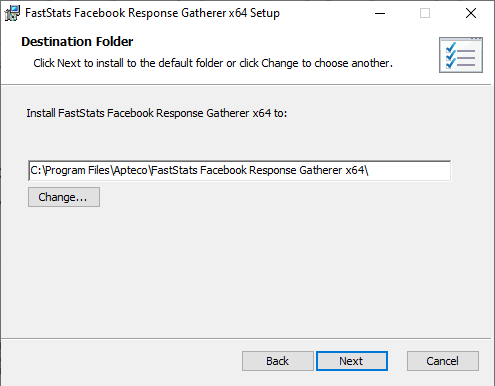
The default installation directory is C:\Program Files\Apteco\FastStats Facebook Response Gatherer x64. We recommend installing in your FastStats application files directory on the FastStats Application Server, but the gatherer can run on any PC in your system.
Configuration
After installation, edit FacebookResponseGatherer64.exe.config in the installation directory to update the following settings:
- Connection string for the Social database (
SO_) - Connection string for the Control database (
WS_) - Bulk Insert directory
<configuration>
  <add key="db_connection_facebook" value="Data Source=localhost;Initial Catalog=SO_TealHols;User Id=faststats_service;Password=fa5t5tat5!;"/>
  <add key="db_connection_users" value="Data Source=localhost;Initial Catalog=WS_TealHols;User Id=faststats_service;Password=fa5t5tat5!;"/>
  <add key="db_bulkinsert_directory" value="C:\FastStats\Publish\TealHols\bulkinserts\"/>
  <add key="db_connection_timeout" value="1200"/>
  <startup/>
</configuration>
Note
Run Notepad as Administrator to save changes to files within Program Files.
Folder structure
Create a folder structure to store the files used with the Response Gatherer. You can use any location and naming convention, but the directories must be referenced in the batch file.
A typical structure inside the FastStats directory:
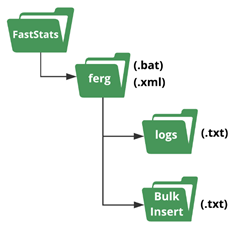
The bulk insert directory must be accessible from the SQL Server, and the user running the SQL Server Service must have read permissions on it.
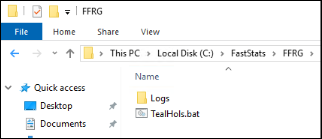
It is standard practice to place the batch file and a Logs subdirectory in a folder called FFRG within the FastStats base directory. Create the Logs subdirectory manually before running the batch file for the first time.
Running the Response Gatherer
The FFRG is invoked from a batch file and scheduled via Windows Task Scheduler. The command syntax is:
Where TIMEPERIOD specifies how far back to gather responses—for example, 7D for 7 days, 2M for 2 months, 48H for 48 hours.
Example batch file
REM - Facebook Response Integration
@echo off
C:
cd C:\FastStats\FFRG
cls
SET FFRG="%ProgramFiles%\Apteco\FastStats Facebook Response Gatherer x64\FacebookResponseGatherer64.exe"
SET LOGFILE="Logs\TealHols.txt"
SET LOGFILEDETAILS="Logs\TealHols_Details.txt"
echo. >> %LOGFILE%
echo. >> %LOGFILEDETAILS%
echo %date% %time% - Starting FastStats Facebook Response Download >> %LOGFILE%
echo %date% %time% - Starting FastStats Facebook Response Download >> %LOGFILEDETAILS%
echo. >> %LOGFILE%
%FFRG% Administrator . TealHols "TIMEPERIOD=7D" >> %LOGFILEDETAILS%
IF ERRORLEVEL 9003 goto FailedException
IF ERRORLEVEL 9001 goto FailedDownload
IF ERRORLEVEL 9000 goto FailedLogin
:OK
echo %date% %time% - FastStats Gathered TealHols Facebook Responses OK >> %LOGFILE%
goto Complete
:FailedLogin
echo %date% %time% - FastStats Gatherer Failed - Login Failed >> %LOGFILE%
goto Complete
:FailedDownload
echo %date% %time% - FastStats Gatherer Failed - Downloading from Facebook >> %LOGFILE%
goto Complete
:FailedException
echo %date% %time% - FastStats Gatherer Failed - API Exception >> %LOGFILE%
goto Complete
:Complete
echo %date% %time% - Completed FastStats TealHols Facebook Response Download >> %LOGFILE%
| Parameter | Description |
|---|---|
SET FFRG |
Location and name of the FFRG executable |
SET LOGFILE |
Location and name of the log file |
SET LOGFILEDETAILS |
Location and name of the detailed log file |
| Argument 1 | FastStats system user—must be a user who has generated the Facebook Token |
| Argument 2 | FastStats user password—a single character can now be used |
| Argument 3 | System name |
| Argument 4 | Time period to gather responses (e.g. TIMEPERIOD=1W, TIMEPERIOD=1D) |
Scheduling with Windows Task Scheduler
-
Open Windows Task Scheduler from the Start Menu.
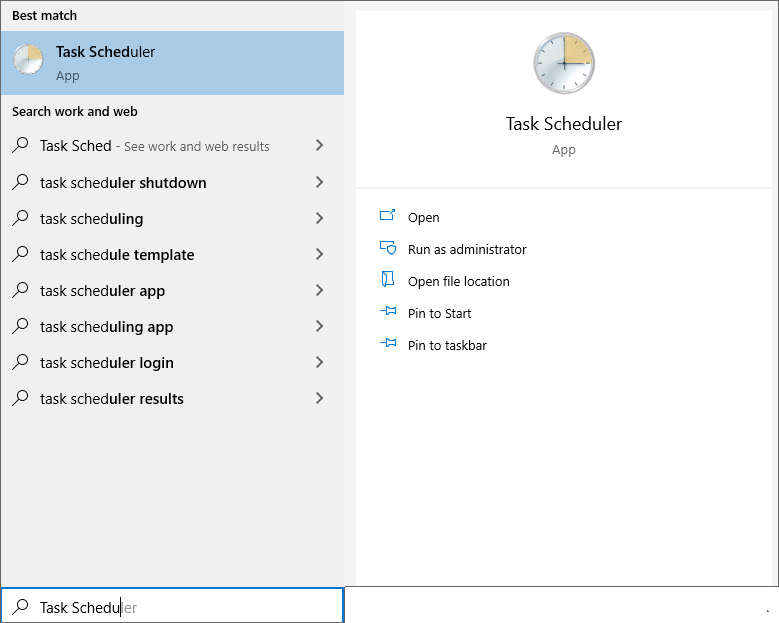
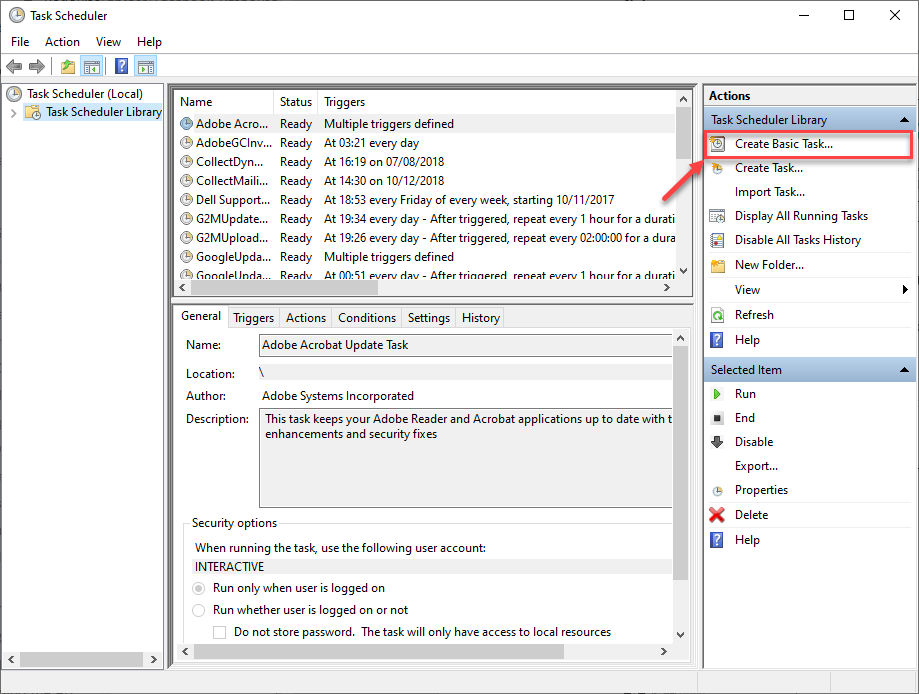
-
Select Create Basic Task.
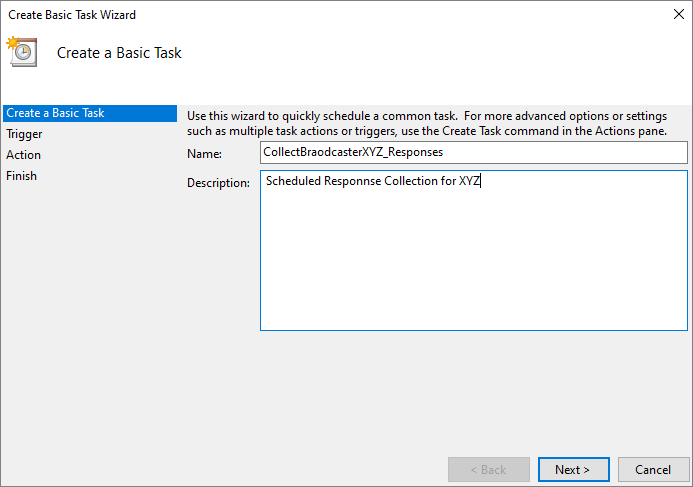
-
Create a Basic Task step: enter a Name and Description.
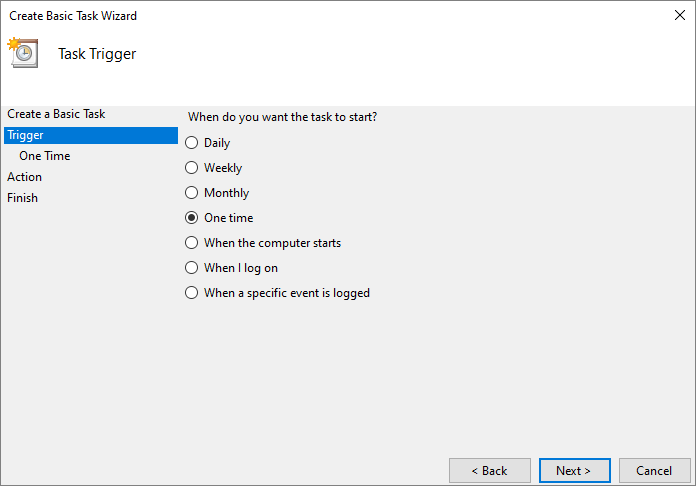
-
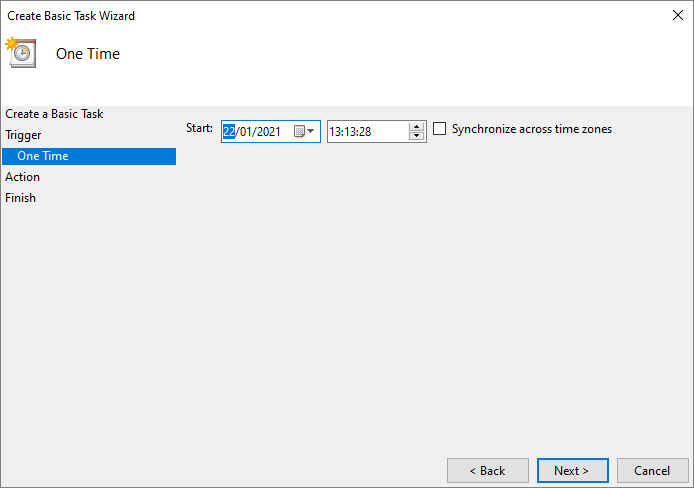
Task Trigger step: select the trigger interval and enter the start date and time.
-
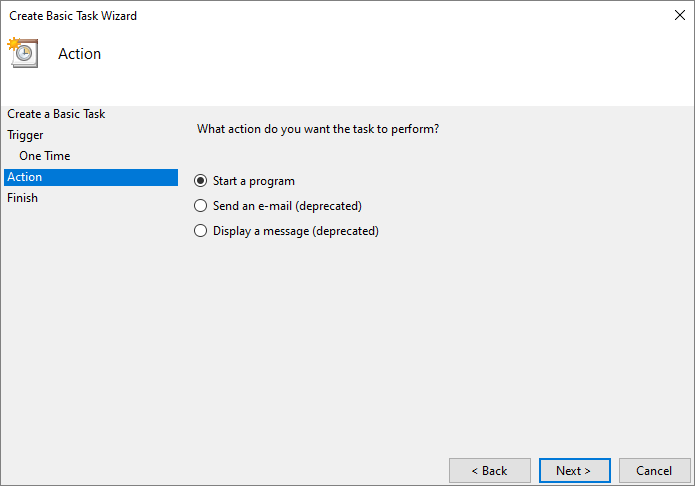
Action step: select Start a program and click Next.
-
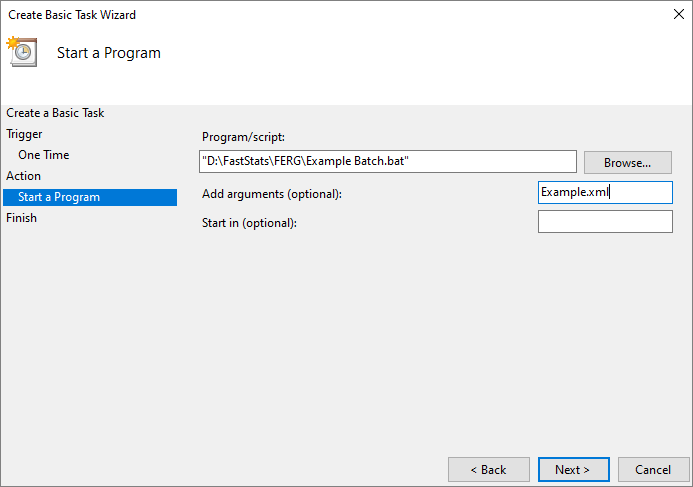
Start a Program step: click Browse, navigate to the batch file, and select it. Optionally, add the XML configuration filename in the Add arguments box.
-
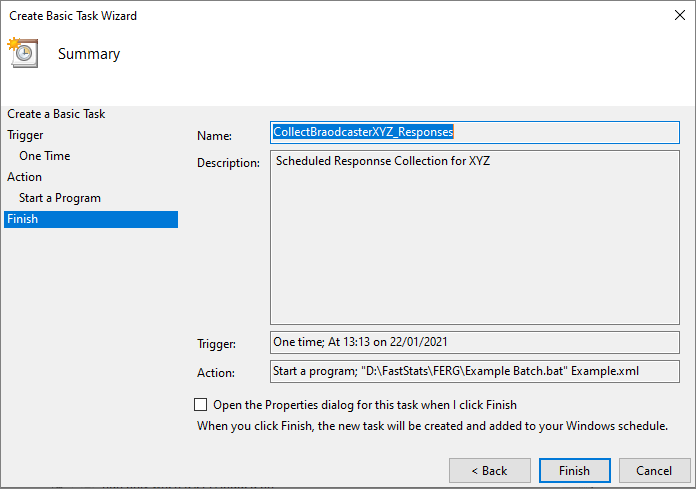
Summary step: click Finish.
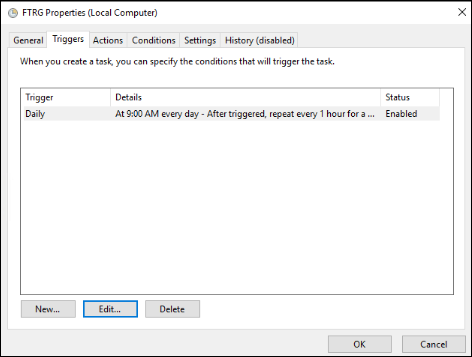
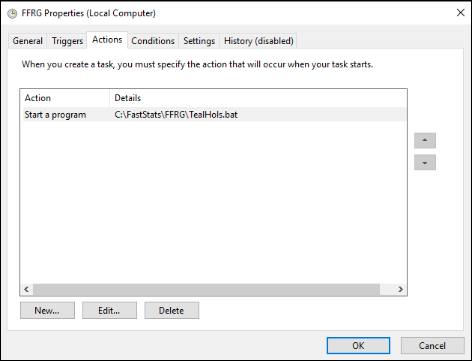
Create a task to run the FFRG as frequently as required:
Once the FFRG is running, responses are available in PeopleStage Facebook Reports immediately.