Orbit WhatsApp channels
Setting up an Orbit WhatsApp channel
To set up an Orbit channel:
-
With an Orbit user with the necessary permissions, click the profile icon and select Application settings.
-
Select Campaigning Channel Editor.
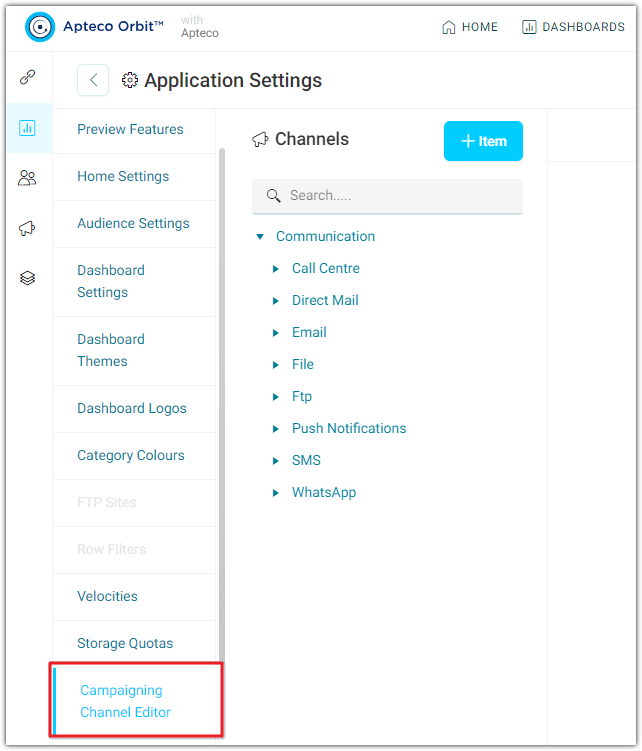
If necessary, create a folder for the WhatsApp channels. To create a new WhatsApp Channel, click +Item, then:
- For Create A New, select Meta WhatsApp Channel from the dropdown list
- Name the channel
- Select the Parent Folder
-
Click Create.
The first tab is Basic Details. Fill in each mandatory field.
Field Name Details Channel Name Name of the channel that will appear in Campaigns channel list Username The username of the Apteco user that will control this channel. For WhatsApp this should be the user that generated the Meta token App Apteco unless using own Meta API App Meta Business Meta business name as it appears in Meta WhatsApp Business WhatsApp Business name as it appears in Meta SMS Variable Select the system's SMS variable SMS Variable Description Override If the SMS variable description is to be changed for this channel, add the new variable description here -
Parameter Settings—Auto Exclude Opt-Out is set to True (cannot be changed).
-
Output Settings.
Field Name Details Allow In Transactional Output Setting to allow the channel to be used on lower transactional campaigns. Default is No Output Type WhatsApp Response File Key Type Choose the Response File Key. Options are SMS, SMS With Run, SMS With Broadcast Id. Default is SMS With Broadcast Id -
File Settings—leave as defaults.
-
Additional Variables—add any Variables from the system that will be included with every delivery.
-
Click Save All Changes to commit the new channel.