Date or DateTime expression
Add a date or datetime expression dimension
You can add date or datetime expression dimensions to a cube without the need to first create a virtual variable. For example:
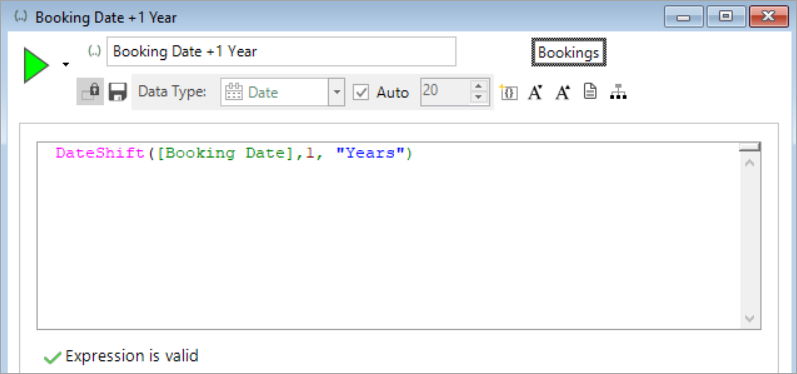
Simply right drag your expression onto the cube dimension and then band the dimension using any of the options available for date or datetime variables.
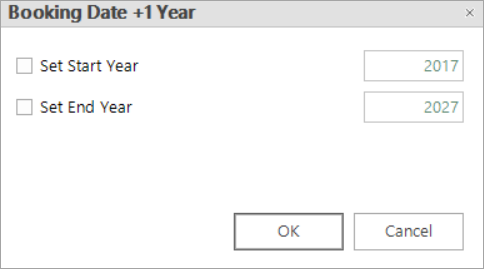
Once you select your banding option, you are presented with a second dialog in which you can set the start and end year for your date expression. By default this is ± 5 years from the current year (2022 below):
Note
Any dates falling outside of the range for strictly increasing bandings - for example months - will be categorised as Unclassified.
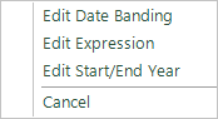
If you edit the dimension (from the right-click context menu), you are provided with the option to edit the banding, the expression, or the start/end year.
You can use a banded date or datetime expression on a cube dimension in all the same ways as you would a banded date or datetime variable.