Selector variables as measures
Adding a Selector variable as statistical measure on a Cube provides 3 functions to select from:
Mode
Returns the most frequently occurring value in the data set.
Cube statistics can show the Mode average of selector variables. The index of the value is returned in the cube because the result of a cube statistic must be numeric.
Example:
- Display a blank cube and add Gender to the horizontal axis and Income to the vertical axis.
- Click the
 button, select Add Statistics and then select the radio button to Specify other Table, Variable or Expression.
 - Drag the Destination variable onto the box and select Mode.
- Click OK and build the cube.
Note
You can short-cut the above process by simply left-dragging the selector variable into the middle of your Cube; by default the Mode function will be applied.
.png)
.png)
By moving your mouse pointer over a cell, a tool-tip provides full details of the Mode value returned. A Mode Destination value of 4.00 equates to Category 4 on the selector pick-list, in this example selector category 06-France.
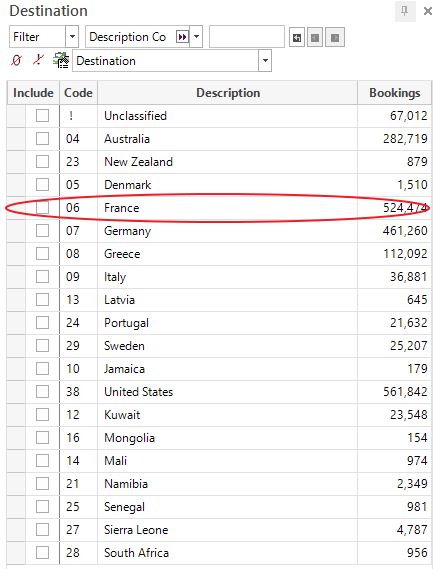
06 France — is the 4th destination on the picklist
In the example above, we see that France is the most frequently occurring Destination for Males earning less than £10k.
Count Distinct
Returns a value in this cell for the number of distinct instances of this variable found for the records in that cell.
Follow the steps above to access this function, or alternatively right-drag the selector into the middle of your Cube.
Example:
-
Right-drag the Destination variable onto the Cube and select Count Distinct(Destination)
.png)
-
Rebuild the Cube display
Looking at the same group of Males earning less than £10k, we can now see that they have visited 19 distinct destinations:
.png)
Count Mode
Returns a value in this cell for the number of times the modal value has been found.
Follow the steps above to access this function, or alternatively right-drag the selector into the middle of your Cube.
Example:
-
Right-drag the Destination variable onto the Cube and select Count Mode(Destination)
.png)
-
Rebuild the Cube display
.png)
Looking at the same group of Males earning less than £10k, we can now see that they have visited the most popular destination (in this example, France) 73,514 times.