Location geocoder
This wizard allows you to create two virtual variables to identify the Latitude and Longitude of a given set of records. These records can be identified through using existing geographical variables e.g. Zip/Postcode, Postal Area, Town etc.
The virtual variables created are useful when using the Geographical Functions in Expressions.
On the Wizard tab click on the Location Geocoder link to start the wizard.
Selection
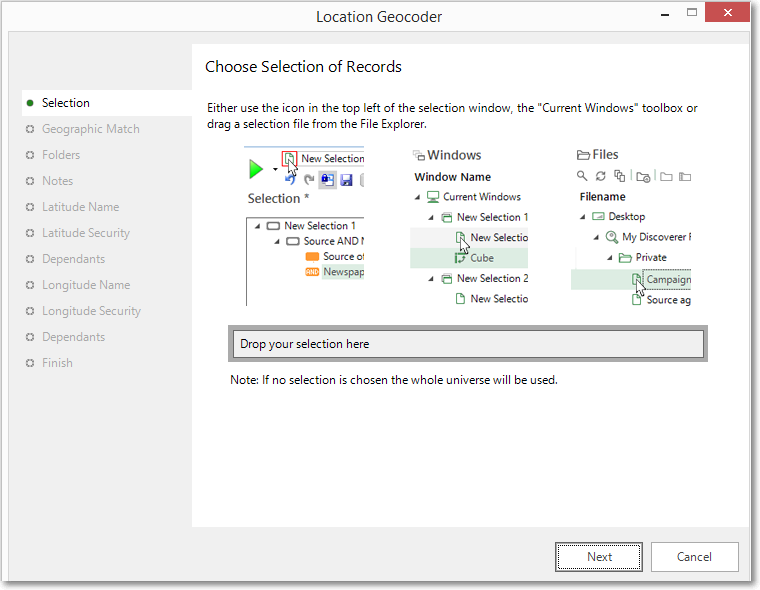
Start by creating a selection which identifies the records to be used.
In this example we will create the Latitude and Longitude variables to allow you to find the households, by Postcode, for a selection of High Earners.
-
Create a selection of People with an Income of £100k+
.png)
-
Drag the selection onto the Drop your selection here box.
Geographic match
Identify the world region:
-
From the drop down box select the World Region that applies to your records.
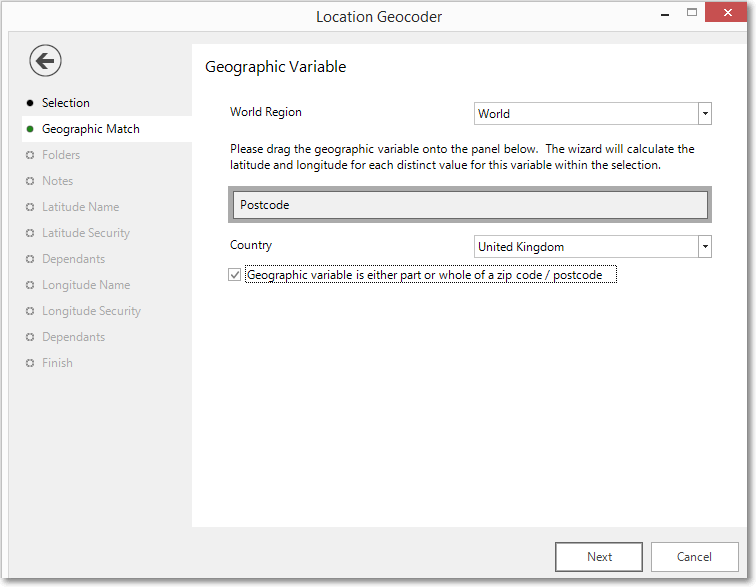
Specify the geographical information on which the Latitude and Longitude information will be based.
- Drag the Postcode onto the Drop your geographic variable here box.
- From the drop down box select the Country that relates to your records.
- If the geographical variable is part of a zip or postcode tick the Include in geocoding box.
Folders
Choose the folder that the new variable should be created in.
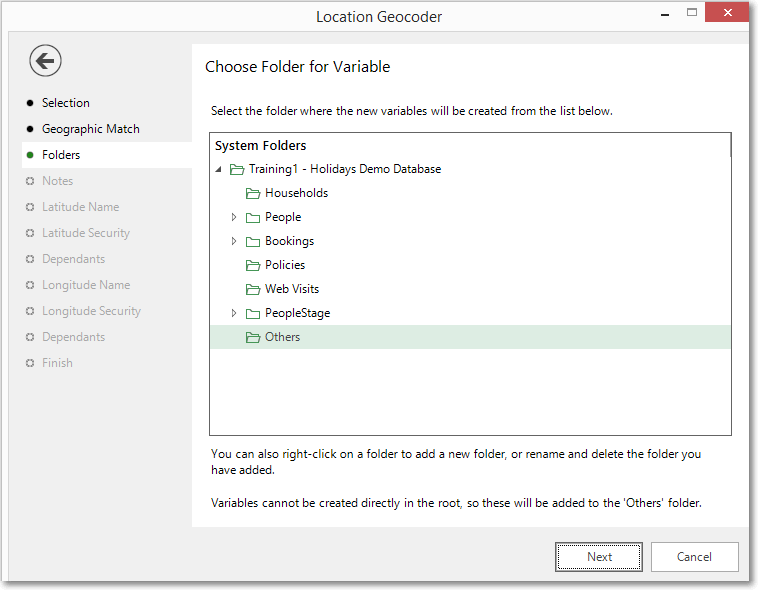
Create (if necessary) and highlight the folder to hold the virtual variables you are about to generate.
Notes
You can choose to add notes to your variable. These can be viewed later by right-clicking on the variable once it is in the System Explorer.
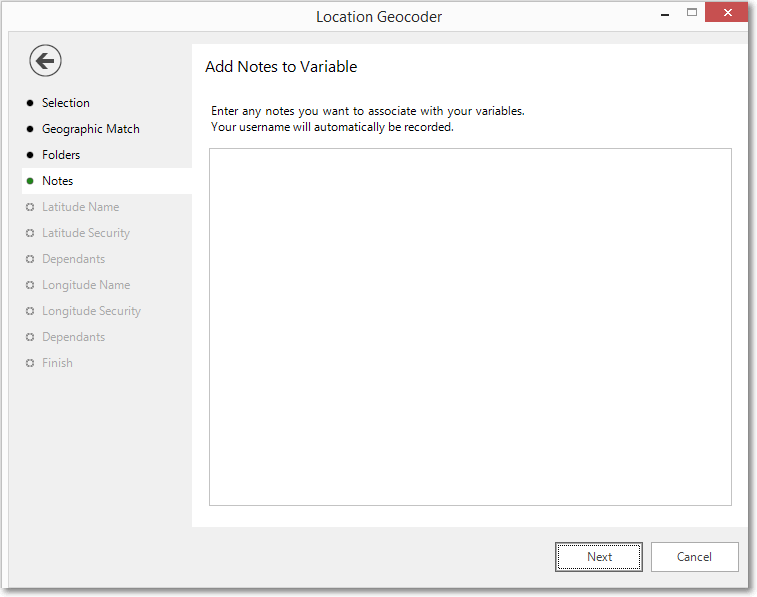
Enter any Notes you wish to record.
Latitude name
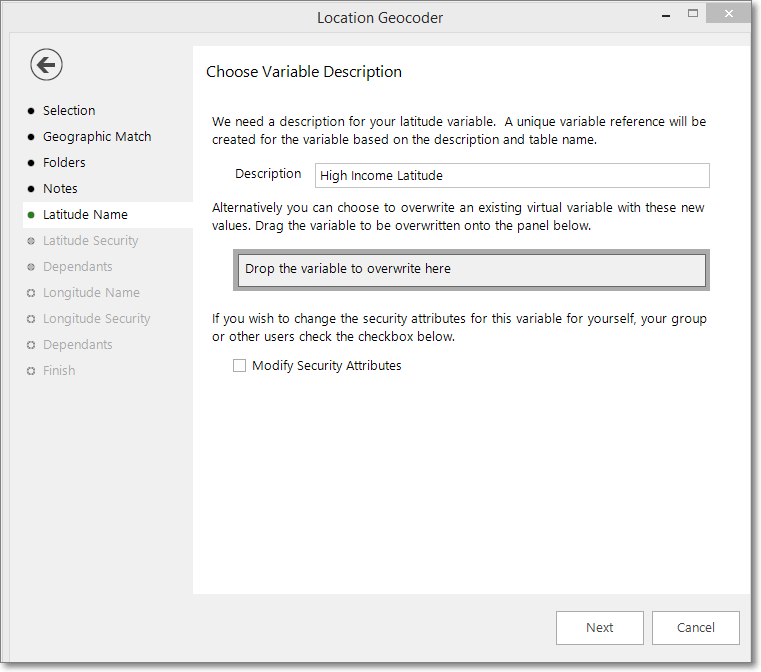
To create the first of the virtual variables, Latitude, you will need to give it a relevant name.
-
Enter the Description of the Latitude virtual variable that will be created - e.g. High Income Latitude.
-
To overwrite an existing virtual variable drag it on to the Drop the variable to overwrite here drop box.
-
Tick the Modify Security Attributes box to allow you access to Latitude Security (This option is only available on the Enterprise Version)
Latitude security
This is an optional step available on the Enterprise version of the software.
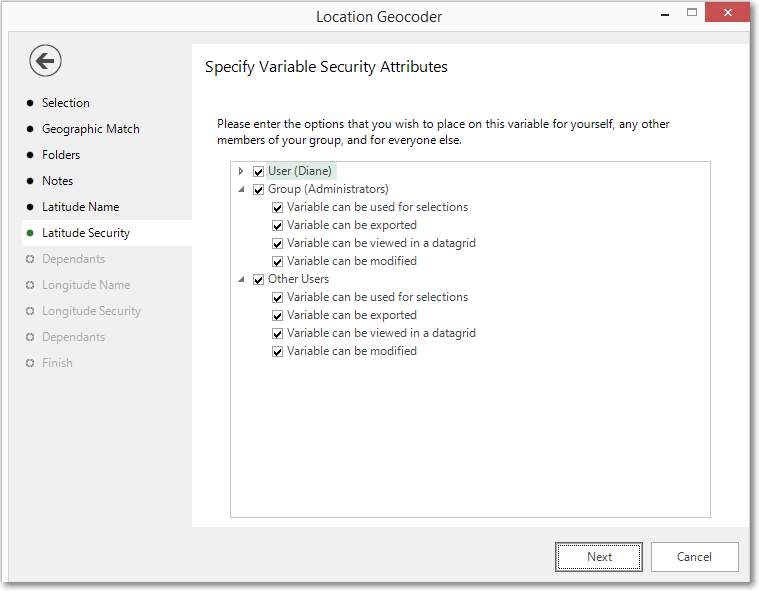
Use the tick boxes to set the security setting you wish to apply to the Latitude virtual variable.
Longitude name
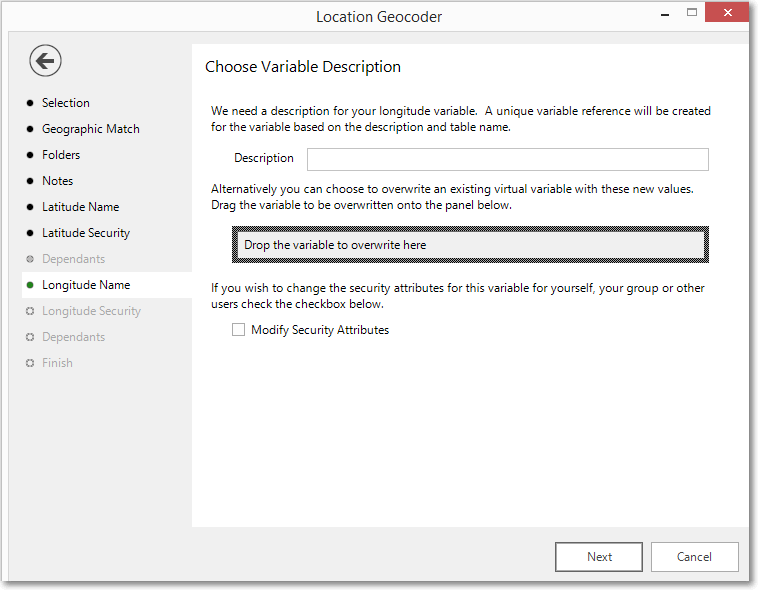
To create the second of the virtual variables, Longitude, you will need to give it a relevant name.
-
Enter the Description of the Longitude virtual variable that will be created - e.g. High Income Longitude.
-
To overwrite an existing virtual variable drag it on to the Drop the variable to overwrite here drop box.
-
Tick the Modify Security Attributes box to allow you access to Longitude Security (This option is only available on the Enterprise Version)
.png)
Longitude security
This is an optional step available on the Enterprise version of the software.
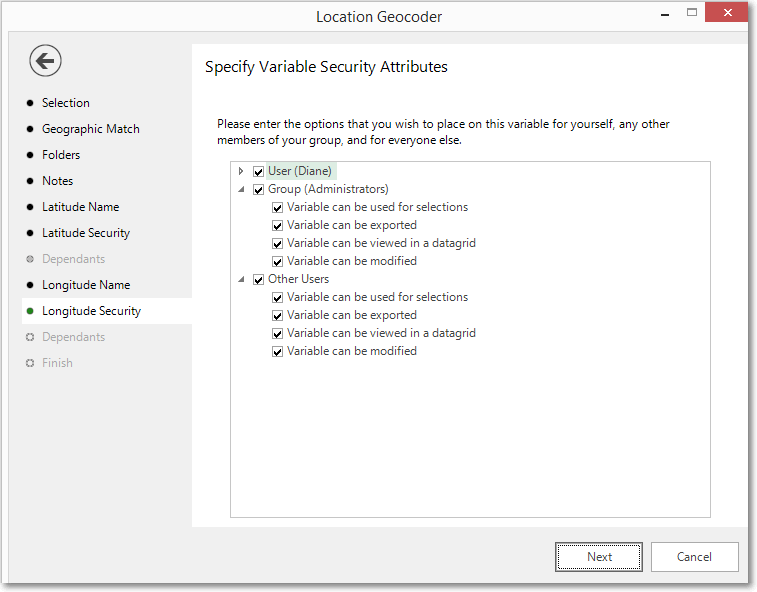
Use the tick boxes to set the security setting you wish to apply to the Longitude virtual variable.
Finish
When you reach this step, the actions required by this wizard have been performed. The new variable has been highlighted in the System Explorer.
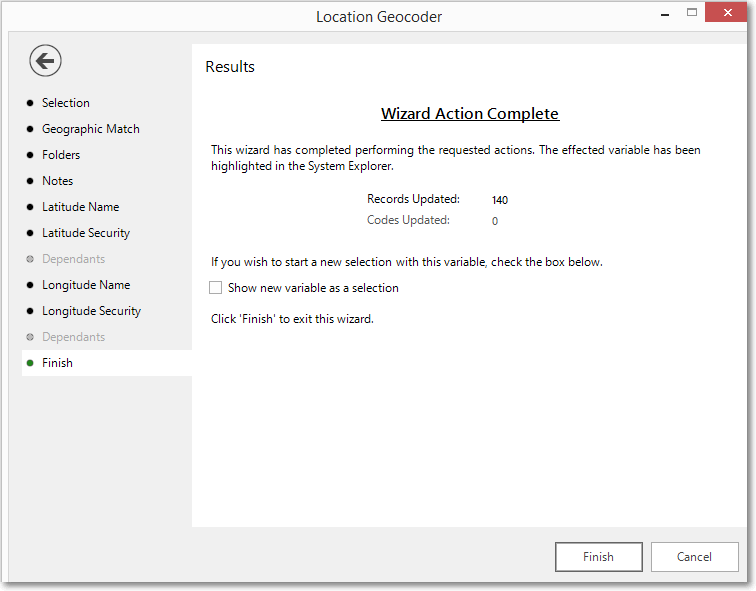
Tick the Show new variable as a selection box if you want to view the variable when the wizard is closed.
Click Finish to close the wizard.
Dependants
Where it is possible to edit a virtual variable, the step panel on the left of the wizard gives two opportunities to review any dependant variables on the one being updated.
Note
The review of dependant variables is only available to Enterprise system users.
The first review comes by marking the Review Dependant Variables box on the Name step. This gives the opportunity to see which variables will be affected by the potential changes before the update takes place.
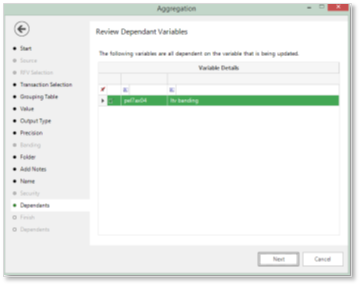
The second review is available after the update has taken place by marking the Show dependant variables box on the Finish step.
Note
It is a personal choice as to whether a review of dependant variables is made before or after the update of a virtual variable. In either case you will need to manually amend any dependant variables, if required.
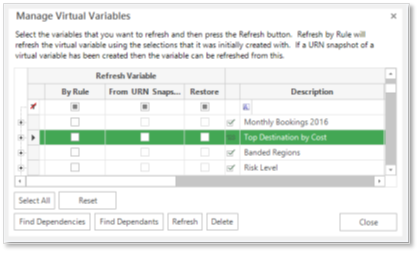
Alternatively, it is possible to review all Virtual Variables by navigating to the Manage Virtual Variables window:
- File – Tools – Manage Virtual Variables…
- Highlight a Virtual Variable in the grid and click on…
Find Dependencies – which will show virtual variables that are used in its creation
Find Dependents – which will show Virtual Variables that use this variable in their creation