Using interaction splits
This guide helps you set up your interaction splits and provides best practices on path hierarchy and interaction options.
Setting up an interaction split
To add an interaction split:
-
Open your campaign journey or create a new one. See Creating a campaign.
-
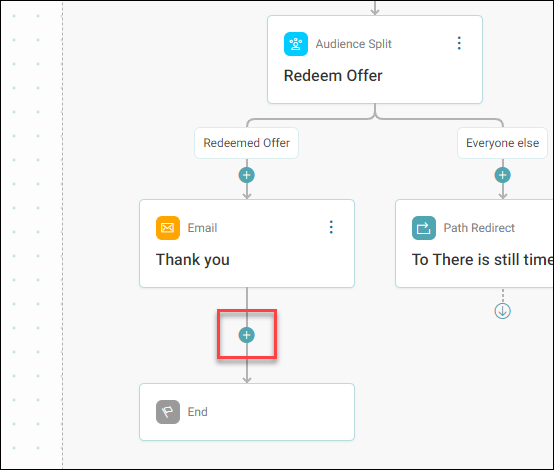
Click the + where you want to add your interaction split in your journey.
-
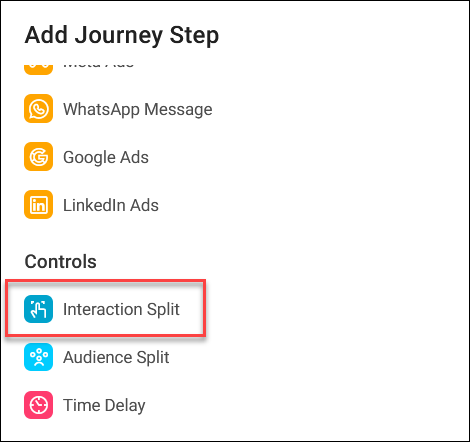
Under Controls, click Interaction Split.
-
Click your new Interaction Split step.
-
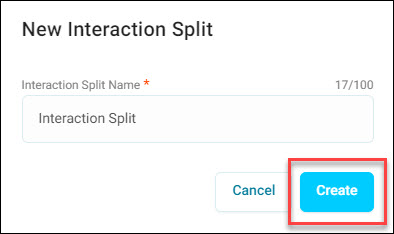
Enter an Interaction Split Name, and click Create.
-
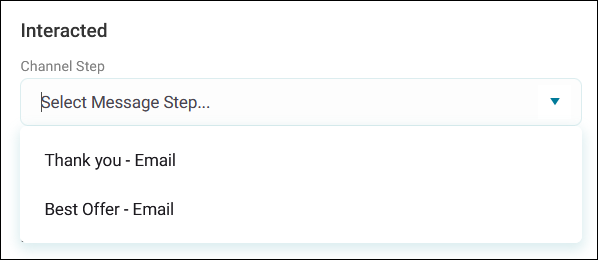
Select which Channel Step to base the split on.
Note
You can select any channel step above your interaction split in the journey.
-
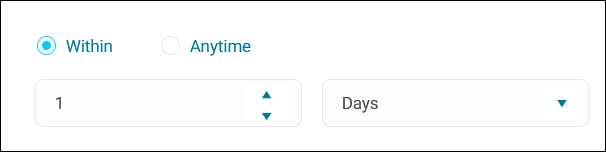
Set the timeframe for capturing interactions.
Tip
Add a time delay before your interaction split to allow recipients time to engage with the message.
-
Click + Add Path to create different routes based on recipient behaviour.
-
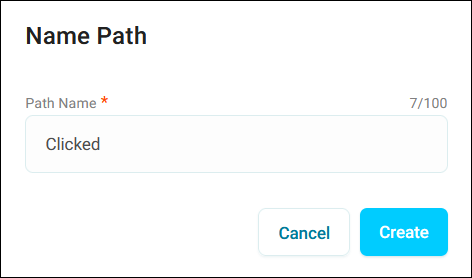
Give your path a name, then click Create.
-
Once you’ve added all your paths, click Apply.
You’ve now set up your interaction split.
Path hierarchy and interaction options
Orbit evaluates paths in hierarchical order. The top path has priority, with importance decreasing as you move down. This means the first path matching a recipient's behaviour determines their route. You can reorder paths in the side panel.
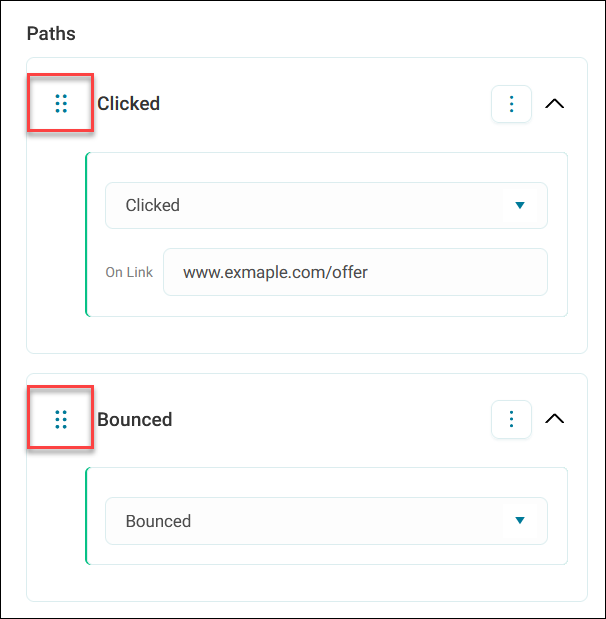
The interaction options available depend on your channel type:
- Sent: The total number of messages successfully delivered and accepted by the recipient's server
- Clicked: The total number of recipients who clicked a link in the message (you can segment by specific links clicked)
- Opened: The total number of recipients who opened the message
- Bounced: Hard and soft bounces combined
- Unsubscribed: The number of recipients who confirmed they wished to unsubscribe
Setting effective path order
We recommend applying this hierarchy when ordering your paths:
- Handle bounces first
- Then unsubscribes, since further messaging is unnecessary
- Then focus on engagement metrics like clicks and opens to prioritise follow-ups
Troubleshooting
Interactions disappeared after switching channel types
When you change a channel step type (for example, from email to WhatsApp), some interaction types may not be supported by the new channel. Supported interactions persist; unsupported ones are removed. For example, if you switch from email (with bounced and sent paths) to WhatsApp (which doesn't support bounce detection), then the system removes the bounced path but sent persists.