RFV selection
In some situations it is not sufficient to be able to select on the presence or absence of data. This may be the case when you wish to select on the number of times that a particular type of data appears, or to perform averages across a number of data records. In this situation, you will need to use FastStats’ Recency Frequency Value (RFV) selection mode.
RFV selection mode is only available on selections which are performed on a particular table which has at least one table at a lower level in the table hierarchy. As an example, in a system which has customers and transactions, you would only be able to do RFV analysis on the Customer table because each customer may have several transactions that can be counted by the Frequency mechanism, ordered by the Recency mechanism and summed or averaged by the Value mechanism. You would not be able to do RFV analysis on the Transactions table because this is the lowest level in the table hierarchy.
Note
In FastStats, RFV can be applied to any node within a selection which is an ANY clause.
Example 1
The following example is a selection of Households where the household contains at least one person who is a 'Director'.
.png)
Example Selection of Households with at least one person who is a Director
Suppose we want to do RFV analysis to only count households which have 2 or more residents (where at least 1 resident is a Director). To do this we will need to make use of the Frequency functionality:
- Right click on the ANY node and choose Apply RFV to Household...
-
In our example, we only want to count households with 2 or more People records, so tick the Frequency checkbox and enter '>=2' in the box as shown below.
.png)
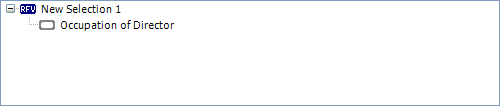
When you click OK the selection will change to show RFV in the selection node as shown below:
Example 2
As a second RFV example, suppose we want to count the number of People whose last 2 holiday bookings total more than £800.
To do this, set up a selection on the People table of Cost > 0.00 as shown below. This will ensure that every Booking record is considered for the RFV analysis.
.png)
Example selection of People with Booking Cost >= 0.00
- Right click on the ANY node and choose Apply RFV to Person...
- In our example, we are interested in the last 2 holidays so tick the Recency box, choose Last from the drop down box and enter '2' as the value.
- Drag the Booking Date variable and drop it onto the Recency variable drop area.
- Tick the Value box and enter '>800' in the value box as shown below.
- Drag the Cost variable and drop it onto the Value variable drop area.
-
Click OK.
.png)
This example RFV will select people whose last 2 holidays (based on Booking Date) total more than £800.
Note
Other actions can be applied in the Value section besides Sum, including Average (mean, median and mode), Minimum, Maximum and Distinct