Files in selections
.XML files
XML files contain the logic defined within a selection when that selection is saved. The count returned reflects the number of records meeting the selection criteria whenever the selection is run.
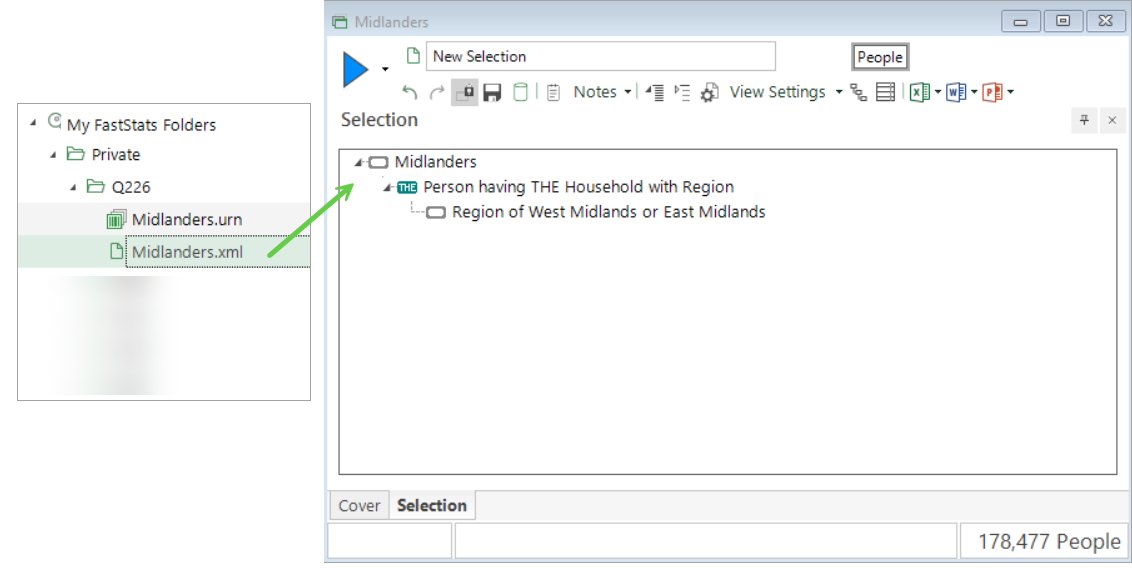
Left‑dragging a saved .XML selection file into another selection copies the selection logic into the new query. You can then edit or add to the logic in the new selection, as necessary.
Note
Once dropped into the new selection, any changes made to the original query's logic do not affect the new selection.
Right-dragging a saved .XML file opens a context menu which allows you to add a saved .XML file by reference.
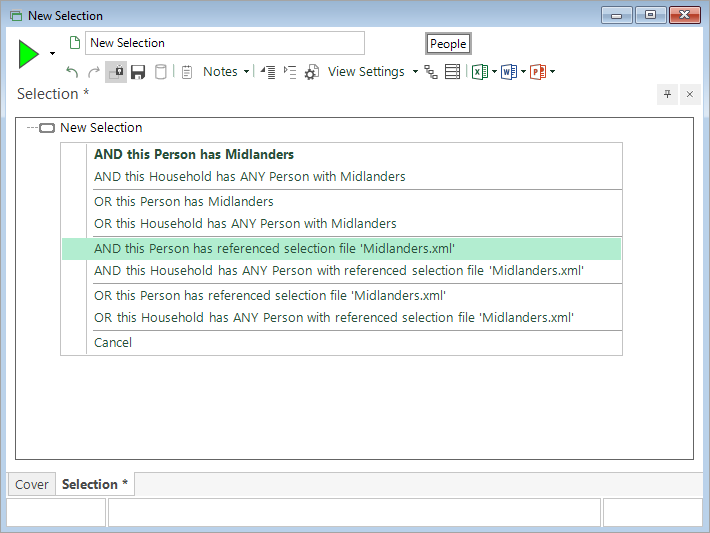
With this approach, any changes to the source selection will be reflected in the new selection, as well as in any other selections that reference the same XML file.
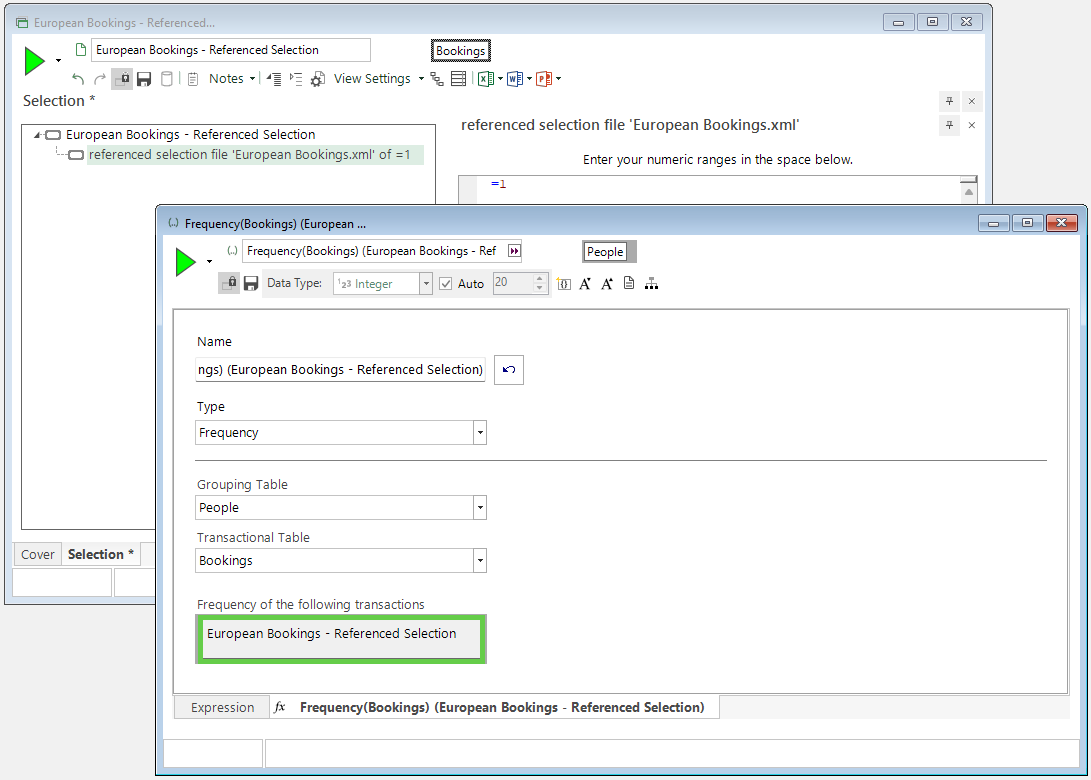
You can use the same saved .XML reference selection multiple times in a selection, or use multiple different reference files. FastStats detects the table level of the reference file and adds the appropriate logic into the new selection. You can use these selections throughout your analysis, including in:
- Cube dimensions and measures
- Data grid columns
- Expression filters
- Virtual variable selections
They are particularly useful, for example, when you have:
-
Aggregations with transactional filters that need regular updates;
-
Exclusion groups shared across multiple analyses or campaigns that change occasionally.
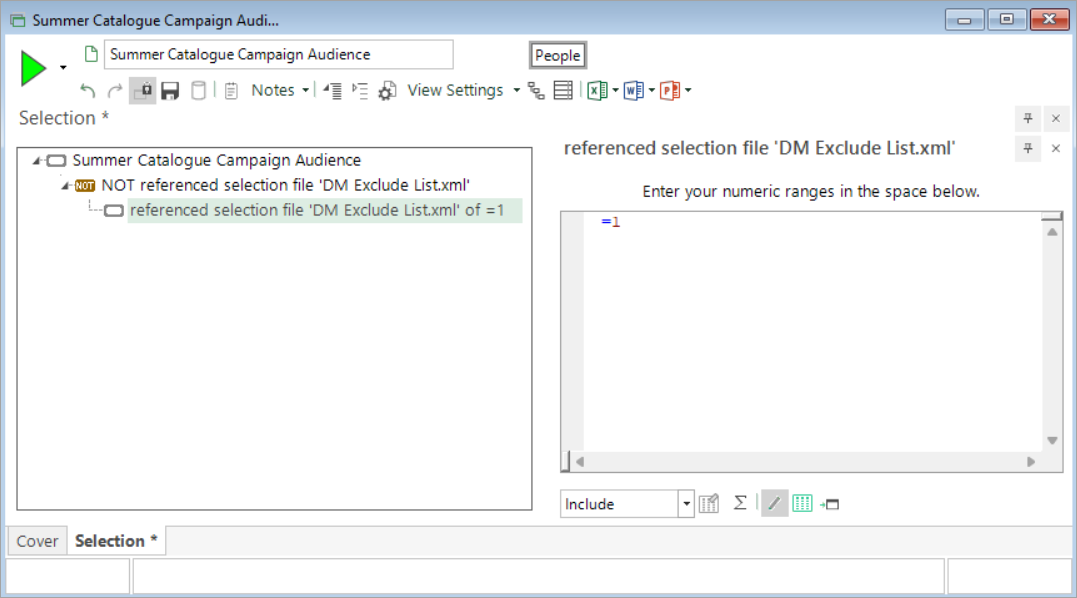
Warning
The user is responsible for ensuring that the referenced file is not accidentally modified or deleted.
.URN files
URN files contain a list of unique reference numbers for the records that are captured when the file is created.
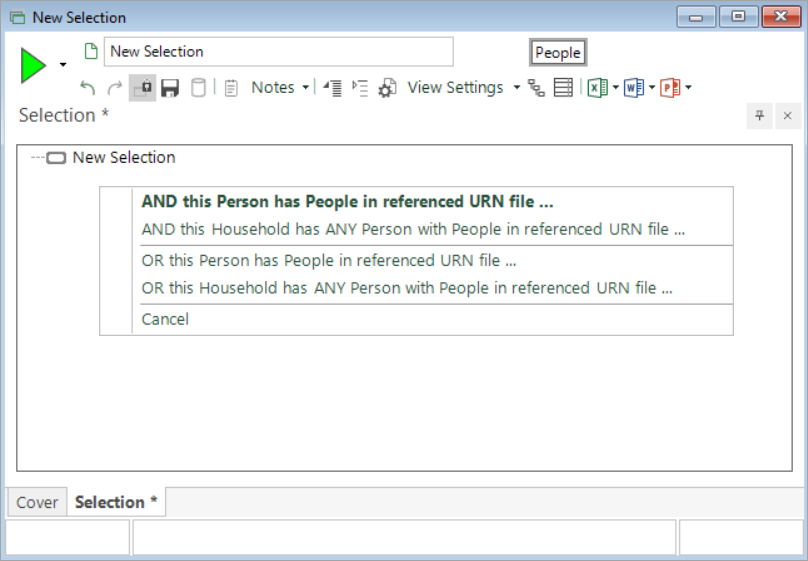
When you left-drag a .URN file into a new selection, it creates a reference to the original file within the new selection. As a result, any changes made to the original URN file automatically apply to all queries that reference it.
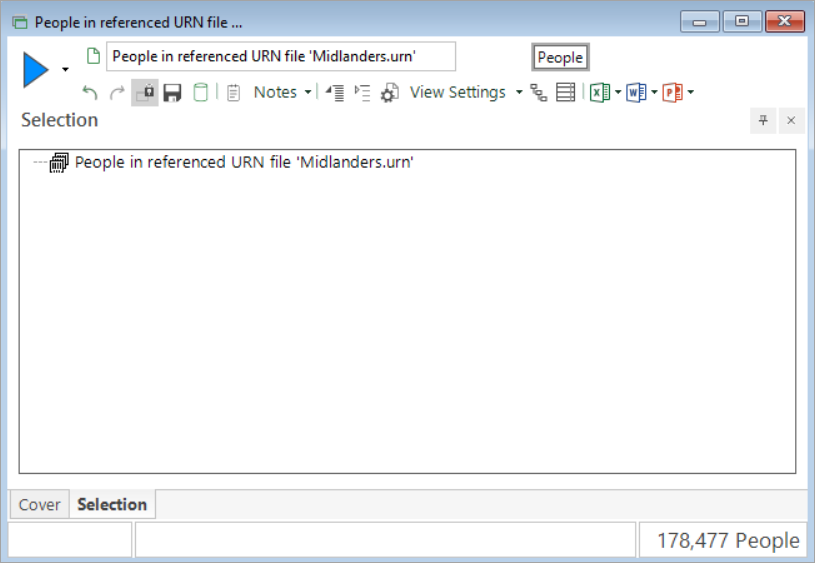
Similar to adding variables, right-dragging a URN file into a new selection window presents a context menu which allows you to choose the manner in which to add the selection. The default (equivalent to a left-drag) action is presented in bold. For more on the possible options, see Combine selections.