Choosing dimensions
The Dimensions tab of the modelling environment is where you can explore a range of possible dimensions (behavioural features) and evaluate them to identify those which are most useful in creating a model. You can then take this subset of the best features forward to create an actual model using the PWE or Decision Tree tools.
The dimensions chosen to create a model should be:
- Predictive - dimensions which can distinguish between the analysis and base selections.
- Diverse - dimensions which are not related to each other.
There are two main stages to the evaluation process.
- Identify if, on the defined training date, the dimensions you have created are predictive of the desired behaviour.
- Identify if, at another point in time when the behaviour is known, those dimensions correctly predicted the behaviour.
Once the modelling environment is built, you can find useful insights in the Dimensions grid. The graphical view allows you to view training and evaluation results, and compare the two.
The ideal scenario would be one where a dimension is predictive on the training date, and the evaluation results closely mirror those of the training date.
On the evaluation date, actual results are available - such as, for example, the people who went on to take out insurance cover after making their booking. This allows you to identify predictive dimensions on the training date and then test them on the evaluation date to determine the accuracy of the predictions.
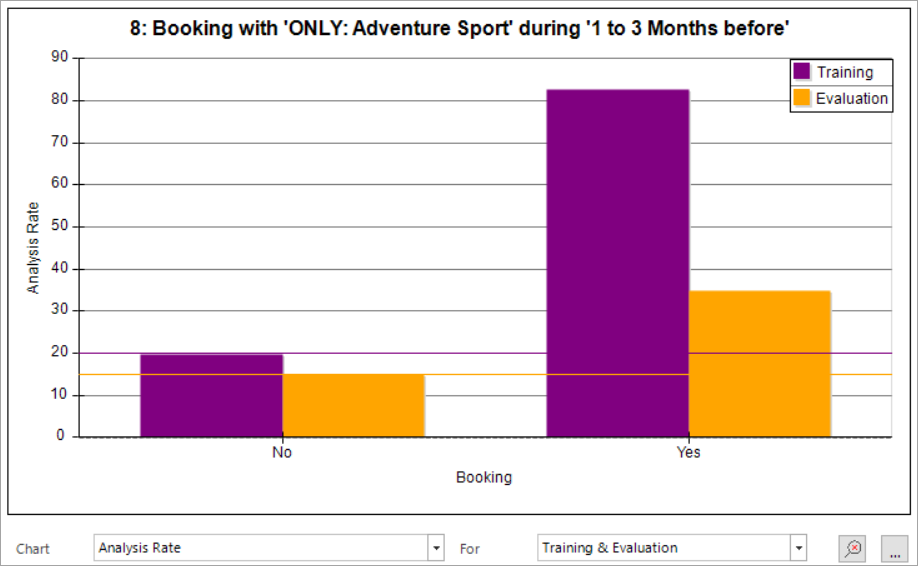
In the chart below, a predictive dimension is backed up by the evaluation:
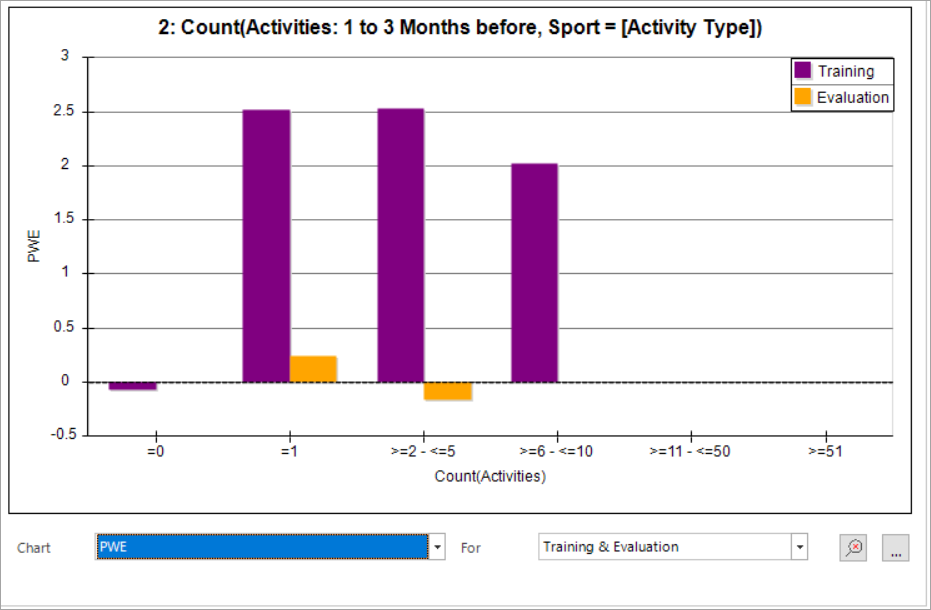
However, in the following chart, a predictive dimension is not backed up by the evaluation:
Building the modelling environment
To evaluate dimensions, you can choose to build the modelling environment after creating each individual dimension, or after creating all of them. Building the modelling environment generates various charts that help you to assess how predictive the dimensions are. Additionally, in the Association Matrix tab, the grid display identifies dimensions that yield similar results and helps you to decide if you want to include them in your model.
-
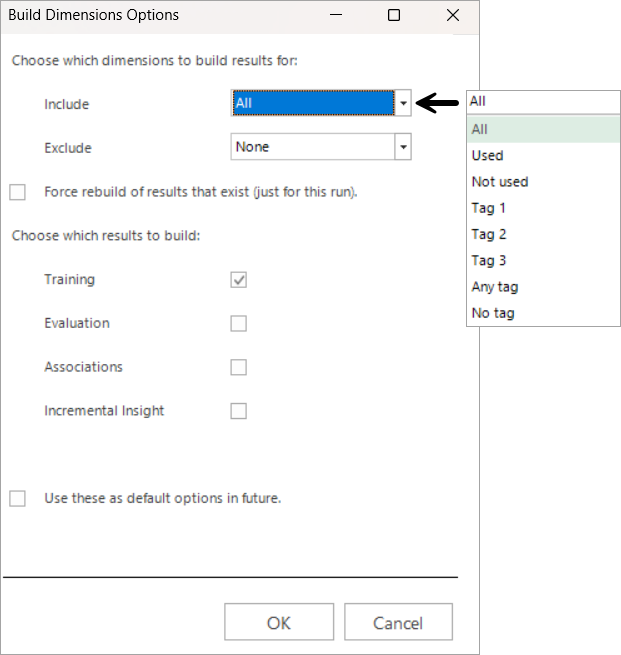
Click Build for the modelling environment to open the Build Dimensions Options dialogue.
Choose which dimensions to build results for
You can choose which dimensions to build results for, deciding which dimensions to include or exclude, as well as which type of results to build.
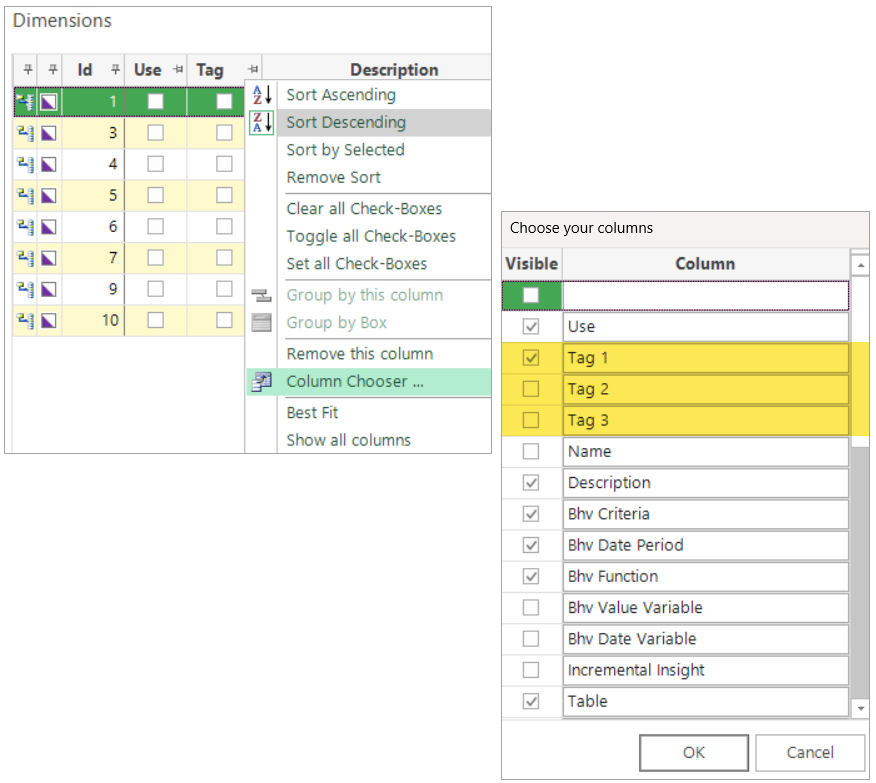
Notice that, towards the left of the Dimensions window, there are columns for Use and Tag 1. If you check the boxes in those columns, you can then build just the tagged dimensions, or the dimensions marked as used.
The Tag option allows a user to group sets of dimensions together. By right-clicking on a column header and selecting Column Chooser, further tagged columns can subsequently be added:
Choose which results to build
Training and evaluation dates are set via the Modelling Environment's toolbar:

In the scenario used in this Help files example, the training date is set to 01/01/2022. Until now, no evaluation date has been set.
-
Open the drop-down and set the evaluation date to 01/01/2023.
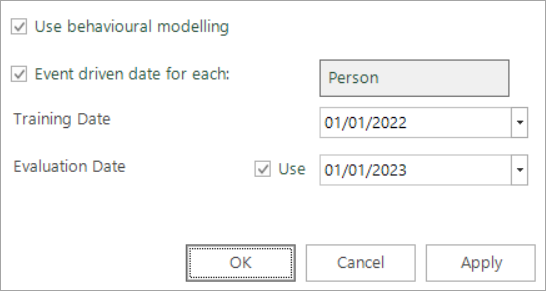
With the above settings:
-
The model is built on the 01/01/2022 and then applied to 01/01/2023 when we know the behaviours and can see if it has identified the correct people.
-
Selecting Associations creates a grid that allows you to see how closely different dimensions correlate. This is designed to help you identify dimensions that provide similar insight so that you can make an informed decision about which dimensions to include in the model.
-
Incremental Insight adds a specific column that displays incremental insight for the dimensions marked as used.
-