Create data grid
Creating a data grid
To create a data grid:
-
Drag and drop the Data Grid tool
.png) from the Toolbox onto an existing selection or onto the FastStats workspace.
from the Toolbox onto an existing selection or onto the FastStats workspace.If you have not created your selection first then define your selection on the Selection tab. If no selection is defined then the data grid will be based on the entire record set.
-
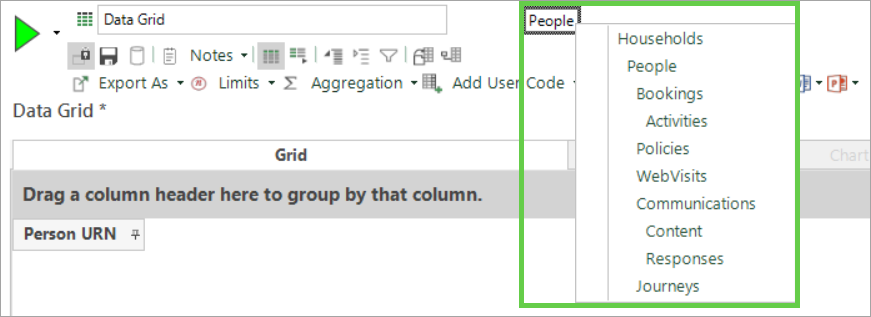
If necessary, set the resolve table by dragging the relevant System table name onto the Resolve Table or right click on the box and select the required table.
-
Drag and drop the variables you want to see from the System explorer onto the data grid.
Notes
-
If you want to include all the variables in a particular folder on the data grid then you can simply drag and drop the folder onto the data grid.
-
To apply all fields within the underlying selection, click on the
 Fields from Selection button to add them to the grid.
 -
Don't forget that right-dragging of variables onto the data grid can provide further advanced options for displaying your data.
-
To show all records selected, including those without any transactions, click on the
 Show Records With No Transactions button to add them to the grid. Click the Build button to produce the data grid.
-
-
Build to display the selected information.
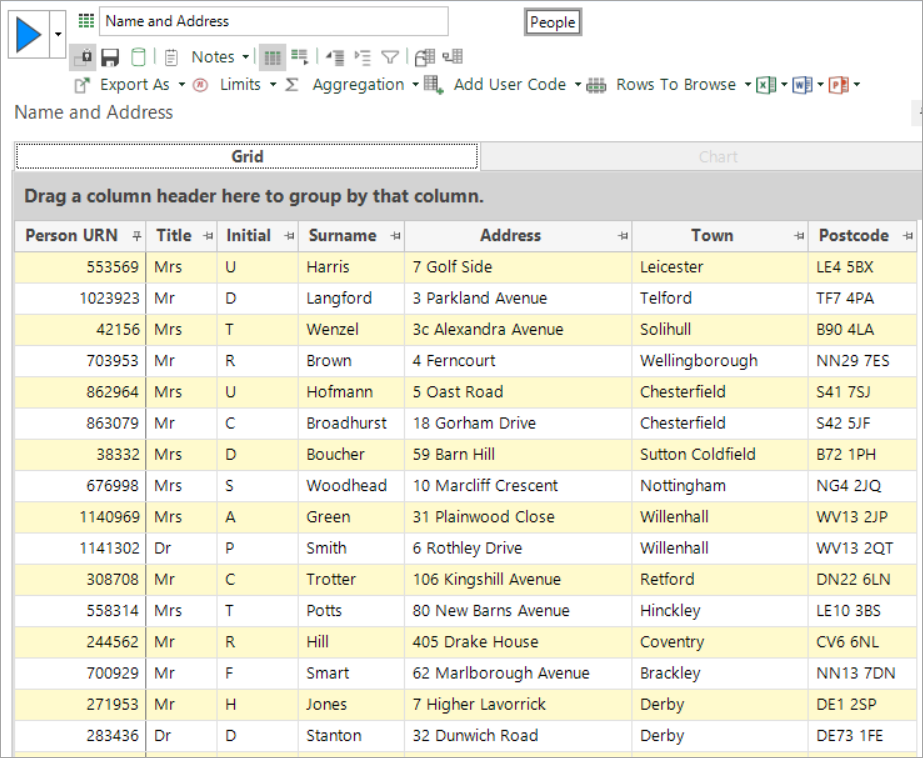
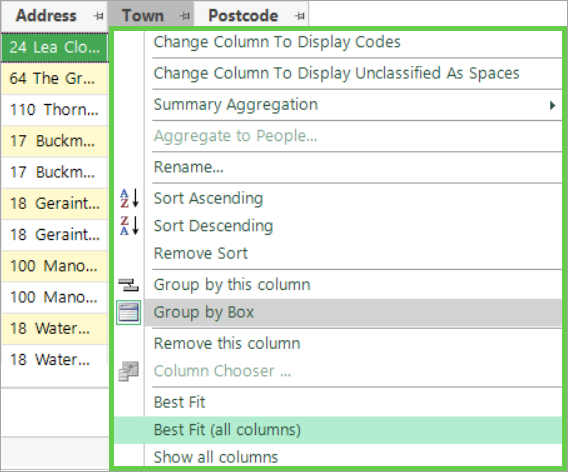
You can adjust your data grid display by right-clicking on a column header to access multiple context menu options: