Column aggregation
Data Grids have the ability to aggregate results from child tables. This feature has a number of marketing analysis applications including selecting latest transaction details, calculating total and average transaction values, selecting contacts at companies and exploring transaction trends.
By creating a Data Grid (on a People table selection) with a mixture of say People and Booking table information the resolve table will automatically set itself to the lowest table level. This will then display all Bookings for the People identified in the selection with the People information repeated against each transaction.
.png)
Column Aggregation within the Data Grid can be seen as a middle option between showing all or none of the transaction information. It allows you to sequence the transactional data to show just one set of transactional information against one higher level record e.g. the latest Booking a person has made.
Example 1
To show the latest transaction against each contact on the database:
- Create a blank selection at the higher table level (People) and drag on a Data Grid with a mixture of relevant table level variables - e.g see screenshote below.
-
Set the Data Grid to the People table.
.png)
-
Click on the
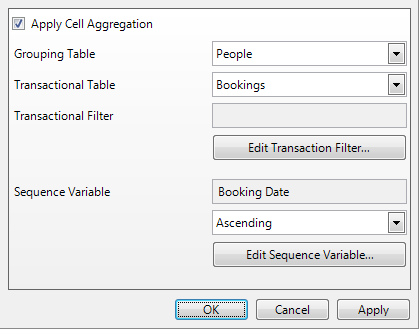
.png) button to set the sequencing information. Tick the Apply Column Aggregation box.
button to set the sequencing information. Tick the Apply Column Aggregation box..png)
-
Select the appropriate Transactional Table from the drop down box.
-
To select the Sequence Variable click on the Edit Sequence Variable... button.
.png)
-
Drag on the appropriate variable to sequence by, in this example Booking Date is used.
-
Click OK.
Note
It is also possible to apply a filter based upon the transactional records. By clicking the Edit Transaction Filter... button you can drag on a selection at the appropriate table level to filter by e.g. European Holiday Bookings
By default, variables from the transactional table will be given the appropriate aggregation function for that type of variable.
-
To determine which transaction record to display, firstly identify the transactional columns, in this example they are Destination, Booking Date and Cost.
-
Right click on the Destination column heading and select Aggregate to People....
.png)
-
In the Aggregation Function window, choose the Function for Last and Index position 1 and then click OK.
-
Click the Build button to see the results in the Data grid.
.png)
The Column Aggregation Functions available are determined by the variable column to be used:
| Text | Numeric/Currency | Categorical | Date | ID URN | |
|---|---|---|---|---|---|
| First | x | x | x | x | x |
| Last | x | x | x | x | x |
| Populated | x | x | x | x | x |
| Count Distinct | x | x | x | x | |
| List Distinct | x | x | x | x | |
| Ordered List | x | x | x | x | |
| Sum | x | ||||
| Mean | x | ||||
| Median | x | ||||
| Minimum | x | x | |||
| Maximum | x | x | |||
| Select from Sequence | x | x | x | x | x |
| Rank Coefficient | x |
Table of Cell Aggregation options for different Variable Types
Example 2
The following example uses the Select From Sequence option to rank Title information in order of importance. For example, if there is both a Mrs and Miss in the same house the Mrs will be displayed. If none of the 3 options are present in the house the Default Text to Display will be Male.
.png)
.png)
Notice that the overall transaction table Sequence Variable provides a secondary order. In this example if there is more than one Mrs at the same address the one with the higher Income will be selected.
See also: Data Grid Aggregation - Ordered List