Configure Apteco to use SSO
Once you have set up SSO with your chosen protocol and provider, configure each Apteco product to use it.
Orbit
To configure Orbit SSO:
- Open the Orbit API Configurator.
- Select the General tab.
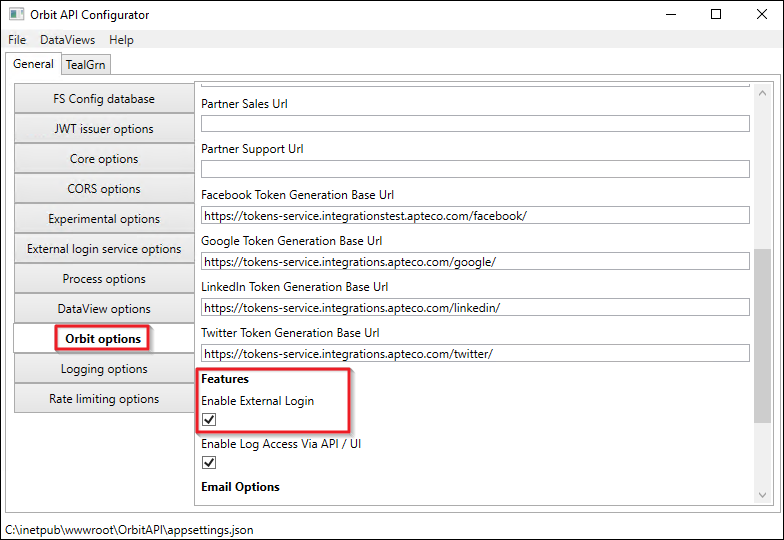
- Select Orbit Options.
-
Under Features, check the Enable External Login box. This configures Orbit to use the SSO login.
-
Save and close the Orbit API Configurator.
FastStats
To configure FastStats SSO:
- Open the FastStats Configurator.
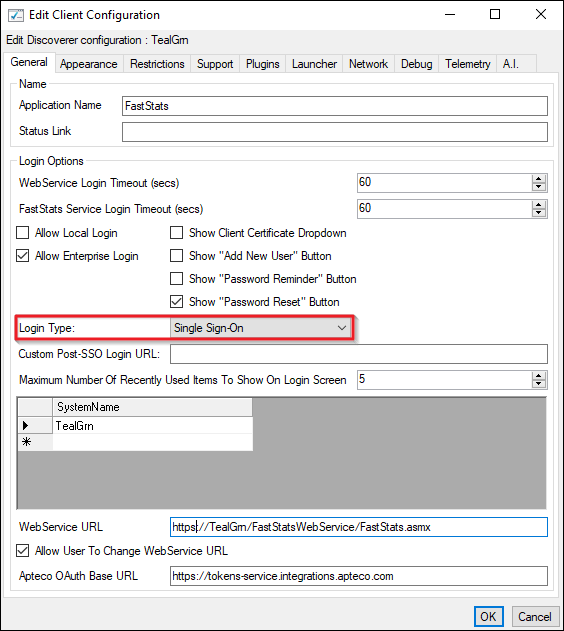
- Go to Web Service > Client Configuration > FastStats Client > Edit.
- Click the General tab.
-
Change the Login Type to Single Sign-On.
-
Click OK.
- Save and close the FastStats Configurator.
Note
You must close and re-open the FastStats Launcher for this change to be picked up.
PeopleStage
To configure PeopleStage SSO:
- Open the FastStats Configurator.
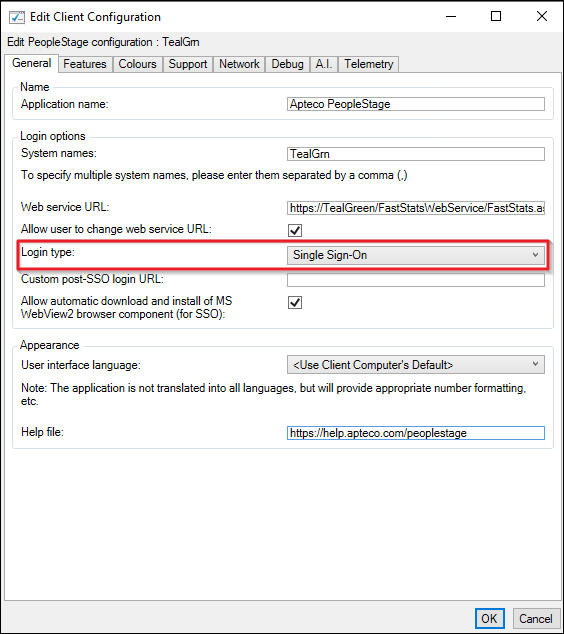
- Go to Web Service > Client Configuration > PeopleStage Client > Edit.
- Click the General tab.
-
Change the Login Type to Single Sign-On.
-
Click OK.
- Save and close the FastStats Configurator.
Note
You must close and re-open the PeopleStage Launcher for this change to be picked up.