Tile editor
You have additional options that available on each tile.
Select the Data Labels icon  from the top right of the tile.
Data labels
You can configure how a dashboard tile displays Data Labels, the options are:
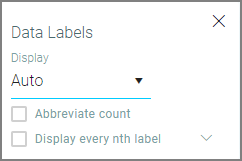
- Display - Turn labels On or Off or set to Auto (Auto - data labels will automatically display when the tile is large enough)
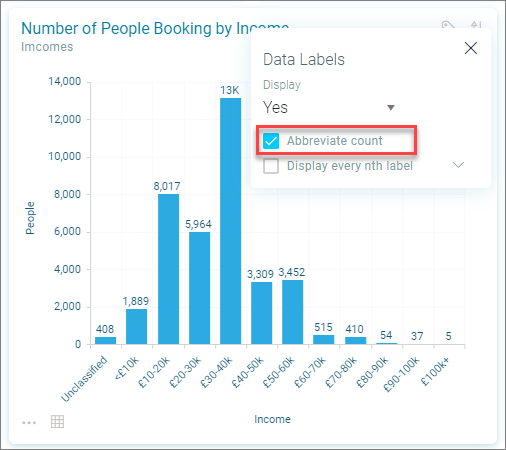
- Abbreviate count - Abbreviate the data label values
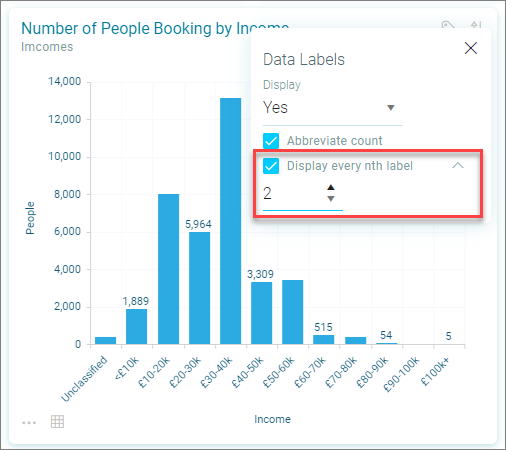
- Display every nth label - Set a step value to prevent labels from clashing
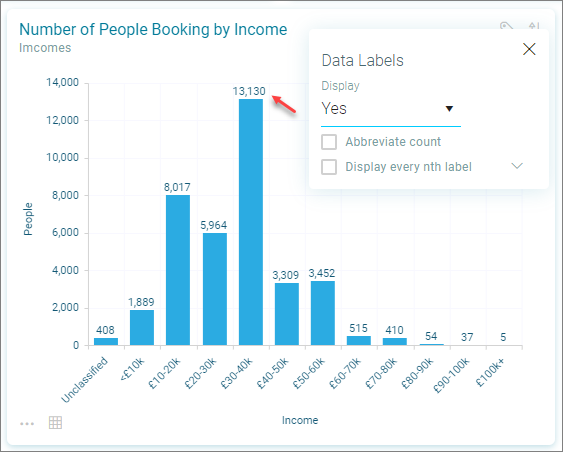
- Click on the Data Label icon to set the options
- Select Abbreviate check box to abbreviate the value
- Select Display every nth label and use the cell to enter a value or the Increase and Decrease arrows to adjust the interval
View codes and descriptions
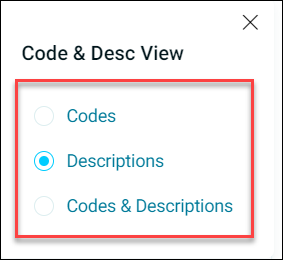
You can choose to display codes, descriptions, or codes and descriptions for selector/array variables from the tile ellipsis menu .
To select from codes and description options:
- On an appropriate tile, click the ellipsis menu.
-
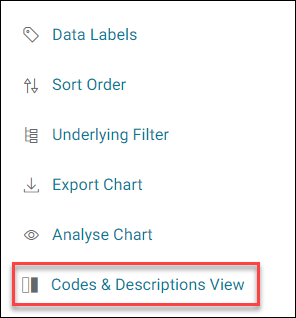
Click Codes & Descriptions View.
-
Select from the Code & Desc View options.
Advanced options
Use the ellipses icon to open the Advanced tile options
Exporting a chart as an image
From the charts advanced options menu:
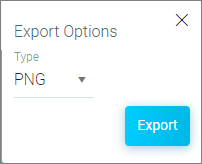
- Click the Download chart as image button
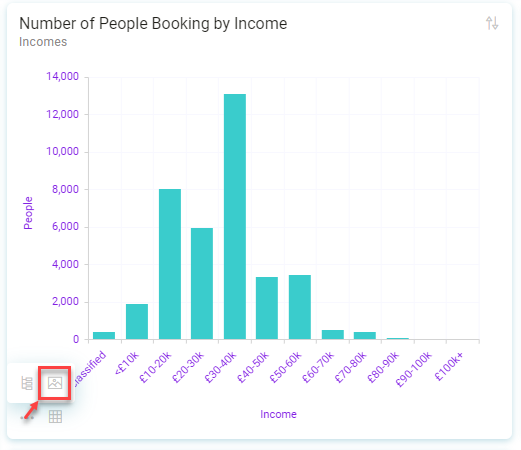
- Select for either PNG or SVG